


How to Improve Photo Quality with AI: 7 Gemini Prompts and the Truth About 4K
7 Gemini prompts to improve photo quality: portraits, family photos, text on signs and old black and white photos. We measured with 81 images: asking for "4K" returned 1K in 12 of 12 tries, and small handwriting came back with invented letters. Here are the prompts that keep faces and text intact, and the real way to get 4K.
- Telling Gemini "Make this photo 4K" does not make the file 4K: 12 of 12 outputs that asked for "4K", "HD" or "upscale to 4K" came back at 1K (longest side 1152 or 1264 pixels).
- Real 2K and 4K only come from the resolution setting: the Gemini app downloads 1K on an account without a plan and 2K with a Google AI plan; when we picked 4K in the API we got 3712x4608 pixels.
- In small handwriting the model invents letters it cannot read: on the price card, the word for sunflower seeds ("Cekirdek", spelled with a Turkish C-cedilla) came out as "Cekindek". Prompt 4, which gives the text in quotation marks, was letter-perfect in 4 of 4 outputs on Flash and Pro.
- A short prompt can colorize a black and white photo (on Flash it was fully colorized); prompts with the sentence "keep it black and white" kept the gray in 5 of 5 outputs.
- Do not run the same photo through "improve the quality" again and again: by the third round, face similarity dropped from 0.923 to 0.883.
- Flash-Lite is the fastest (3.9 s) but got small text wrong in 4 of 5 outputs; for quality work, pick Flash or Pro in the model picker.
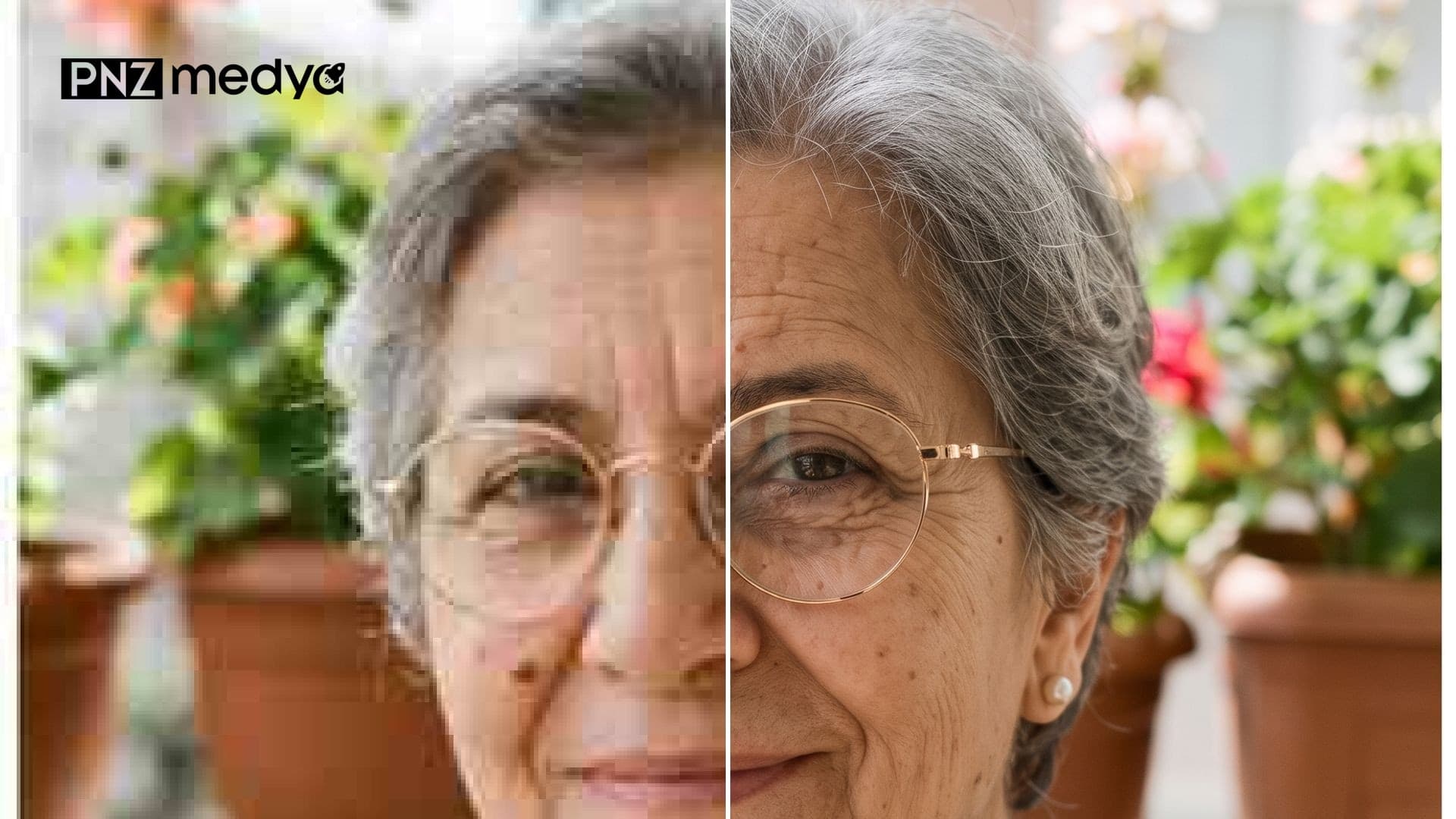
We asked Gemini to "make this photo 4K" and got back a 928x1152-pixel file, which is 1K. When you improve photo quality, the resolution is set by the app's download setting and your plan; the word "4K" in the prompt did not change the size at all. The prompt has a different job. While the model upscales a blurry photo, it redraws the face, the text and the color, and if you do not tell it what to keep, it fills in whatever it cannot read with a guess.
So we built the 7 prompts below around "what to keep, what to fix, what not to add" and measured every one of them. We took five sharp "real" images we generated with AI (an elderly woman with glasses, a young man with a mole on his cheek, a nut shop sign with Turkish letters, a family of four at the dinner table, a 1970s-style black and white portrait), shrank them to 340-520 pixels and compressed them as if they had come through WhatsApp, then compared Gemini's repaired version with the original. Because we had the originals, we could count pixels, face similarity and text accuracy letter by letter.
87 requests in the Gemini API, 81 test images (the image models behind the Flash-Lite, Flash and Pro options in the Gemini app). We aligned the outputs to the real images and measured them with SSIM and SFace face similarity; we counted moles, marks and the letters on the sign by eye in enlarged crops. The baseline was classic upscaling without AI (Lanczos). The people were generated with AI and do not exist.
How to Improve Photo Quality: 5 Steps
- Find the largest version of the photo you have. If it came through WhatsApp, ask the sender for the original. Detail that is missing from the input does not come back in the output: the thin scar on the man's forehead had disappeared in the damaged input, and only 1 of 15 outputs brought it partly back.
- Open Gemini and pick Flash or Pro in the model picker. Flash-Lite is fast, but it garbled the small text on the price card in 4 of 5 tries.
- Upload the photo and paste whichever prompt below fits your job. In the square brackets, write the mole on the face, the glasses, the jewelry or the actual text in the photo.
- Download the result at full size. According to Google's help page, downloads are 1K on an account without a plan and 2K with a Google AI plan.
- Put the output next to the original and check the face, the text and the color. If you don't like it, do not feed the output back into "improve the quality"; open a new chat, upload the original and fix the prompt.
We ran the same photo through "improve the quality once more" a second and a third time. The woman's face similarity dropped every round (0.923, 0.897, 0.883), and the mark on the man's eyebrow faded in the third round. Each round redraws the photo a little more; sharpness never got better than it was after the first round.
7 Ready-to-Use Prompts to Improve Photo Quality (Copy and Paste)
Paste the prompt into the same message right after you upload the photo. Fill in the square-bracket fields for your own photo and delete the brackets. We wrote and tested these prompts in Turkish in Gemini, and Prompts 1 to 6 below are our English translations of them. Prompt 7 is the one English text we also ran in Gemini.
1) Main prompt to improve photo quality
Improve the quality of this photo. Do not redraw the photo; it should be a clean, high-resolution version of the same photo.
Keep: the framing and aspect ratio, the people's face shape, eyes, nose, mouth and expression, hair, skin tone, clothing and background. Any mole, wrinkle, mark, glasses and jewelry visible in the photo stay in the same place.
Fix: JPEG blocks, color banding, grain and blur. Edges should look naturally sharp.
Add nothing: no new objects, text, jewelry or makeup; do not smooth the skin. Do not invent a small detail you are unsure about, leave it soft.The starting point for any photo. We tried it 13 times on the woman, man, family and sign images: the framing did not shift in a single output, the mole on the woman's cheek stayed in place every time, and the four people in the family image stayed in the same order.
2) Short and safe one-liner
Improve the quality of this photo: same photo, same framing; do not change faces, text or colors, if it is black and white keep it black and white, do not add anything new.For people who don't want to write a long prompt. This line protects the two things that the bare one-line request to improve the photo's quality broke: the black and white portrait stayed gray in both tries, and the price card came out letter-perfect on Flash. On Lite the card still got garbled with the same line.
3) Portrait prompt that protects the face
Improve the quality of this photo. Do not redraw the photo; it should be a clean, high-resolution version of the same photo.
The person in the photo: [short description, e.g. an elderly woman with short gray hair]. Their face has: [e.g. round glasses with thin gold frames, a single small brown mole on the left cheek as seen by the viewer, a pearl earring in the right ear, wrinkles on the forehead]. All of these stay in the same place and at the same size; do not add any other mole or mark.
Expression: [e.g. smiling slightly, mouth closed]; teeth should not show.
Keep: the framing and aspect ratio, [clothing], [background].
Fix: JPEG blocks, color banding, grain and blur. Do not smooth the skin, do not remove wrinkles, do not add makeup, do not restyle the hair or beard.For portraits other than ID photos, old profile pictures and photos of grandparents. Naming each facial detail, with its side as seen by the viewer, pays off: the only output that partly brought back the thin mark above the man's eyebrow came from Flash with this prompt.
4) Prompt for text on signs, menus and documents
Improve the quality of this photo. Do not redraw the photo; it should be a clean, high-resolution version of the same photo.
The text reads exactly as follows; keep it letter for letter, including any accented or special letters:
[Sign or heading]: "[the text itself]"
[Card, menu or document], line by line: "[line 1]", "[line 2]", "[line 3]"
Do not add any other text, numbers or logos; if you see other text that cannot be read, leave it as it is.
Keep: the framing, the colors, [objects in the background]. Fix: JPEG blocks, blur, grain.If the photo has text that needs to be readable, give the model the text yourself. With this prompt, Flash and Pro wrote the card letter for letter correctly in 4 of 4 outputs. On Lite even quoted text was not enough: the "TL" (Turkish lira) next to "480" was deleted.
5) Family and group photo prompt
Improve the quality of this family photo. Do not redraw the photo; it should be a clean, high-resolution version of the same photo.
There are exactly [number of people] people in the frame, from left to right as seen by the viewer: [person 1: e.g. father with a mustache and graying hair, green sweater], [person 2: e.g. mother in a burgundy headscarf that fully covers her hair], [person 3], [person 4].
The order, the number of people, glasses, mustache and headscarf stay exactly the same; do not add, remove or swap anyone.
Everyone's face shape and expression stay the same, mouths [closed / open].
Keep: [objects on the table or in the background], the color of the light.
Fix: JPEG blocks, color banding, grain and blur. No skin smoothing and no makeup.Faces in a group photo are small, so that is where the model redraws the most. With this prompt, the mother's face similarity stayed in the 0.78-0.81 range on Flash and Pro; on Lite with a short prompt it dropped to 0.646 and the face got noticeably wider.
6) Prompt for old black and white photos
Improve the quality of this old black and white photo. Do not redraw the photo; it should be a clean, high-resolution version of the same photo.
The photo stays black and white: do not add color, do not add sepia or skin tones; only black, white and gray tones.
Keep: the face shape, [mustache, beard, glasses], the way the hair is combed, [clothing], the backdrop, the direction of the light. Light film grain can stay.
Fix: JPEG blocks, blur, stains. Do not add text, stamps or frames.For old photos scanned from an album. If you want color, skip this prompt and use the ones in our colorization post. This version left the image gray on all three models.
7) ChatGPT version: the English text we tested
Improve the quality of this photo. Do not redraw it; return the same photo, clean and high-resolution.
Keep: the framing and aspect ratio, each person's face shape, eyes, nose, mouth and expression, hair, skin tone, clothing and background. Any mole, wrinkle, scar, glasses or jewelry stays in the same place.
Fix: JPEG blocks, color banding, noise and blur. Edges should look naturally sharp.
Do not add: new objects, text, jewelry or makeup; do not smooth the skin. If a small detail is unclear, leave it soft instead of inventing it.A word-for-word English version of Prompt 1 as we originally wrote it in Turkish. Unlike Prompts 1 to 6, this exact English text also went through Gemini, 3 times: the framing and the face held up as well as with the Turkish version. We did not run it in ChatGPT. According to OpenAI's API documentation, GPT Image models have a longest side of 3840 pixels, and resolutions above 2560x1440 are experimental.
If the framing changed or new objects appeared at the edges, you may have used a short request like "Upscale this photo to 4K": with that request, Pro turned a vertical portrait into a 1200x896-pixel landscape image and added flower pots on both sides. Open a new chat, upload the original and keep the "framing and aspect ratio" line from Prompt 1.
Can Gemini Make a Photo 4K?
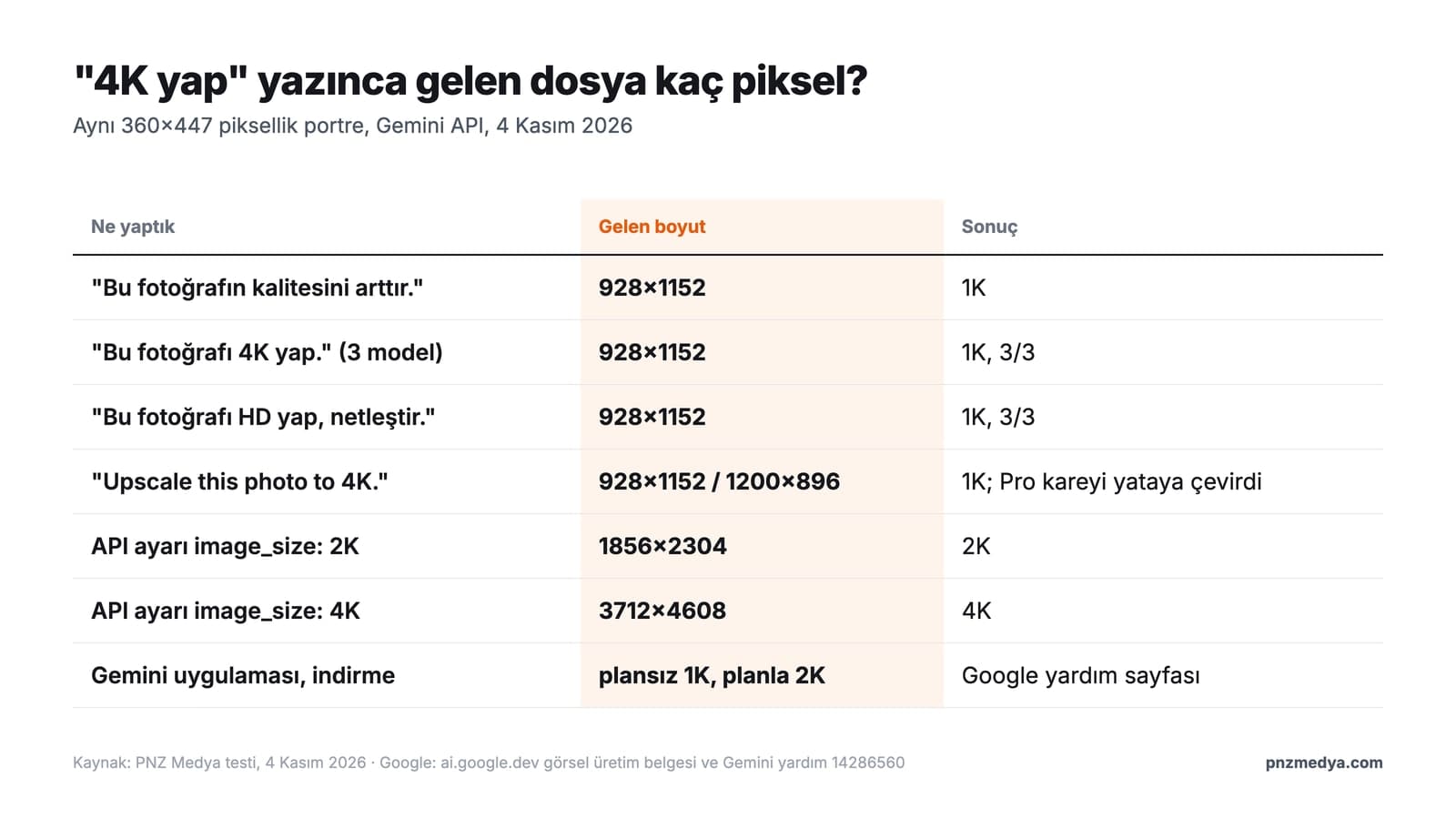
Not with a prompt in the app. We tried "make this photo 4K" and "make it HD, sharpen it" (both in Turkish) and "Upscale this photo to 4K" on three models; all 12 outputs came back at 1K. Two of Lite's replies still claimed the photo had gone up to 4K, and Flash answered in English, "I've upscaled your image to 4K". Don't trust the model's answer. Check the properties of the file you download.
Download images at 2K resolution with a Google AI plan or at 1K without an AI plan.
Google's developer documentation says the same thing: Gemini 3 image models produce 1K by default, and 2K and 4K need the image_size setting. When we set it in Google AI Studio or the API, Prompt 3 with the face description gave us 1856x2304 (2K) and 3712x4608 (4K) pixels; the sign came out at 5056x3392 pixels in 4K. For a phone screen or Instagram, 1K is enough. If you need a large file for print, you can get one with a 2K plan or through the API.
Does AI Change the Face When It Improves Photo Quality?
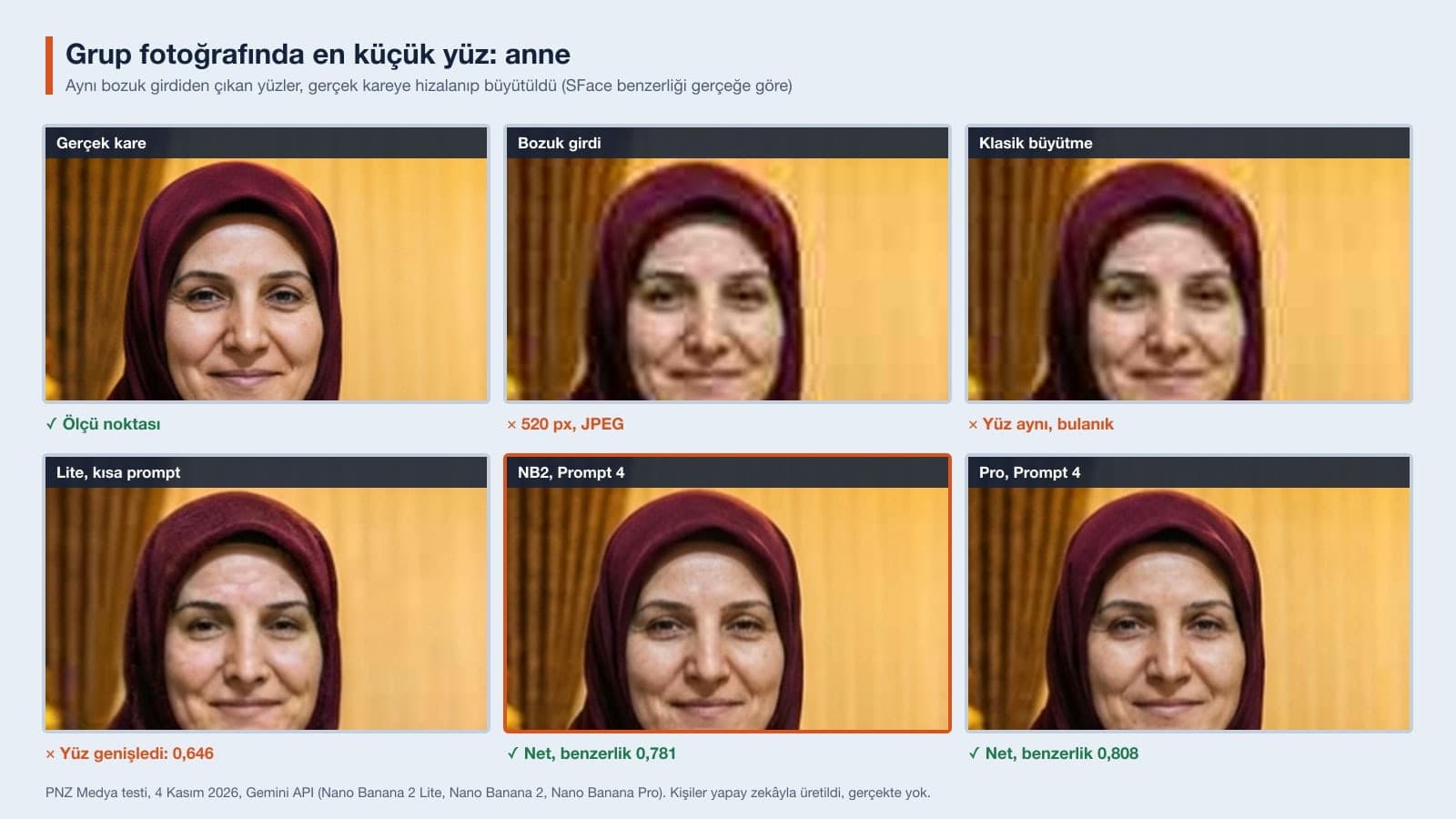
A little, and mostly on small faces. On portraits, Gemini's output scored an average of 0.91-0.92 against the real image on the SFace measure; that means the same person, though the damaged input itself scored 0.93. Sharpening did not push face similarity above the input: the model drew the detail itself. Pixel similarity shows the same thing. On portraits, classic upscaling scored 0.806-0.848 SSIM against the real image, while Gemini's outputs scored 0.77-0.83. Classic upscaling stayed blurry but invented nothing; Gemini sharpened, but it guessed.
On the image with text, the result flipped: on the sign, Flash (0.808) and Pro (0.804) beat classic upscaling (0.752), because they guessed the shapes of the letters correctly. The mole on the woman's cheek stayed in place in 29 of 29 outputs, because it was visible in the damaged input too. Lost detail did not come back: the thin scar on the man's forehead had been wiped out in the input and returned in almost none of the outputs.
Which Gemini Model Improves Photo Quality Best?
| Metric | Flash-Lite (NB2 Lite) | Flash (Nano Banana 2) | Pro (Nano Banana Pro) |
|---|---|---|---|
| Median time | 3.9 s | 9.6 s | 16.6 s |
| Wrong outputs on the price card | 4 of 5 | 1 of 7 | 1 of 6 |
| Portrait face similarity (average) | 0.915 | 0.924 | 0.914 |
| Smallest face in the group | 0.646-0.672 | 0.755-0.799 | 0.742-0.808 |
| Black and white, short prompt | stayed gray | got colorized | stayed gray |
| Other flaw | thickened the eyebrows (3/3) | added a ":" to the card (1) | turned the image landscape with a short request (1) |
In the Gemini app, Nano Banana 2 Lite makes the image when Flash-Lite is selected, and Nano Banana 2 makes it when Flash or Pro is selected; Nano Banana Pro comes with a Google AI plan as the option to regenerate the image with Pro. The gap between Flash and Pro was about as small as the measurement noise. On Pro, face similarity at 2K and 4K dropped compared with 1K (0.909, 0.885, 0.872; one try each), so a bigger file may mean more drawing. In one try, Lite returned only text instead of an image.
Why Does Text on Signs and Documents Get Garbled?
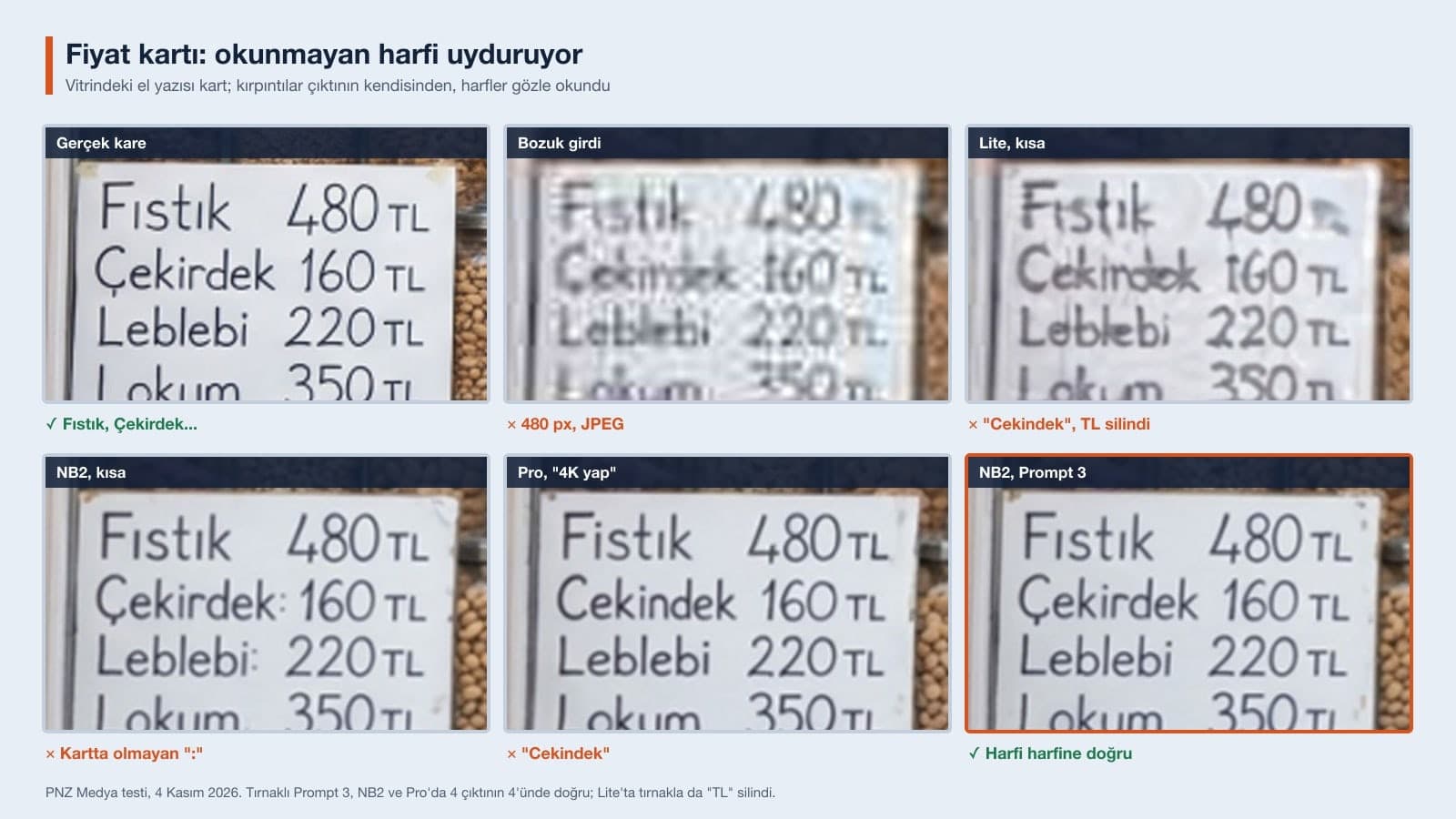
When the model cannot read a blurry letter, it puts in the letter that looks most like it. One of Lite's replies showed this openly: instead of an image, it returned a drawing prompt it had written itself ("A high-definition, photorealistic portrait of the elderly woman seen in image_0"). For the model, improving quality is a redrawing job. The large shop name on the sign (OZGUVEN KURUYEMIS, written with Turkish letters) stayed correct in 16 of 16 outputs. The errors came in handwriting only a few pixels tall in the input: "Cekindek" for the card word for sunflower seeds ("Cekirdek", spelled with a Turkish C-cedilla), "Lebkebi" for Leblebi (roasted chickpeas), a deleted "TL" and a colon that was not on the card. For photos of menus, receipts, documents or signs, use Prompt 4 and give the text in quotation marks yourself.
How to Improve the Quality of an Old Black and White Photo
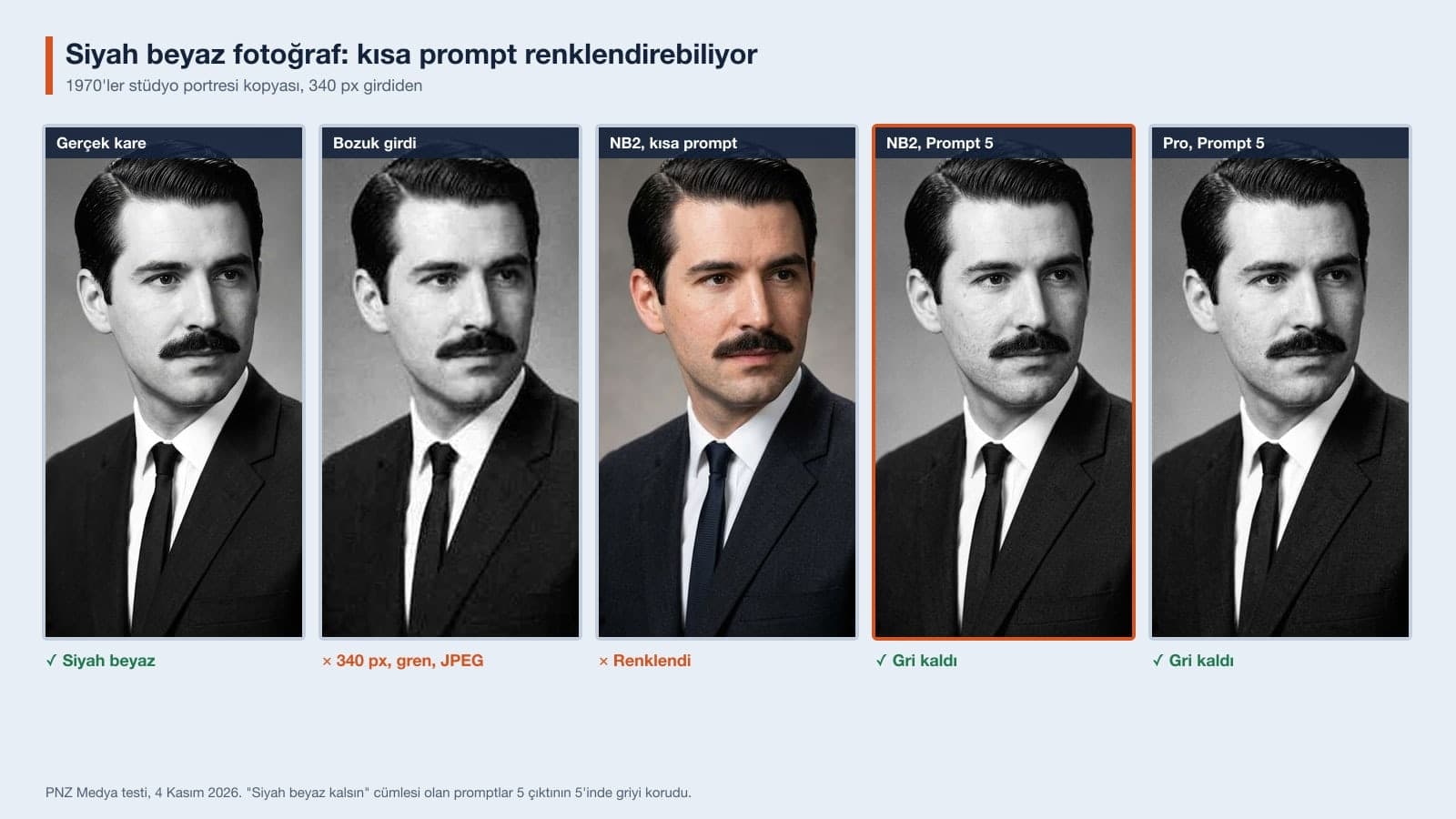
If you don't want color, say so in plain words. When we asked only to "improve the quality of this photo" (in Turkish), Flash fully colorized the 1970s-style studio portrait: average saturation rose from 0.2 to 47.8 and the tie turned navy. Lite and Pro stayed gray with the same request. Prompt 6 and Prompt 2 left the photo black and white in 5 of 5 tries. If you want color, split the job in two: repair the photo with Prompt 6 first, then run the colorization prompt.
6 Common Mistakes When Improving Photo Quality
- Writing "4K" in the prompt and assuming the file is 4K. The download setting and your plan decide the size; check the file properties.
- Improving the output over and over. Each round moves the face a little further from the original; by the third round, similarity had dropped to 0.883.
- Leaving the text in a photo up to the model. Give small text in quotation marks; if you don't, the model will invent the letters it cannot read.
- Forgetting the color sentence on a black and white photo. A short request can colorize the photo.
- Not writing the number and order of people in a group photo. The smaller the faces, the more the model redraws.
- Deleting the original. Gemini's output is a new image; keep the original as a separate file.
Using It in Turkey: ID Photos, Documents and Other People's Photos
Do not run the photo you will use for an ID card, passport or driver's license application through AI "quality improvement". The FAQ page of NVI, Turkey's population registry, does not accept photos reproduced on a computer or photos that are not biometric, and the Second Generation Passport Implementation Directive also rejects face images that have been digitally altered or retouched. Every image Gemini produces also carries Google's SynthID watermark, so the output is marked as an AI image. Get permission before you upload a photo that belongs to someone else; Google requires you to be at least 18 to edit images in Gemini.
Pick Flash or Pro in Gemini, upload the photo and paste Prompt 1. The prompt should say what to keep (face, moles, glasses, text, framing) and what to fix (JPEG blocks, grain, blur). Download the result at full size and compare it with the original.
Not by writing a prompt in the app. All 12 tries that asked for 4K came back at 1K. The Gemini app's download limit is 1K on an account without a plan and 2K with a Google AI plan; for 4K you have to set image_size to 4K in Google AI Studio or the API.
You can paste Prompt 7 or Prompt 1 into ChatGPT too; we did not run either of them in ChatGPT. According to OpenAI's documentation, the image model's longest side is 3840 pixels, anything above 2560x1440 is experimental, and the model can struggle with small text.
You can improve a photo's quality on Gemini's free plan; the download is 1K (928x1152 pixels for our vertical portrait). For a larger file you need a Google AI plan (2K) or the API.
A little. Gemini redraws detail while it upscales the photo; on portraits the person stayed the same, but on the small faces in the group photo, Lite made the face noticeably wider. Naming the mole, glasses and marks on the face, as in Prompt 3, kept those details.
Light blur and compression artifacts get fixed, but detail that never showed in the input does not come back. For motion or focus blur, see the prompts in our photo sharpening post.
Start by trying Prompt 1 once on your own photo and put the output next to the original. If a mole disappears from a face or a letter changes on a sign, switch to Prompt 3 or Prompt 4. Naming that detail worked every single time in our test.
Professional Photography
If you want sharp photos from the start for your website, menu or products, let's plan the shoot together. In a free first call we'll talk about lighting, location and the sizes you need.