


How to Make an Emoji of Yourself: 10 AI Prompts for Photos and Stickers (2026)
10 Gemini prompts for making an emoji from your own photo: single emoji, 9- and 12-emoji expression sets, WhatsApp sticker, captioned stickers and a couple emoji. We tested the original Turkish versions on 123 images and explain what breaks hair color, moles and transparent backgrounds, and how Genmoji works on iPhone.
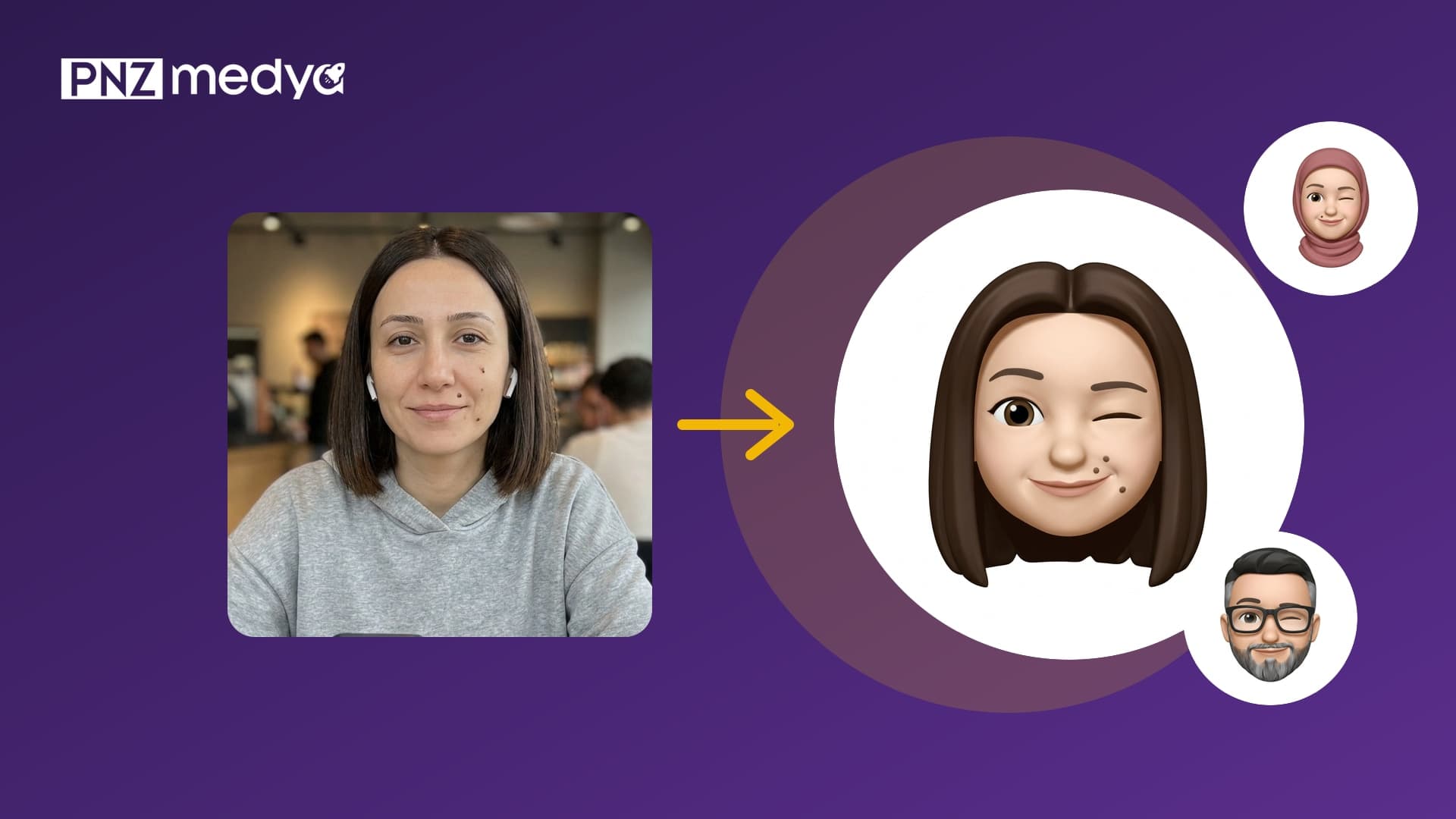
- There are two ways to make your own emoji: Genmoji on the keyboard of iPhone 15 Pro and later (Apple's Turkish guide lists Turkish as supported), or, on any phone, uploading a photo to Gemini and pasting one of the prompts below.
- A short prompt like "make an emoji from this photo" kept the photo's 16:9 ratio in 13 of 15 attempts, and in most of them the phone, the watch or the cafe itself ended up in the picture. For a square emoji with a single head you have to spell out the head, neck, background and ratio.
- In prompts that didn't describe the face, the woman's dark brown hair turned black in 12 of 22 attempts, and the AirPods in her ear carried over into the emoji in 15. In prompts that state the hair color and include the "do not add earphones" line, the hair stayed brown in 14 of 15 attempts and the AirPods showed up in only 1.
- "Make the background transparent, give it as a PNG" doesn't work: all 123 files came back as JPEG, and in 6 of 6 attempts where we asked for transparency, Gemini drew a gray-and-white checkerboard on the background. Asking for a plain green background and a white outline, then removing the green, gave a clean sticker.
- In our sticker test with Turkish captions, the words for good morning, thank you, see you and very nice were spelled correctly in 36 of 36 labels, letter for letter, including Turkish letters such as the dotless i and the s with a cedilla.
There are two ways to make an emoji from your own face. If you have an iPhone 15 Pro or newer, the Genmoji button on the keyboard lets you pick a person from your Photos library and draws their emoji. On every other phone the route is Gemini: you upload a photo and describe the emoji. Below are 10 prompts for the second route, and the Genmoji steps are at the end of the post.
We tried every prompt on three test people: a woman with a blunt bob and two moles on her right cheek, a man with black-framed glasses and a salt-and-pepper beard, and a woman in a dusty rose headscarf with a mole above her lip. We asked for a single emoji, 9- and 12-emoji expression sets, a WhatsApp sticker, a flat 2D emoji, a Memoji-style avatar, a couple emoji and stickers with Turkish captions. In every output we counted hair color, moles, glasses, headscarf color, number of squares and background one by one.
123 test images in the Gemini API (the image models that run when you pick Flash-Lite, Flash and Pro in the Gemini app); 88 in the first round, 35 in a verification round with the final prompts in this post. The prompts in this post were tested in their original Turkish wording. As in the app, we set the ratio only through the prompt text. We measured the background color pixel by pixel from the edge strip; moles, glasses, hair color and letters we counted by eye on enlarged crops. The test people were generated with AI and do not exist.
How to Make an Emoji: From Photo to Emoji in 5 Steps
- Pick a photo where your face is seen from the front and well lit. Only the head and neck stay in the emoji, so the background doesn't matter.
- Open Gemini, choose Flash or Pro in the model picker and upload the photo. Flash is enough on a free account; in the test an emoji arrived in 9 seconds.
- Paste one of the prompts below and, in the bracketed line, write what is actually on your face: hair color, glasses, beard, number and position of moles, headscarf color.
- Compare the hair color and moles in the result with your photo. If something is wrong, ask in the same chat to fix only that feature: "Make the hair dark brown and don't change anything else."
- Download the image. For a WhatsApp sticker, use the green-background version in Prompt 4 and remove the green; on iPhone, just touch and hold the emoji in the Photos app and tap Add Sticker.
A general list like "keep the glasses, beard, moles and headscarf as in the photo" also makes the model add what isn't in the photo: the man without moles got moles in 8 of 11 attempts, and in one set a headscarf was put on him. Fill in the list for your own face and leave out any feature you don't have.
10 Ready-Made Emoji Prompts (Copy and Paste)
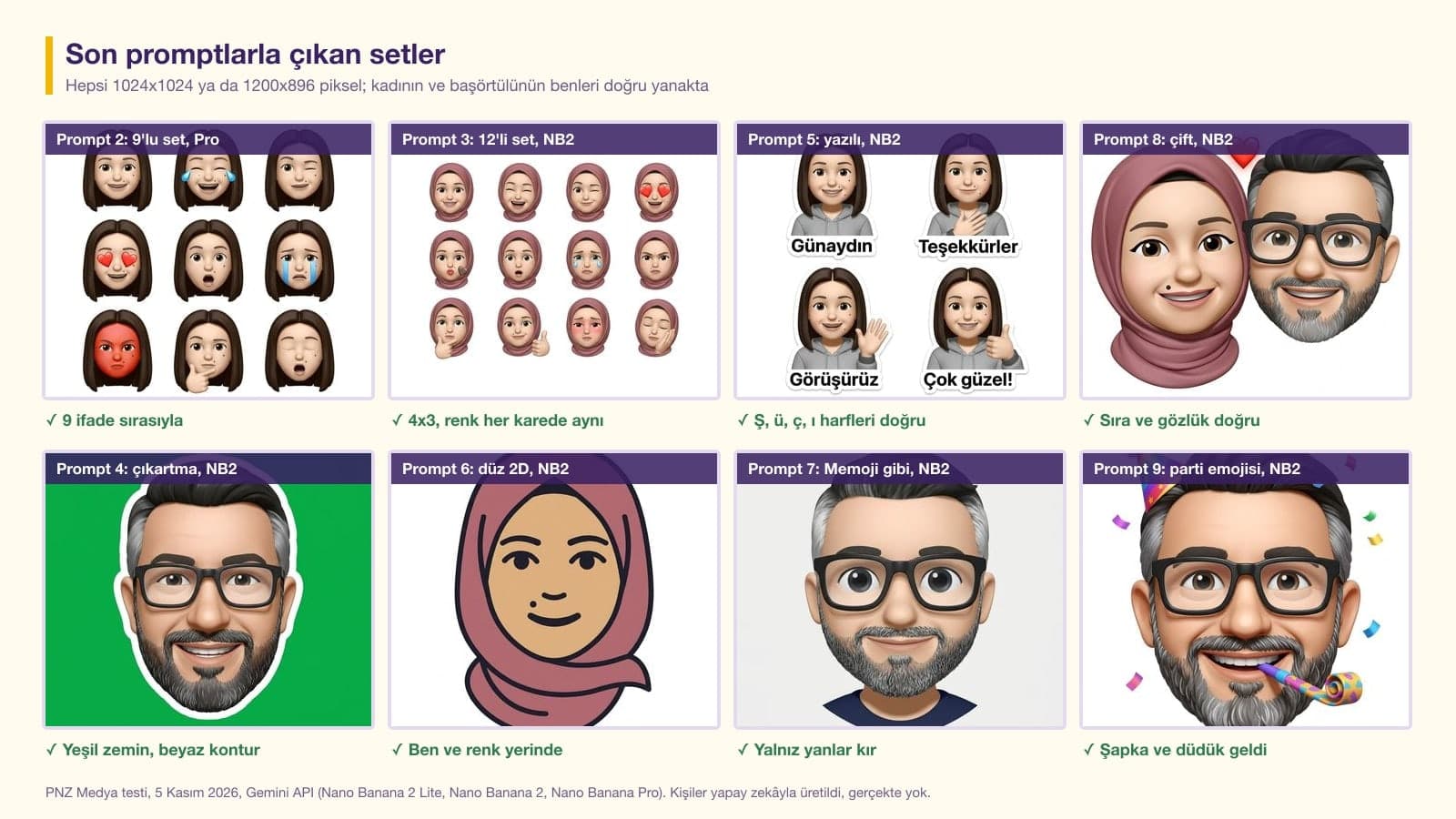
Each prompt works in a single message after you upload one photo; Prompt 8 needs two photos. Fill in the bracketed line for yourself and delete the brackets. Once you've filled in the face line, save it: paste the same line into the other prompts and all your emojis come out with the same face.
1) Single emoji: the main prompt
Make a single emoji of the person in the photo I uploaded. Show only the head and neck, glossy and soft 3D with rounded shapes, like Apple emojis.
Keep these exactly as they are on this person: [hair color, length and cut; the frame if they wear glasses; beard or mustache; if there are moles, how many and on which cheek from the viewer's side; if they wear a headscarf, its color and how it is tied].
Do not add moles, scars, glasses, earphones or jewelry that are not in the photo.
Expression: [smiling and winking], mouth closed.
Background plain white (#FFFFFF) all the way to the edges, no shadow, no text. Square (1:1).With this structure, 12 of 12 attempts came back as a single head on a plain white background at 1024x1024 pixels. The woman's hair stayed brown in 4 of 4 attempts and the moles were always on the correct cheek. Only the number of moles didn't hold at 2: in 3 of 4 attempts one or two extra moles appeared on the same cheek. The scar that showed up on the man's forehead in 6 of 13 attempts without a description never appeared in the 4 described attempts.
2) 9-emoji expression set
Make a set of 9 emojis of the person in the photo I uploaded.
Layout: 3 columns, 3 rows, nine equal squares; wide white space between the squares; no lines, frames or cards.
In every square, only the head and neck of the same person, glossy and soft 3D like Apple emojis.
Keep these the same in all nine squares: [hair color and cut; glasses; beard; number and position of moles; headscarf color].
Do not add moles, scars, glasses, earphones or jewelry that are not in the photo.
Expressions from left to right, top to bottom: 1 smiling, 2 laughing so hard there are tears in the eyes, 3 winking, 4 heart eyes, 5 surprised with mouth open, 6 crying, 7 angry with a red face, 8 thinking with a hand on the chin, 9 sleepy and yawning.
Background plain white (#FFFFFF) all the way to the edges; no text and no numbers. Square (1:1).15 of 15 sets came in 3 columns and 3 rows, and all 135 squares had the expressions in the requested order. This line didn't fully get rid of the lines or rounded cards separating the squares: they appeared in 3 of 9 sets in the first round and in 2 of 6 sets with the "no lines, frames or cards" line. Since the lines sit outside the emoji, they cause no trouble when you cut the squares out one by one.
3) 12-emoji expression set
Make a set of 12 emojis of the person in the photo I uploaded.
Layout: 4 columns, 3 rows, twelve equal squares; wide white space between the squares; no lines, frames or cards.
In every square, only the head and neck of the same person, glossy and soft 3D like Apple emojis.
Keep these the same in all twelve squares: [hair color and cut; glasses; beard; number and position of moles; headscarf color].
Do not add moles, scars, glasses, earphones or jewelry that are not in the photo.
Expressions from left to right, top to bottom: 1 smiling, 2 laughing out loud, 3 winking, 4 heart eyes, 5 blowing a kiss, 6 surprised, 7 crying, 8 angry, 9 thinking, 10 thumbs up, 11 embarrassed with pink cheeks, 12 sleepy.
Background plain white (#FFFFFF) all the way to the edges; no text and no numbers. Landscape 4:3.9 of 9 sets came in 4x3 at 1200x896 pixels. In one NB2 attempt the man got a made-up mole on his cheek again; if that happens, write in the same chat: "There are no moles on his face, remove the moles and don't change anything else."
4) WhatsApp sticker: green background and white outline
Make a single emoji of the person in the photo I uploaded, to be used as a WhatsApp sticker. Only the head and neck, glossy 3D like Apple emojis.
Keep these exactly as they are on this person: [hair color, length and cut; the frame if they wear glasses; beard or mustache; if there are moles, how many and on which cheek from the viewer's side; if they wear a headscarf, its color and how it is tied].
Do not add moles, scars, glasses, earphones or jewelry that are not in the photo.
Expression: [smiling].
Put a thick white outline around the emoji. Background a single flat green (#00B140) all the way to the edges; no shadow, pattern or text. Square (1:1).In 9 of 9 attempts the background came in a single green and the outline was closed. The green came out a bit darker than requested (around #08A74A), but 99.8% of the edge strip was the same color, so any tool that removes green leaves a clean edge.
5) Captioned sticker set
Make a set of 4 stickers of the person in the photo I uploaded.
Layout: 2 columns, 2 rows, four equal squares; no lines, frames or cards. In every square, the head and shoulders of the same person, glossy 3D like Apple emojis, with a thick white outline around them.
Keep these the same in all four squares: [hair color and cut; glasses; beard; moles; headscarf color].
Do not add moles, scars, glasses, earphones or jewelry that are not in the photo.
Under each square put only this text in bold, readable letters, with the letters and capitalization exactly as written: square 1 "[Good morning]" (smiling), square 2 "[Thank you]" (hand on heart), square 3 "[See you]" (waving), square 4 "[Love it!]" (thumbs up). No letters or numbers other than these four captions.
Background plain white (#FFFFFF) all the way to the edges. Square (1:1).Our test used Turkish captions, and all 36 of 36 labels were spelled correctly, letter for letter. Without the "letters and capitalization exactly as written" line, 3 of 6 sets switched the text to ALL CAPS on their own; with the line, 3 of 3 sets kept the lowercase letters. One NB2 set made the captions colored; if you want a single color, add "captions in black".
6) Flat 2D emoji
Make a flat 2D emoji of the person in the photo I uploaded: thick dark outline, flat fill colors, no shading, simple like Android emojis.
Only the head and neck. Keep these exactly as they are on this person: [hair color, length and cut; the frame if they wear glasses; beard or mustache; if there are moles, how many and on which cheek from the viewer's side; if they wear a headscarf, its color and how it is tied].
Do not add moles, scars, glasses, earphones or jewelry that are not in the photo.
Expression: [smiling], mouth closed.
Background plain white (#FFFFFF) all the way to the edges, no text. Square (1:1).In 9 of 9 attempts the background came out #FFFFFF white; for a logo, a presentation or print, this is the easiest format to cut out. In one Pro attempt without the description line, the dusty rose headscarf drifted to bright pink; writing the color code prevents this.
7) iPhone Memoji-style avatar
Turn the person in the photo I uploaded into a 3D avatar that looks like an iPhone Memoji character: big head, smooth matte skin, large eyes. Only the head and neck.
Keep these exactly as they are on this person: [hair color, length and cut; the frame if they wear glasses; beard or mustache; if there are moles, how many and on which cheek from the viewer's side; if they wear a headscarf, its color and how it is tied].
Do not add moles, scars, glasses, earphones or jewelry that are not in the photo.
Expression: [smiling], mouth closed.
Background plain light gray (#F2F2F2) all the way to the edges, no text. Square (1:1).In 9 of 9 attempts the background came in a single light gray, around #EBEBEB instead of the requested #F2F2F2, so a little darker. What you get is an ordinary image that looks like a Memoji, and you can't import it into the Memoji editor on iPhone.
8) Couple emoji (two photos)
Image order: image 1 [woman], image 2 [man]. Make a single couple emoji of these two people: two heads side by side, cheeks touching, both smiling, a small red heart between them. Glossy 3D like Apple emojis.
The person in image 1 is on the left; this person has: [hair, glasses, beard, moles, headscarf].
The person in image 2 is on the right; this person has: [hair, glasses, beard, moles, headscarf].
Do not add moles, scars, glasses, earphones or jewelry that are not in the photo. No one else in the picture.
Background plain white (#FFFFFF) all the way to the edges, no text. Square (1:1).In 6 of 6 attempts the people were in the requested order and the glasses were in place. Without the image order in the first sentence, the model decides on its own who stands on the left; write the order in which you uploaded the two photos.
9) Make an existing emoji with your face
Turn the person in the photo I uploaded into the [🥳] emoji: the same [party hat, the same party horn], but the face is this person's face. Glossy 3D like Apple emojis, head only.
Keep these exactly as they are on this person: [hair color, length and cut; the frame if they wear glasses; beard or mustache; if there are moles, how many and on which cheek from the viewer's side; if they wear a headscarf, its color and how it is tied].
Do not add moles, scars, glasses, earphones or jewelry that are not in the photo.
Confetti only right around the head, just a few pieces. Background plain white (#FFFFFF) all the way to the edges, no text. Square (1:1).Gemini recognized the emoji character in the prompt: the party hat and the party horn appeared in 9 of 9 attempts. We only used 🥳 in the test; if you use a different emoji, write its accessory in the bracketed spot too (sunglasses, a cowboy hat). In the last round, the woman's hair drifted to black once with this prompt.
10) Short version
Make a single Apple-style 3D emoji of the person in this photo: head only, plain white background, square. The person has: [hair color and cut, glasses, beard, moles and their position, headscarf]. Do not add moles, scars, glasses, earphones or jewelry that are not in the photo.On Flash-Lite, 3 of 3 attempts looked like emojis. On Flash (NB2), the man's emoji once turned into a near-photographic portrait and the woman once got AirPods. Use the short version with Lite, and on Flash and Pro go with Prompt 1.
If the model draws the whole photo, write "Only the head and neck, no phone, watch or background." If the hair color drifted, ask it to fix the color and change nothing else. When you ask for a fix, name what is wrong; just saying "fix it" doesn't tell the model what to change.
Why Doesn't a Short Prompt Give You an Emoji?
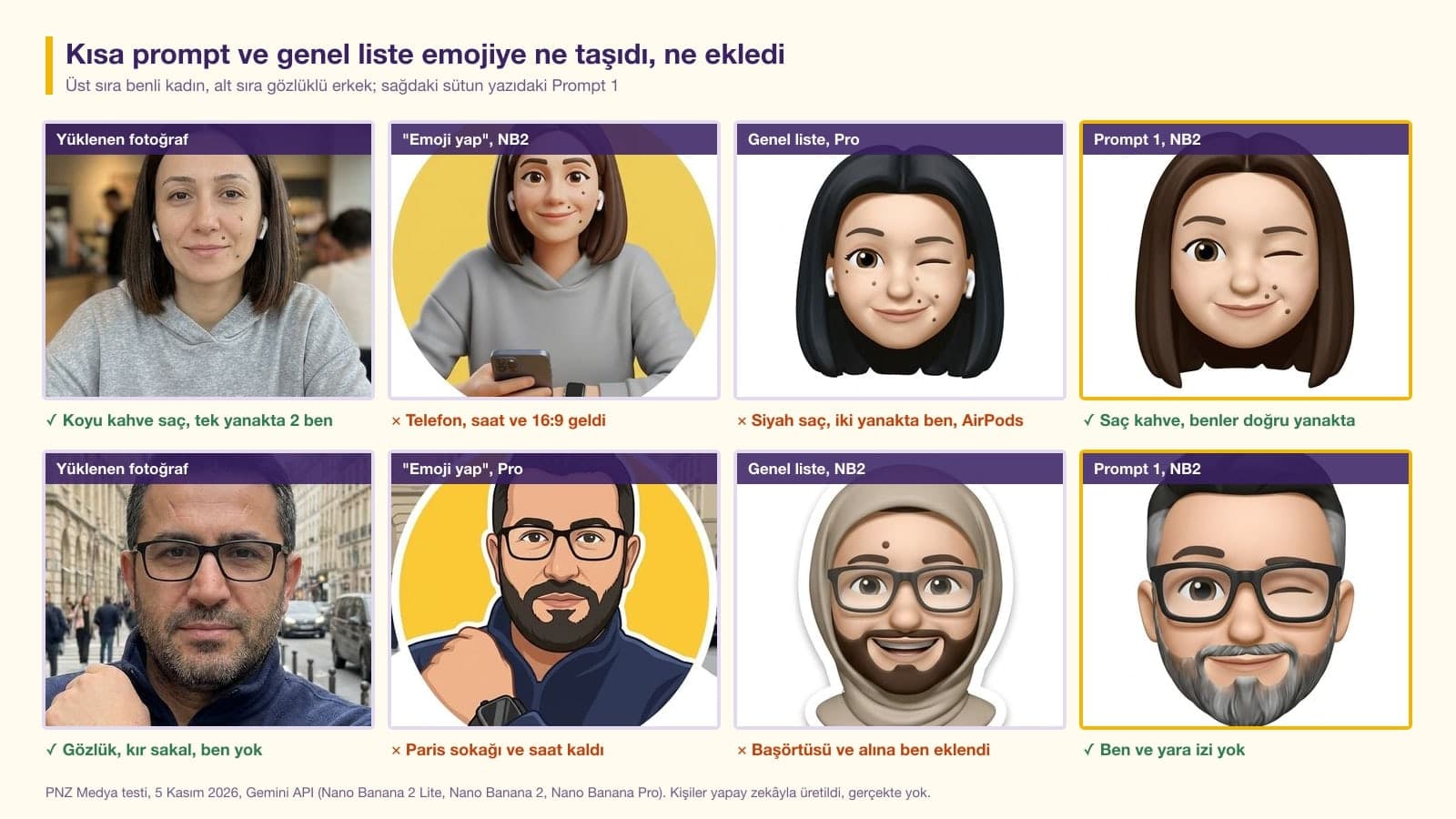
When we wrote "make an emoji from this photo", the models mostly returned a cartoon-style portrait that didn't look like an emoji. Of 15 short attempts (9 in Turkish, 6 in English), 13 came back in the uploaded photo's 1408x768 landscape ratio; the phone in the woman's hand, the watch on the man's wrist and the park bench stayed in the picture. The English prompt "Turn this photo into an emoji" did no better: one NB2 attempt printed a made-up "TECH GUY PARIS" caption on the man's chest, and two attempts drew a checkerboard pattern even though we never asked for transparency.
| Prompt type | Woman's dark brown hair kept | AirPods carried into the emoji | Mole added to the man without moles |
|---|---|---|---|
| Prompts that don't describe the person | 10/22 | 15/22 | 8/11 (prompts with "moles" in the list) |
| Described prompts in this post | 14/15 | 1/15 | 1/16 |
Every time the hair color drifted, it went to black; it never got lighter in any attempt. The right-hand column is the bigger surprise. A general line saying "keep the glasses, beard, moles and headscarf as in the photo" also reads to the model as "draw these four things": in one set the woman in a headscarf got glasses in all four squares, and in another set the man got a headscarf.
Transparent Background Emoji: Gemini Won't Give You a PNG
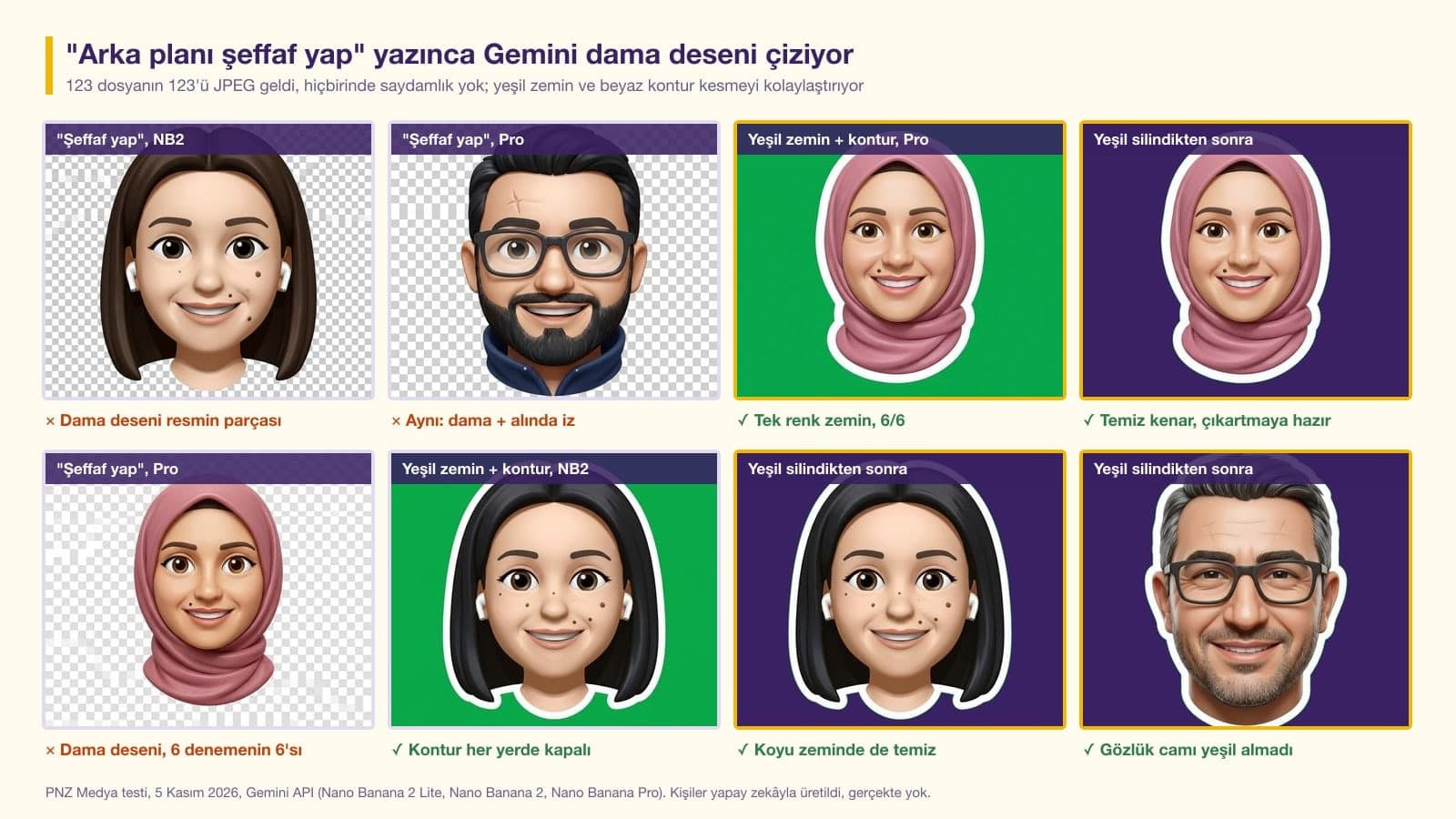
All 123 of the 123 files in the test came back as JPEG, and none had transparency (an alpha channel). In 6 of 6 attempts where we said "make the background transparent, give it as a PNG", Gemini drew the gray-and-white checkerboard that image editors use to show transparency right into the picture. If you turn that file into a WhatsApp sticker, the checkerboard becomes part of the sticker.
- Use Prompt 4: a plain green background and a thick white outline around the emoji.
- On iPhone, open the downloaded image in Photos, touch and hold the emoji and tap Add Sticker; according to Apple's guide, the sticker can be used in Messages and other apps.
- On Android or a computer, upload it to a background removal tool; since the background is a single color, the green goes away in one tap.
- If you're making a WhatsApp sticker pack, resize the file to 512x512 pixels and save it as WebP for Android.
Which Model? Flash-Lite vs. Flash vs. Pro
| Choice in Gemini | Model | Median time | What stood out in the test |
|---|---|---|---|
| Flash-Lite | Nano Banana 2 Lite | 4.5 s | Gave the simplest emoji with the short prompt; without a description it turned the woman's hair black |
| Flash | Nano Banana 2 | 8.9 s | 12 of 12 sets in the correct layout; spread the man's gray, which is only at his sides, across all his hair |
| Pro | Nano Banana Pro | 16.7 s | With the description it kept the sides gray; without one it darkened the gray and the beard |
On a free account, start with Flash: every 9- and 12-emoji set came out in the correct layout on Flash. Switch to Pro if Flash can't get your face right. As of October 2026, Google's Gemini help page says images download at 1K on accounts without a plan and at 2K with a Google AI plan. For an emoji, 1K (1024x1024 pixels) is more than enough, and WhatsApp stickers are used at 512 pixels anyway.
Which Expressions Still Read When the Emoji Is Small?
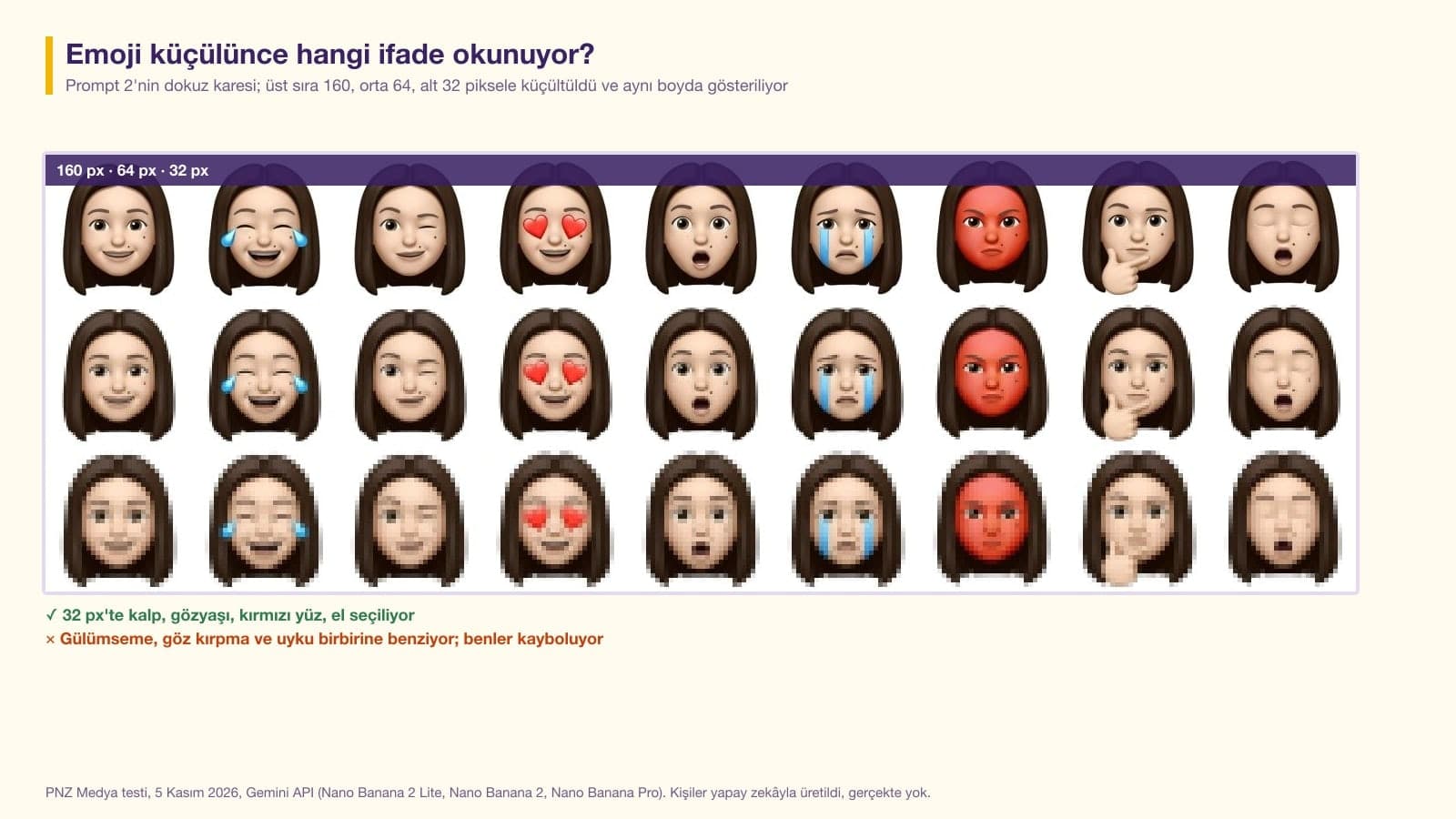
In a message and in a sticker preview, an emoji looks small. We shrank the nine squares of Prompt 2 to 64 and 32 pixels: heart eyes, teardrops, the red face, the hand on the chin and the open mouth are still visible at 32 pixels. The smile, the wink and the sleepy face look alike, though, and the moles disappear at 32 pixels. For a set you'll use at small sizes, write a big marker into each expression, such as a heart, a drop, "zzz" or a hand.
How to Make an Emoji with Genmoji on iPhone
Genmoji is the emoji generator that Apple Intelligence adds to the keyboard. According to Apple's Turkish iPhone guide, in iOS 27 it works on iPhone 15 Pro, iPhone 15 Pro Max and iPhone 16 and later, and it can be used while the device language is Turkish. While writing a message, you tap the Genmoji button at the top right of the keyboard and type what you want; if you pick a person from your Photos library, the emoji looks like that person. Every Genmoji you make is saved with your stickers.
If you provide a text description that doesn't match the person you selected, your image is personalized based on the photo you selected instead of the text description.
So the photo takes priority over the description you type. You can add up to three people with the Choose Person button. The same guide says there may be usage limits and recommends realistic images for ages 18 and up. If you have an older iPhone or an Android phone, the Gemini route does the same job; the difference is that the result arrives as an image file instead of a sticker.
Using Your Emoji as a WhatsApp Sticker
The Unicode standard decides which emoji characters are on the keyboard, and your own face can't get into that list. On WhatsApp, your own emoji goes out as a sticker. WhatsApp's developer documentation requires stickers to be exactly 512x512 pixels, static stickers to stay under 100 KB and the WebP format on Android. To make a sticker pack from the 9-emoji set, you need to cut the squares out one by one and bring them to that size; the detailed steps are in our sticker post.
Privacy and Age Limits When Making Emojis in Turkey
If you're making an emoji from someone else's photo, ask for permission first: under KVKK (Turkey's personal data protection law) a face image is personal data, and the photo goes to Google's servers the moment you upload it. Google opens photo editing in Gemini to users who are 18 or older, and Apple recommends ages 18 and up for Genmoji's realistic images. If you want to make an emoji of your child, upload the photo yourself from your own account. For headscarf wearers the most important line is the headscarf color: in one flat 2D attempt without a color code, dusty rose turned bright pink, while the prompts with the code kept the color in every attempt.
On iPhone 15 Pro and later, use the Genmoji button on the keyboard. On other phones, upload a photo where your face is clearly visible to Gemini, paste Prompt 1 and write your hair color, glasses and moles in the bracketed line. In the test this version gave a square emoji on a plain background in 12 of 12 attempts.
Upload the photo to Gemini and use a prompt that asks for only the head and neck and states the background and the square ratio. On its own, a prompt like "make an emoji from this photo" kept the photo's landscape ratio and objects in 13 of 15 attempts.
In Messages, tap the Genmoji button at the top right of the keyboard, choose yourself from your Photos library with Choose Person and type the expression you want. According to Apple, this works in iOS 27 on iPhone 15 Pro and later, in the supported languages, Turkish included.
Yes. Apple's Turkish iPhone guide says Apple Intelligence can be used while the device language is Turkish, and Genmoji is one of those features. Older iPhone models and Android phones don't have Genmoji.
Yes. On a free Gemini account with Flash selected, the emoji downloads at 1024x1024 pixels. A Google AI plan raises downloads to 2K and unlocks the Pro model; 1K is enough for an emoji.
Gemini doesn't give you a transparent PNG; in 6 of 6 attempts where we asked for transparency, it drew a checkerboard on the background. Ask for a plain green background and a white outline, then remove the green. On iPhone, touching and holding the emoji in Photos and tapping Add Sticker also removes the background.
Writing the prompt in Turkish works. The prompts in this post were tested in their original Turkish wording, and an English short prompt we also tried did no better than the Turkish one. In the captioned sticker test, Turkish words such as the one for good morning came out with the correct letters in 36 of 36 labels.
Start by making a single emoji with Prompt 1 and check that your hair color and moles come out right. Save that description line in a note. When you paste the same line into the 9-emoji set, the captioned stickers and the party emoji, the whole pack comes out with the same face.
Let Us Design a Mascot and Emoji Set for Your Brand
We design your business mascot and the emoji and sticker set you'll use on social media, matched to your brand identity. In a free initial call, we'll talk through colors, the character and where you'll use them.