


How to Remove a Person From a Photo: 9 Gemini Prompts for Crowds, Exes and Photobombers
9 Gemini prompts for removing people from photos: tourists in the background, the person next to you and the hand on your shoulder, one person in a group, a stranger walking into the frame. We tested the original Turkish prompts on 84 images and explain which model missed whom, and why a new person sometimes appears where the removed one was.
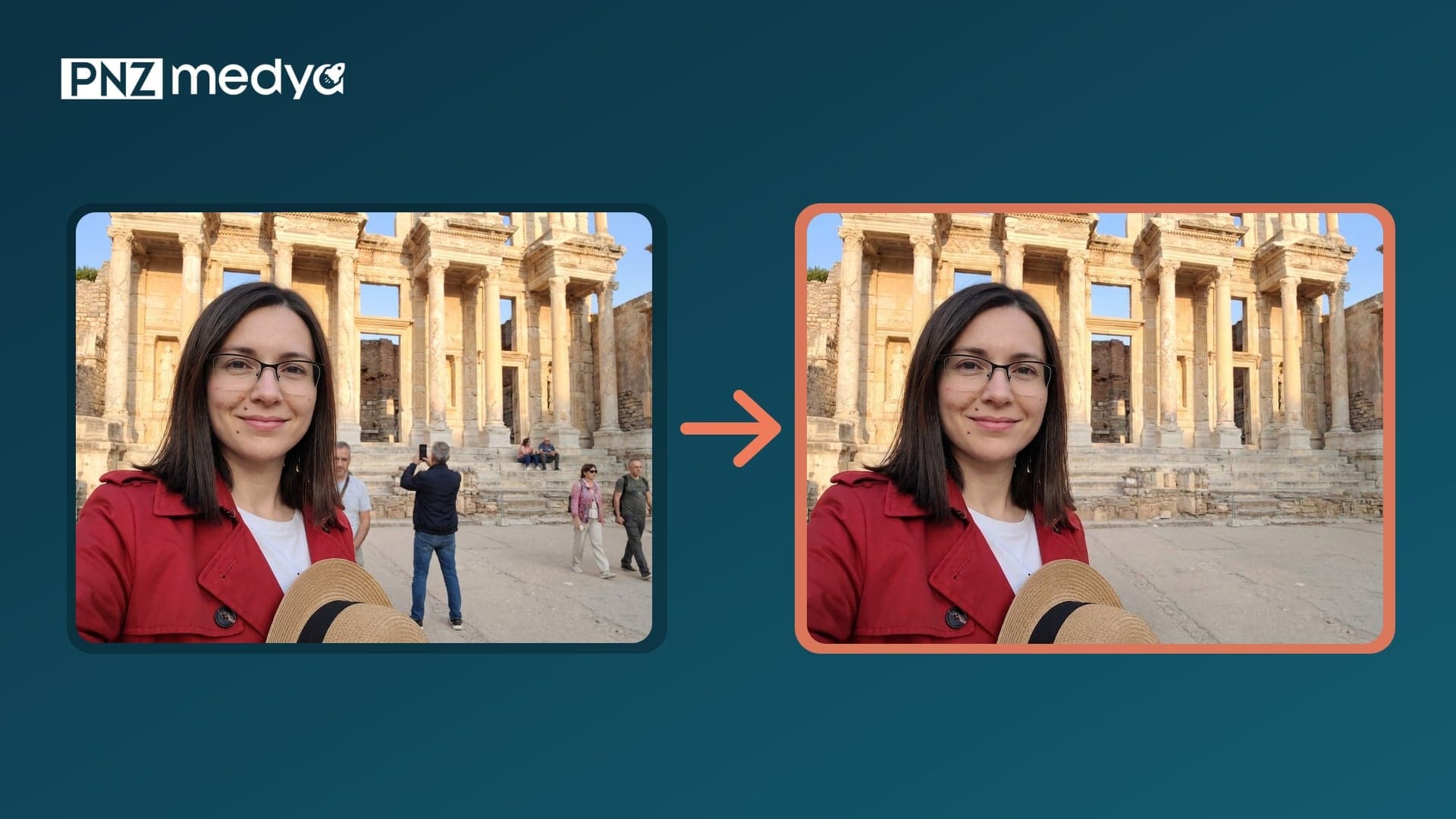
- The easiest way to remove a person from a photo is to upload it to Gemini and say, in a single message, who should be removed and who and what should stay the same. The 9 prompts below do exactly that.
- The model you pick changes the result: at Ephesus, Nano Banana 2 and Pro removed all 6 tourists in the background in 14 out of 14 attempts, while Nano Banana 2 Lite (the model behind Flash-Lite) left someone behind in 5 of 9 attempts (in 4 of them, the couple sitting on the stairs).
- In a group photo, writing "don't leave a gap, move them closer" is the riskiest request: only 3 of 12 attempts came out clean, and in 4 the model put a new or duplicated person where the removed man had been.
- Describing the person by clothing alone was not enough: "Remove the man in the yellow sweater" brought in a new woman in a headscarf in 3 of 6 attempts. Prompt 5, which gives position + clothing + "their positions must not change", was clean 6/6.
- Gemini's output came back at 1200x896 pixels (the photo we uploaded was 1600x1195), so the edited photo is smaller than the original. Keep the original separately.
- If the model misses something, tell it what's left in the same chat: the two forgotten people and the half-removed torso were fixed in 4 out of 4 attempts.
To remove a person from a photo, upload it to Gemini, describe the person to remove by position and clothing, then write who and what should stay the same. A one-line "remove the people in the background" request often works too, but with a crowd behind you a few people may remain, and in a group photo the model may draw someone else where the removed person was. The 9 prompts below were written with both problems in mind. The built-in erasers on iPhone and in Google Photos are covered at the end of the article.
We tried the prompts on four photos: a woman taking a selfie in front of the Library of Celsus at Ephesus with 6 tourists behind her; a couple on a ferry (the man's hand on the woman's shoulder); a group of 5 friends in a garden (the man to be removed has both arms on the shoulders of the people beside him); and a stranger looking at her phone who walks into the frame from the right on the Kordon promenade in Izmir. In every output we counted who was left, compared the remaining faces with the uploaded photo using a face recognition model, and looked for traces of hands, arms and shadows in enlarged crops.
84 test images in the Gemini API (the image models that run when you pick Flash-Lite, Flash and Pro in the Gemini app); 77 were single-message requests and 7 were corrections in the same chat. The prompts were tested in their original Turkish wording, exactly as published in the Turkish version of this article; the English prompts and quoted requests here are translations. The people were generated with AI, none of them is real. We measured the remaining faces with OpenCV's SFace model (a score above 0.363 counts as the same person), aligned the protected areas with the uploaded photo and compared them using structural similarity (SSIM). ChatGPT was not tested in this round.
How to Remove a Person From a Photo in 5 Steps
- Make a copy of the original photo. Gemini's output comes back at a lower resolution, and the removed person can't be brought back.
- Open Gemini, choose Flash or Pro in the model picker and upload the photo. Flash-Lite is fast, but in our test it missed the most people in the background.
- Copy the prompt below that fits your scene and fill in the square brackets: where the person to remove is (which one from the left, from the viewer's point of view), what they're wearing, the hand or arm touching you, and what should show in their place (sea, wall, stairs).
- Write down the people who should stay and what they have: glasses, a mole, earrings, a headscarf. Don't put anything on the list that isn't in the photo; the model sometimes adds what you write.
- Zoom in to check the result: a half-removed person at the edges, a hand on a shoulder, a shadow on the ground, a new face. If something is left, say so in the same chat with Prompt 8 or 9.
Saying "remove this person" gives the model only half the job. In our test the model filled the removed person's spot with its own guess: sometimes with background, sometimes with a new person. A sentence like "Fill their spot with the arbor behind them, don't add anyone else" takes the guessing away.
Test Results: Which Model Removed Whom?
Each cell in the table counts the outputs where "the requested person or people were completely removed, nobody appeared in their place, and no headless torso or half arm was left". Time is the median time from sending the request to receiving the image.
| Scene and request | Nano Banana 2 Lite | Nano Banana 2 | Nano Banana Pro |
|---|---|---|---|
| Ephesus: 6 tourists in the background (6 different requests) | 4/9 (the sitting couple remained in 4, nobody was removed in 1) | 7/7 | 7/7 |
| Ferry: the man beside her and his hand on her shoulder | 6/6 | 6/6 | 6/6 |
| Group: 4th person from the left, positions fixed (Prompt 5 and a short request with position) | 4/4 (the others changed places in 3) | 3/4 | 4/4 |
| Group: "Remove the man in the yellow sweater" | 0/2 | 1/2 | 1/2 |
| Group: remove and "don't leave a gap" (2 requests; clean and gap closed) | 1/4 | 2/4 | 0/4 |
| Kordon: stranger entering from the right | 2/2 | 2/2 | 2/2 |
| Median time | 4.4 s | 9.5 s | 15.8 s |
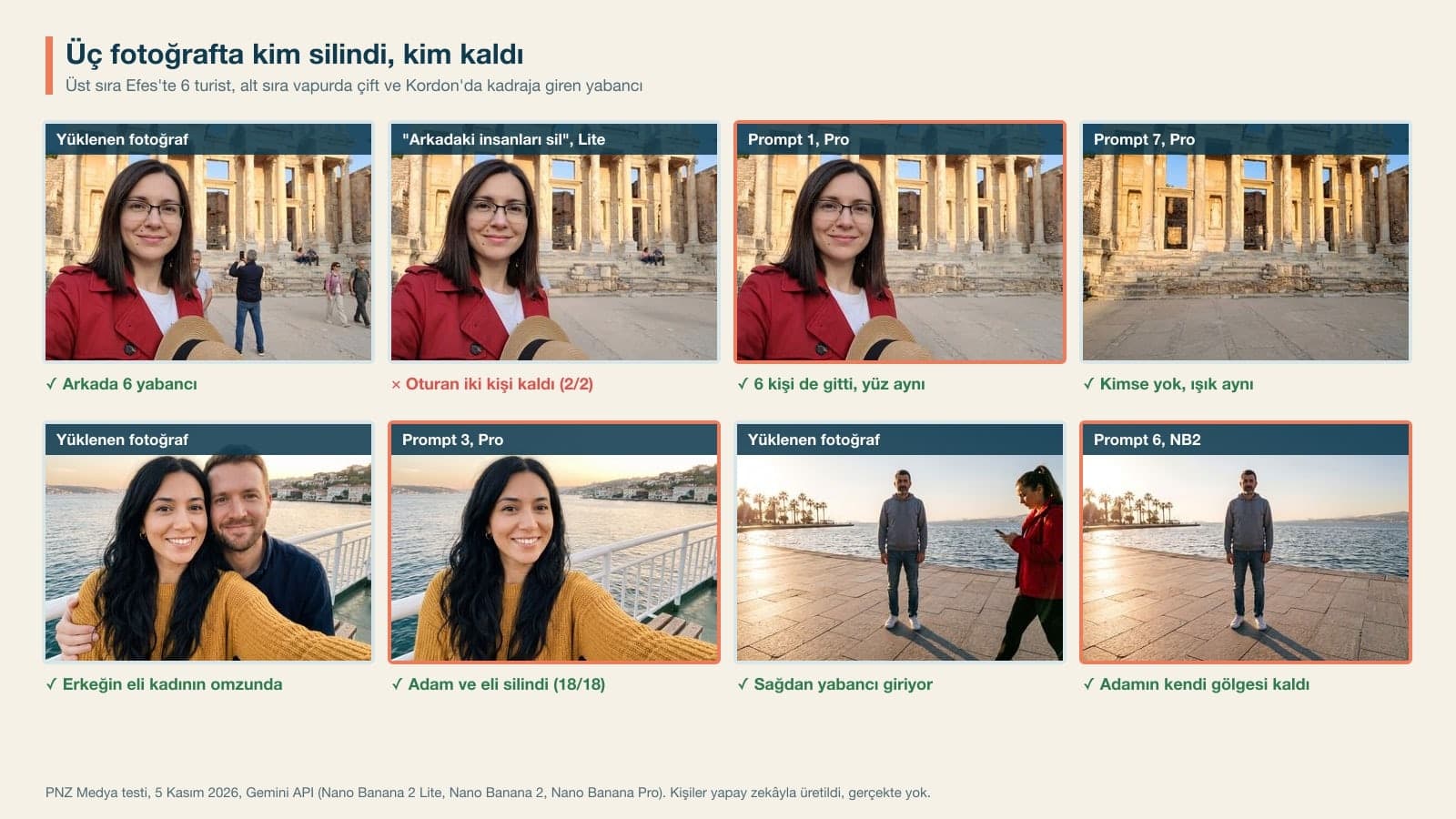
The face of the person who stays is preserved. The woman's face at Ephesus scored 0.90 to 0.94 similarity with the uploaded photo in the Nano Banana 2 and Pro outputs and 0.86 to 0.87 in the Lite outputs; the woman on the ferry stayed between 0.80 and 0.90 in all 18 outputs. So while removing a person, the model did not turn the face of the person next to them into someone else. The man's face on the Kordon stayed at 0.72 to 0.78 because it is small in the frame. Looking at it, it's still clearly the same man.
9 Ready-to-Use Prompts to Remove a Person From a Photo (Copy and Paste)
Paste each prompt into the same message right after uploading the photo. Fill in the bracketed parts for your own photo and delete the brackets. Keep the phrase "from the viewer's point of view": when it's unclear whether "on the right" means the right of the person in the photo or the right of whoever is looking at it, the model may pick the wrong person.
1) Prompt to remove a crowd in the background (tourists, passersby)
Remove everyone in this photo except [description of the person, e.g. the woman in the red trench coat] in the foreground. Do not change their face, [what is on their face, e.g. their glasses, the moles on their cheek], hair, clothing, what they are holding, their pose or the lighting. Fill the spaces left by the removed people with the continuation of the [place, e.g. building, park, beach] behind them: the [e.g. stones, columns, stairs and ground] should continue along the same lines. Leave no shadows of the removed people. Do not add anyone else, do not add new objects or text, and do not change the framing or the aspect ratio.In the Ephesus photo, Nano Banana 2 and Pro removed all 6 people on the first try, including the man half visible just behind the woman's right shoulder. Lite left the couple sitting on the stairs in one of two attempts.
2) Short version: remove the people in the background
Remove the people in the background. Leave the person in the foreground, their face, their clothing and the rest of the photo exactly as they are.Nano Banana 2 and Pro applied this short prompt, and the bare sentence "Remove the people in the background." (both tested in Turkish), cleanly in 6 out of 6 attempts. Lite left the two people sitting on the stairs in all three of its attempts. We also tried the English sentence "Remove the people in the background.", and it removed everyone in all three models. Use the quick version with Flash or Pro.
3) Prompt to remove the person next to you (couple photo, hand on your shoulder included)
From the viewer's point of view, completely remove the [woman/man] [on the right/on the left] wearing [clothing, e.g. a navy shirt] from the photo. Also remove their hand and arm on my shoulder [or on my waist]; [my clothing, e.g. the knit of my mustard-yellow sweater] should continue over my shoulder. Fill the space where they were with the [e.g. sea, the houses on the opposite shore and the white railing] behind them. Do not change my face, my smile, my hair, [my jewelry, e.g. my earring], my clothing or my arm. Do not add anyone else, and do not change the framing or the aspect ratio.In the ferry photo, the man and his hand on the woman's shoulder disappeared in 9 out of 9 attempts across the first-person and third-person versions of this prompt, and the knit of the sweater continued unbroken where the hand had been (there's an enlarged view below). When we wrote "on my shoulder", the model correctly worked out that you are the woman in the photo.
4) Removing an ex from a photo (short request for a photo of two)
Remove my ex from this photo, so only I am left.If there are only two people in the photo, the model works out on its own who should stay: all three models removed the man and kept the woman. But the woman was redrawn in all three attempts, and her strands of hair and the lighting came out slightly different from the uploaded photo (similarity in the protected area 0.32 to 0.67). If you want your face and hair to stay exactly the same, use Prompt 3; the descriptive prompt left the woman untouched in 7 of 9 attempts.
5) Prompt to remove one person from a group photo
From the viewer's point of view, completely remove the [which number] person from the left, that is, the [man/woman] with [description such as clothing, hair, glasses], from the photo. Also remove their [hand on the shoulder of the person beside them / arm passing behind the others]. The remaining [number of people] people must keep the same faces, expressions, clothing and posture, and their positions must not change. Fill the empty space with the [e.g. wall, grapevine arbor, greenery] behind them. [Things in front, such as the table and chairs] must stay the same. Do not add anyone else, and do not change the framing or the aspect ratio.In the group of 5 in the garden, all three models cleanly removed the fourth man from the left, 6 out of 6 attempts in total, and both of his arms went with him. Nano Banana 2 and Pro left the positions of the remaining four untouched. Lite moved the woman in the headscarf to the right in one attempt.
6) Prompt to remove a stranger walking into the frame from the edge
From the viewer's point of view, completely remove the person entering the frame from the [right/left] edge, wearing [clothing, e.g. a red jacket] and [what they are doing, e.g. looking at their phone]; if they cast a shadow on the ground, remove that too. Fill their space with the continuation of the [e.g. sea, the promenade and the shoreline]. Do not change the face, clothing or posture of [description of the person] in the middle, or their own shadow on the ground. Do not add anyone else, and do not change the framing or the aspect ratio.In the Kordon photo, the woman was gone in 6 out of 6 attempts, and the man's own shadow stayed in place in all 6. Keep the sentence about not changing his own shadow: in a prompt that asks for a shadow to be removed, the model can mix up which shadow belongs to whom.
7) Removing everyone: an empty photo of the place, no tourists
Remove all the people in this photo, including [the person] in the foreground. Keep only [the place, e.g. the library building, the stairs and the stone ground in front of it]; fill the spaces where people were with the continuation of the structure. Do not change the lighting, the sky, the framing or the aspect ratio. Do not add new objects, people or text.Nobody was left at Ephesus in any of the three models. Despite the "do not change the lighting" sentence, Nano Banana 2 turned the afternoon light into golden hour in its single attempt. If the lighting matters, try Pro.
8) Correction: getting the missed people removed
[How many] people [where, e.g. sitting on the stairs] are still there. Remove them too, and show [e.g. empty stone steps] in their place. Leave [the person] in the foreground and the rest of the photo exactly as they are.Write this message right below the first edit, in the same chat; the model continues with the previous output in mind. The sitting couple Lite had missed was removed with this message in 2 out of 2 attempts.
9) Correction: a leftover torso or arm
The [torso, arms, hand] of the [man/woman] in [clothing, e.g. the yellow sweater] is still there. Remove that person completely, from the neck down to the feet; nobody should be in that spot, and the [e.g. arbor and greenery] behind should show. Do not change the remaining people or [things in front, such as the table], and do not add anyone new.In the group test, Nano Banana 2 twice removed only the head and left the torso in the yellow sweater. This message removed the torso both times and didn't touch the remaining four people.
In the group test, the model three times drew a woman in a headscarf, who wasn't in the photo, where the removed man had been. When we said "remove that woman too" in the same chat, only Nano Banana 2 fixed it; Lite and Pro left the woman (1 in 3 attempts). In that case, opening a new chat and uploading the original photo again with Prompt 5 is the quicker route.
4 Errors When Removing a Person From a Group Photo
The group photo was the hardest scene, because the man to be removed stood between two people with both arms on their shoulders. Something went wrong in 13 of the 30 group outputs. All the problems come from the same thing: when the model doesn't know what to fill the empty space with, it goes for the closest guess, which is a person.

| Error | In 30 group outputs | Which request caused it |
|---|---|---|
| New or duplicated person in place of the removed one | 7 | "Remove the man in the yellow sweater" (3), "don't leave a gap" requests (4) |
| Head removed, torso and arms left | 3 | Short request with position (1), "don't leave a gap" (2) |
| Person not removed, sweater recolored or left untouched | 3 | All Lite: short request with clothing (1), "don't leave a gap" (2) |
| None (clean) | 17 | Prompt 5: 6/6 |
Asking the remaining people to move closer together also turned out badly. "Move the man in the navy jacket closer to the woman in the headscarf" and a version of the same request that listed the remaining four people one by one gave an output that was both clean and closed the gap in only 3 of 12 attempts; Pro duplicated the gray-haired man in one attempt and the woman in the headscarf in another. Counting the remaining people and saying "exactly 4 people should remain" didn't help either. It backfired: a fifth person appeared in 3 of 6 attempts. In a group photo, first fill the gap with background using Prompt 5. If the gap between people stands out, cropping the photo is safer than moving them closer.
The Hand on the Shoulder, Shadows and Resolution: A Closer Look
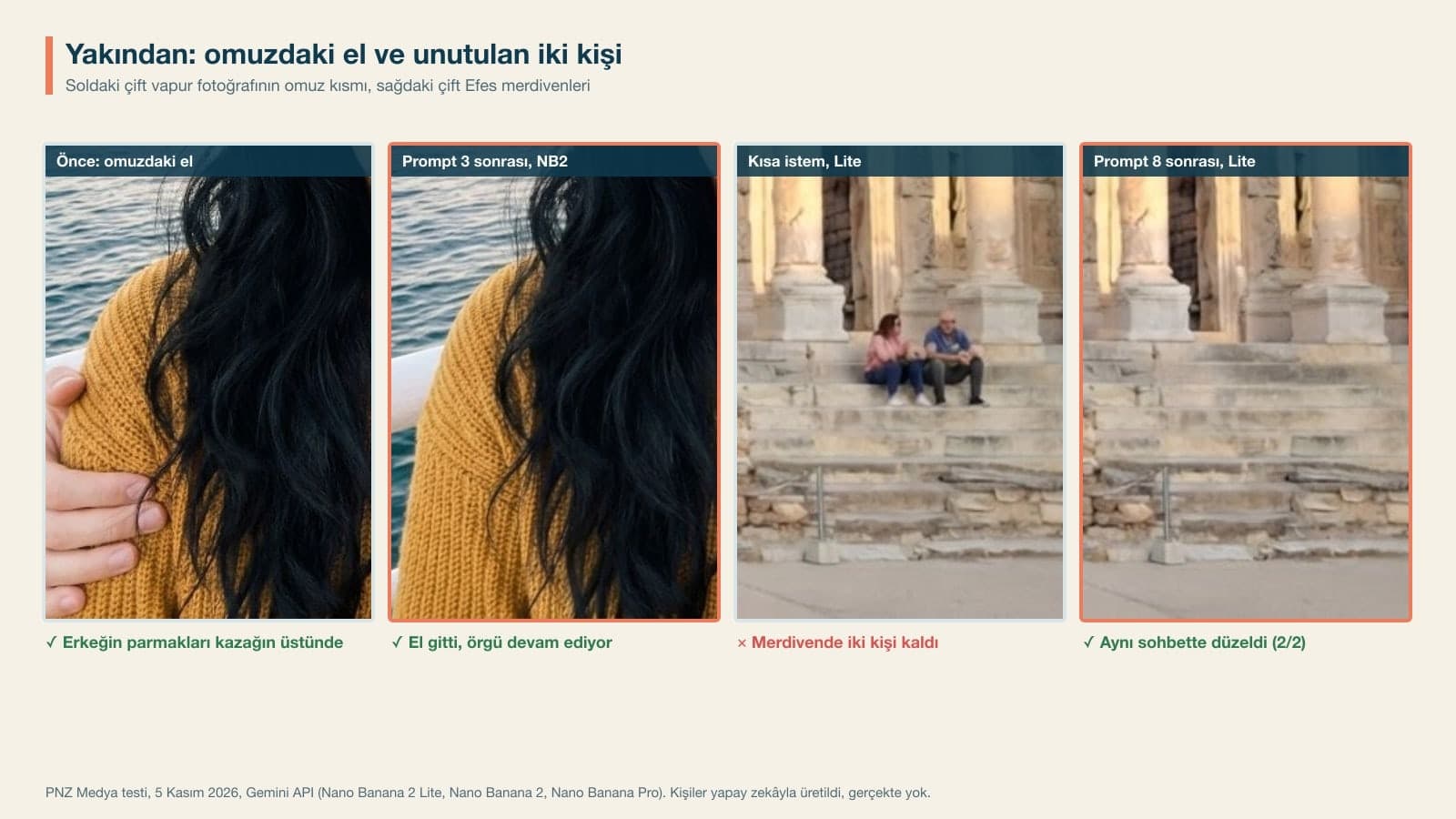
The hand on the shoulder was the detail we were most curious about, and it came out better than we expected: none of the 18 ferry outputs left a finger, a shadow or a dent in the sweater. Writing in Prompt 3 what should replace the hand (the knit of the sweater) helps here. At Ephesus, the man half visible behind the woman's right shoulder left no trace in any output where he was removed. Apart from the one attempt where it removed nobody, the people Lite left behind were always the farthest couple, sitting on the stairs.
Resolution is a separate issue. The photos we uploaded were 1600x1195 pixels, and all 84 outputs came back at 1200x896 pixels. The aspect ratio was kept (4:3), and the pixel count dropped by about 44%. That's enough for sharing on a phone, but it may fall short for print or a large screen. Gemini also adds an invisible SynthID watermark to the images it creates and edits, so an edited photo can be detected as an AI edit.
Removing People on Your Phone: iPhone Clean Up and Google Photos Magic Eraser
You can also remove people without writing a prompt. On iPhone the tool is called Clean Up (Düzeltme on a Turkish-language iPhone): open the photo in Photos, tap Edit, then Clean Up. Some people and objects are highlighted automatically, and you tap, brush over or circle the one you want to remove. According to Apple's requirements page, the tool works on iPhone 15 Pro, iPhone 15 Pro Max and iPhone 16 models with iOS 18.1 or later.
If you brush over a person's face, the face may be blurred with a pixelated effect.
This note matters when removing people: Clean Up may pixelate some faces instead of removing them. On small figures in the background that barely shows, but for the person right next to you, Gemini gave a cleaner result. On Android, Magic Eraser in Google Photos sits in the Actions tab of the editing screen and, according to Google's help page, needs at least 3 GB of RAM and Android 8.0. Editing by typing with Ask Photos in the same app requires you to be 18 or older and is available only in some countries. When we checked Gemini's help page on November 5, 2026, it also listed image editing as available to users 18 and older.
6 Common Mistakes When Removing a Person
- Writing "on the right" without saying whose right. Write "on the right, from the viewer's point of view".
- Forgetting where the removed person touches someone. A hand on a shoulder, an arm around a waist or a shadow on the ground can stay behind unless you mention each one.
- Describing by clothing alone. "Remove the man in the yellow sweater" made Lite recolor the sweater and made the other models bring in someone new. Add the position too.
- Asking the others to move closer. A new or duplicated person appeared in 4 of 12 attempts; fill the gap with background first.
- Removing a crowd with Flash-Lite. It's fast, but it leaves small figures in the distance. For crowds, choose Flash or Pro.
- Deleting the original. The output comes back at 1200x896 pixels and the removed person can't be brought back, so keep the original file.
Photos of Other People: What to Keep in Mind in Turkey
Removing a stranger or an ex from your own photo is an everyday edit. There are two things to watch. First, when you upload a photo with recognizable people in it, you are also sending their image to an AI service; if you're editing photos of customers or employees at work, follow your company's personal data rules. Second, don't present a photo with a person removed as the original in an insurance claim, an official application or a dispute. The invisible SynthID watermark gives the edit away anyway. Removing signatures and watermarks from someone else's photo is covered in detail in our object removal post.
Yes. On Gemini's free plan you can upload and edit photos; Google doesn't publish the daily image limit as a number. Clean Up on iPhone and Magic Eraser in Google Photos are also free on supported devices. You have to be 18 or older to edit images in Gemini.
Upload the photo to Gemini, choose Flash or Pro in the model picker and write a prompt that describes the person to remove by position (which one from the left, from the viewer's point of view) and by clothing. Add who and what should stay the same and what should fill the empty space. In our test, prompts with these three parts gave the cleanest results.
The short way is to write "Remove the people in the background." With the original Turkish sentence, Nano Banana 2 and Pro did it in 6 out of 6 attempts, and the English sentence removed everyone in all three models. With the short Turkish request, Flash-Lite left the two people sitting on the stairs in all three attempts. For a crowded photo use Prompt 1, and if someone is left, use Prompt 8 in the same chat to say where.
It didn't in our test: in the ferry photo, the man's hand on the woman's shoulder was removed in 18 out of 18 attempts, and the knit of the sweater continued. Still, mention the hand and arm separately as in Prompt 3, and say what should show in place of the hand.
Open a new chat and upload the original photo again with Prompt 5. When we said "remove that person too" in the same chat, it was fixed in only 1 of 3 attempts. The new person mostly appeared with "don't leave a gap" requests or requests that described the person by clothing alone.
Open the photo in the Photos app, tap Edit and then Clean Up; tap, brush over or circle the person you want to remove. According to Apple, the tool is available on iPhone 15 Pro, 15 Pro Max and iPhone 16 models with iOS 18.1 or later. Faces may get pixelated when brushed, so for removing someone close to you, Gemini is cleaner.
In Gemini, yes, in terms of size. The photos we uploaded at 1600x1195 pixels came back at 1200x896 pixels in all 84 attempts, with the same aspect ratio. That's enough for sharing; for printing, use the original.
The most practical rule from these four photos: the model is good at removing, and where it struggles is filling the space that's left. When we wrote what should go in the gap (sea, arbor, stairs), no new people, headless torsos or recolored sweaters showed up. Next time you describe a person to remove, write what should fill the gap first and then who to remove. In our test, that order made the job easiest.
Let's Shoot Your Photos Clean From the Start
We'll shoot your product, venue and team photos with no strangers, clutter or details to erase later in the frame. In a free initial consultation, we'll talk about the location, the lighting and where the photos will be used.