



How to Add Text to a Photo: 12 AI Prompts for Text, Dates and Names (2026)
The phone route to adding text to a photo, ChatGPT prompts that use Python to place your text letter for letter and read the capture date from EXIF, a Turkish letter coverage test across 21 fonts, and a contrast test of white text on four backgrounds.
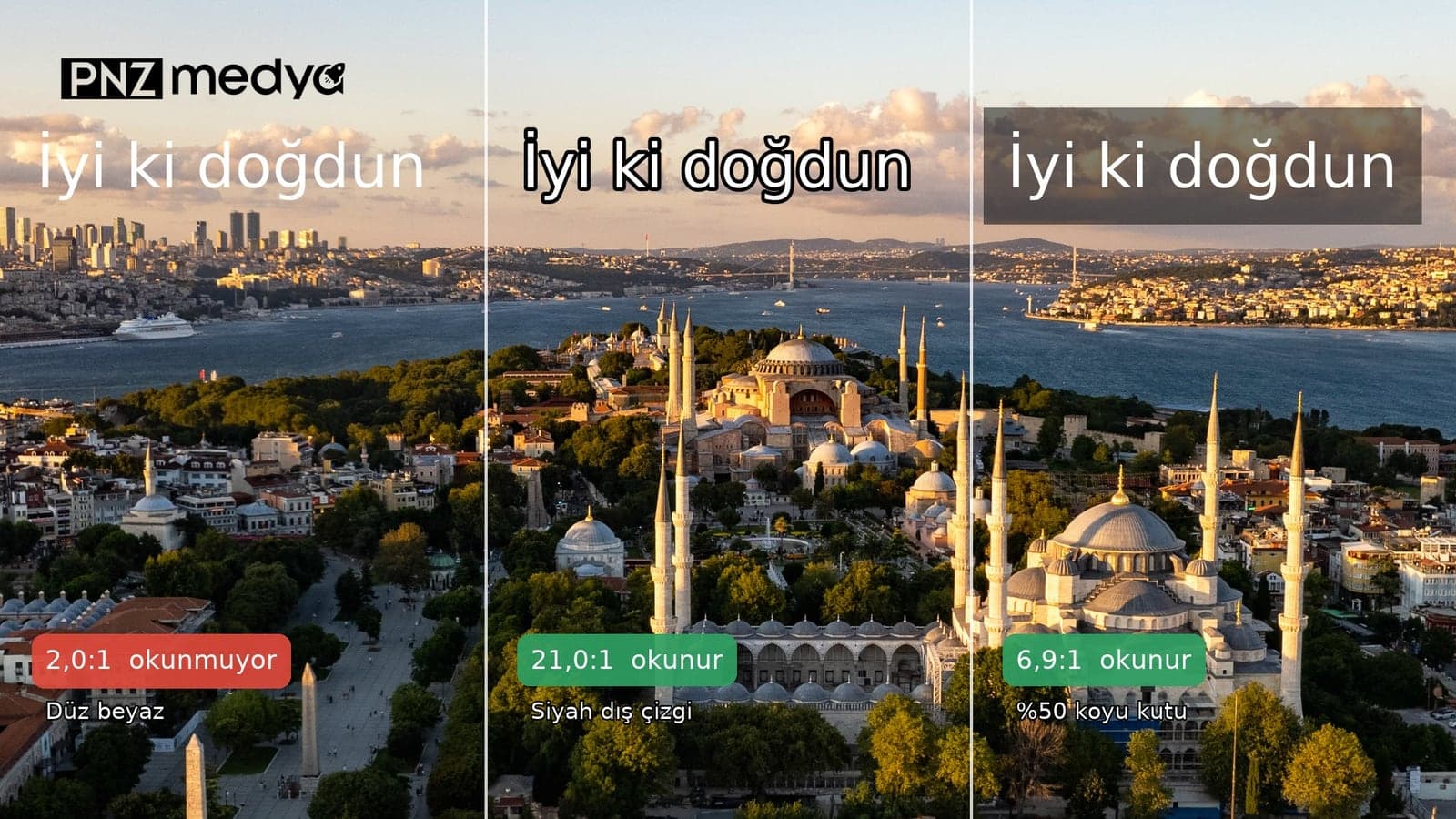
- You can add text on your phone without downloading an app: on Android, Edit > Markup > Text in Google Photos; on iPhone, Add > Add Text in the Markup toolbar.
- If ChatGPT adds the text with Python, the photo is not redrawn: on a 5312x2988 phone photo saved as PNG, not a single pixel outside the text changed.
- Turkish letters depend on the font: Pillow's built-in font turned all 12 tested letters (s-cedilla, g-breve, dotless i, u-umlaut and c-cedilla among them) into boxes; of the 21 fonts we tried, Homemade Apple dropped the capital S-cedilla, G-breve, dotted capital I, g-breve and s-cedilla without a trace.
- White text is unreadable on a bright sky: contrast at the letter edges came out at 1.3:1. A shadow was not enough (2.1:1); a black outline raised it to 21:1 and a 50% dark box to 4.9:1.
- When we gave Gemini the text in quotes, our earlier tests came out letter for letter in 6/6, 9/9 and 36/36; in a handwritten note, the mark over the Turkish g-breve became a flat line in 10 of 13 attempts.
If the text has to come out exactly right (a name, a date, a price), don't let AI redraw the photo. Pick a method that places the text on top of it. Your phone's own editor does this, and ChatGPT does it with Python. Gemini's image model regenerates the photo from scratch: the text usually comes out right, but faces, mouths and resolution can change.
The 12 prompts below keep these two routes apart. Nine are text, date, name and watermark jobs that run with Python in ChatGPT; one looks at your photo and suggests captions; two are for Gemini, a handwritten note and a letter fix. We ran what the Python prompts do on our own computer with the same library and measured the results.
We did not send new requests to ChatGPT or Gemini for this article. We ran the Python steps with Pillow 11.3: we counted the Turkish letter coverage of 21 fonts with fontTools, added text to a 5312x2988-pixel phone photo (LG-H818P, Wikimedia Commons, CC0) and compared four save formats pixel by pixel, and calculated the edge contrast of white text on four photos with the WCAG formula. The Gemini rows come from our image tests in October and November 2026, which used Turkish prompts; the results are in the table below.
How to Add Text to a Photo: 4 Ways on Your Phone and With AI
| Method | Where | What happens to the photo | When to use it |
|---|---|---|---|
| Google Photos, Markup | Android: Edit > Markup > Text | Text is added on top; Save or Save as copy | Quick text on a single photo |
| iPhone, Markup | Markup toolbar: Add > Add Text | Text is added on top | Quick text on a single photo |
| ChatGPT + Python | Upload the photo to the chat, Prompts 1-8 and 12 | Pixels and resolution are preserved | Dates, batch jobs, watermarks, measured contrast |
| Gemini image model | Upload the photo, Prompts 9-10 | The scene is redrawn; 1K on a free account | Handwritten notes, natural-looking text |
Google's help page gives these Android steps: open the photo, tap Edit at the bottom, then Markup (in some versions Tools > Markup). Tap Text and type your text; font, alignment, background fill and outline are on the same screen. Press and hold the box and drag it to move it, tap the checkmark, then choose Save or Save as copy. On iPhone, Apple's guide says to tap the Add button in Markup, then Add Text.
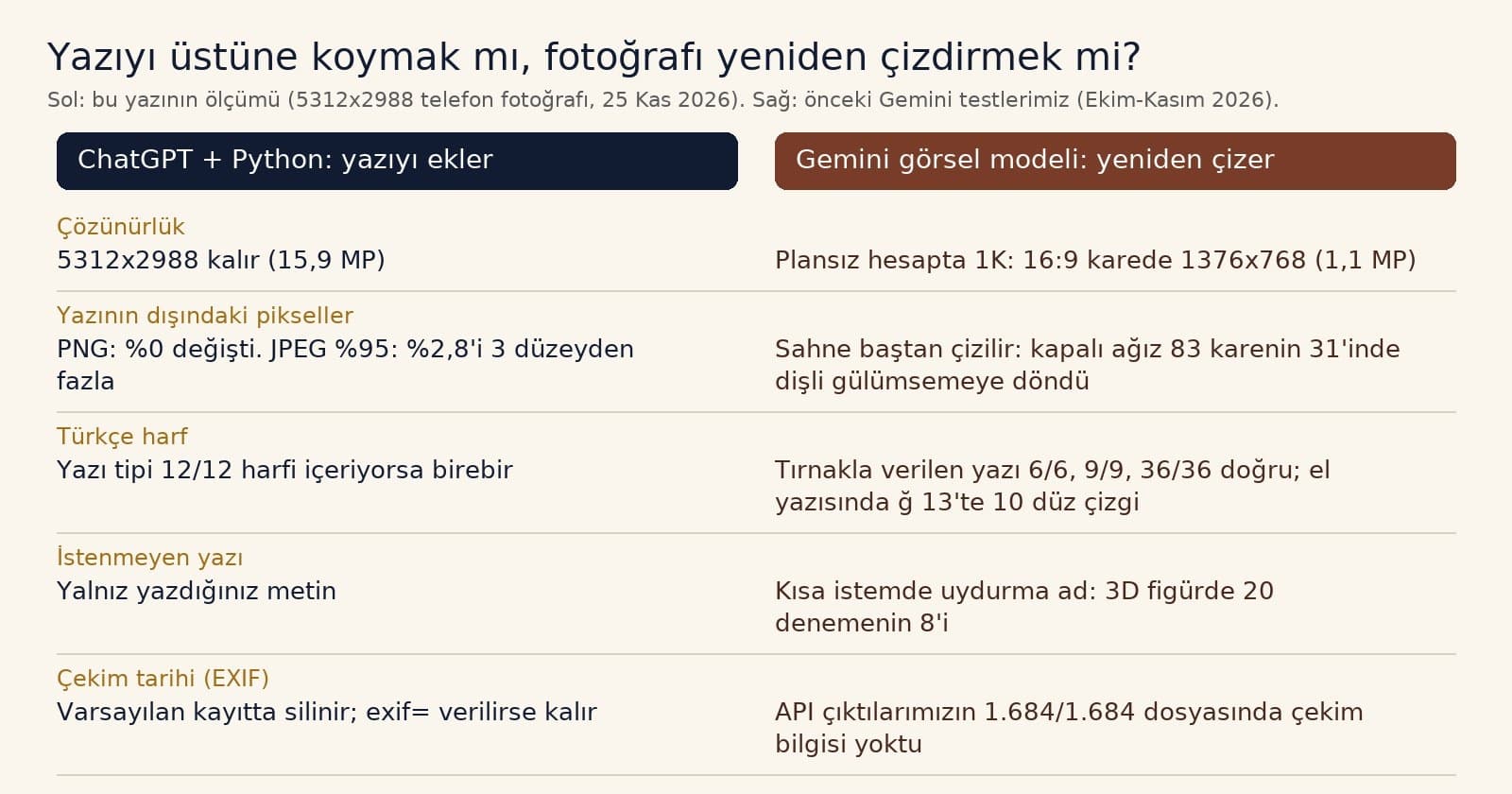
The difference shows up right away in the resolution. The phone photo we measured is 15.9 megapixels, and after adding text with Python the size stayed the same. The Gemini app downloads 1K on a free account: all 46 of the 1K, 16:9 Gemini outputs in our archive were 1376x768 pixels, which is 1.1 megapixels.
Does Gemini Spell Text on Photos Correctly? Our Turkish Tests
Usually yes, if you give the text in quotes. In our image tests in October and November 2026, Turkish text given in quotes came out like this:
| Test task | Requested text | Result | Problem |
|---|---|---|---|
| T-shirt slogan | Turkish slogan, in quotes | 6/6 letter for letter | 1 cream-colored line disappeared on a white background |
| Boxed 3D figure | A Turkish name and job title, in quotes | 9/9 correct | With a short prompt, an invented name in 8 of 20 attempts |
| Text stickers | Three Turkish phrases (good morning, thank you, see you) | 36/36 correct | Without an "exactly as written" line, 3 of 6 sets switched to ALL CAPS |
| Blurred price card | A Turkish product name and "160 TL" | Flash and Pro 4/4 | Flash-Lite made letter errors in 4 of 5 attempts |
| Baby card | Turkish for "my first month" plus birth details | 11 of 12 lines | With a short prompt, a date and weight we never gave were made up |
| Polaroid handwriting | A Turkish place name and month, in quotes | 4/4 after a second message | Flash and Pro put a flat line over the g-breve in 10 of 13 |
Even when the text is right, the photo itself gets redrawn. In our face test, a closed mouth turned into a toothy smile in 31 of 83 frames. That is why Prompt 9 spells out the faces, the expressions and the number of people one by one.
12 Ready-to-Use Prompts: Add Text, Dates and Names to Photos
Upload the photo to the chat, paste the prompt and replace the square brackets with your own text. ChatGPT's free plan lets you upload 3 files a day, with a 20 MB limit per image; for jobs with many photos, put them into a single ZIP file.
1) Prompt to add text to a photo (main template, ChatGPT)
Add this text on top of the photo I uploaded: "[Happy birthday, Sophie]"
Do not redraw the image and do not use the image generation tool; work in Python with Pillow.
First fix the photo's orientation with ImageOps.exif_transpose; do not change its size or crop.
Text position: [bottom center], inset from the edge by 5% of the image width. Text height about [6%] of the image width.
Do not use Pillow's load_default font. Use fontTools to check that the font you choose contains every letter of my text, including accented letters (e.g. é, ñ, ü); if any are missing, choose another font and tell me which one you used.
Make the text white, with a black outline 6% of the text height thick.
Give me two files: a PNG and a quality 95 JPEG. Copy the original photo's EXIF data into the JPEG.
At the end, show a zoomed-in view of the text area; I will check the letters.In the PNG save, the pixels outside the text stay exactly the same. In the quality 95 JPEG, 2.8% of the pixels shifted by more than 3 color levels, which the eye can't see.
2) Short version
Write "[your text]" [at the bottom] of this photo. Do not redraw the image, use Python Pillow.
Choose a font that has every letter of my text, accented letters included (such as DejaVu Sans), and make the text white with a black outline.
Give it to me as a PNG and show a close-up of the text.3) Prompt to add a date to a photo (capture date from EXIF)
Read the capture date of the photo I uploaded from the DateTimeOriginal field in its EXIF data and tell me what it is.
If the field is missing or empty, do not guess a date; say the file has no capture date and stop.
If there is a date, write it in [MM/DD/YYYY] format in the bottom right corner, in orange, like the date stamp on old film cameras.
Make the text height [3%] of the image width, work in Python with Pillow, do not redraw the image.
Give me a quality 95 JPEG and keep the original EXIF data.In the photo we measured, the capture date (May 26, 2018, 18:28) was stored inside the file. Pillow's default JPEG save deleted it along with the phone model; in the save where we passed the EXIF data separately, both stayed.
4) Batch text or dates on multiple photos
Apply the same edit to every photo in the ZIP file I uploaded:
Add [its own capture date in MM/DD/YYYY format in the bottom right corner] / [the text "[Sophie and Mark, 09/14/2026]" at the bottom center].
Use Python Pillow, do not redraw the photos, do not change their size, and fix their orientation with exif_transpose first.
Use a font that has every letter of the text, accented letters included.
Skip photos with no date in their EXIF data and list their names.
Give me the results as a new ZIP with the original file names and show small previews of the first 3 photos.5) Readable text: a prompt that measures the background and picks the style
You will add the text "[your text]" to the photo in the [top center] area; use Python Pillow, do not redraw the image.
First measure the relative luminance of the pixels where the text will go and calculate the WCAG contrast ratio of white text.
If more than 5% of the pixels along the letter edges fall below 3:1, add a black outline to the text or put a 50% opaque black box behind it.
Tell me which style you used and the contrast ratio before and after.
Give me a PNG and show a close-up of the text.In our measurement, a shadow did not rescue the bright sky. That is why the prompt asks for an outline or a box instead of a shadow.
6) Text in a white strip below the photo (without covering it)
Add a white strip below the photo without covering any part of it; make the strip height [15%] of the photo height.
In the middle of the strip, write this text in dark gray ([#333333]): "[Cancún, August 2026]"
Do not crop, shrink or redraw the photo; use Python Pillow.
Choose a font that has every letter of the text, accented letters included, and check the letters with fontTools.
Give me a PNG and a quality 95 JPEG.7) Add a name or watermark to a photo
Add the text "[@username]" to the photo I uploaded as a watermark.
Make it white, 30% opaque, tilted 30 degrees and repeated with spacing across the whole photo; the spacing is 2 times the text width.
Also write the same text once in the bottom right corner, small, at 80% opacity.
Use Python Pillow, do not redraw the photo, do not change its size.
Give me a PNG and a quality 92 JPEG.8) Photo with text for an Instagram story (1080x1920)
Place the photo I uploaded on a 1080x1920 pixel vertical canvas: fit the photo without cropping, and fill the empty space with a blurred, darkened, enlarged version of the same photo.
Add this text just below the photo, near the vertical center of the canvas: "[your text]"
Do not put text along the very top or bottom edge; the app's own buttons appear there.
White text with a black outline, in a font that has every letter of the text, accented letters included. Use Python Pillow.
Give me a PNG.9) Add a handwritten note to a photo in Gemini
Add this text to the [bottom right corner] of this photo, as if [handwritten in blue ballpoint pen]: "[Cancún, August 2026]"
Copy the text letter for letter, with the same capitalization; the accent over the ú must be a small slanted stroke.
Do not add any other text, date, signature or logo.
There are [2] people in the photo; keep their faces, expressions (mouths [closed]), hair and clothes the same. Do not change or crop the rest of the photo.In Gemini, choose Flash or Pro in the model picker. In the price card test, Flash-Lite garbled small text in 4 of 5 attempts.
10) Fix a wrong letter in the same chat
The letter [ú] in the text came out wrong: [it has a flat line instead of a slanted accent].
Fix only this letter; keep the rest of the text, its position, its color and the whole photo the same.
The text must read exactly: "[Cancún, August 2026]"11) Captions for photos: a prompt that looks at your photo and suggests some
Look at the photo I uploaded and suggest [10] short captions to write on it.
Tone: [warm / serious / funny]. Each caption should be at most [6] words.
Each caption should refer to something you actually see in the photo (the place, the light, the colors, what the people are doing).
Do not give quotes from famous people and do not attribute the captions to anyone; spell every letter correctly, accents included.
Later we will add the caption I pick to the photo using the rules in Prompt 1; for now, give me only the list.12) Add text to a photo with your own font
I uploaded two files: a photo and the font file [Pacifico-Regular.ttf].
First use fontTools to check that the font contains every letter of the text I want to write, including accented letters (e.g. é, ñ, ü), and list any missing letters.
If any letter is missing, do not use the font; tell me and stop.
If they are all there, write "[your text]" at the [bottom center] of the photo; use Python Pillow, do not redraw the photo.
Give me a PNG and show a close-up of the text.If ChatGPT adds the text with its image generation tool (the whole photo changes, the face looks different), add "Do not redraw the image, write on the same photo with Python Pillow" in the same chat. If you see boxes or missing letters in the close-up, say "This font is missing letters, use DejaVu Sans or Noto Sans".
Why Is the Text on Your Photo Hard to Read? Contrast on Four Backgrounds
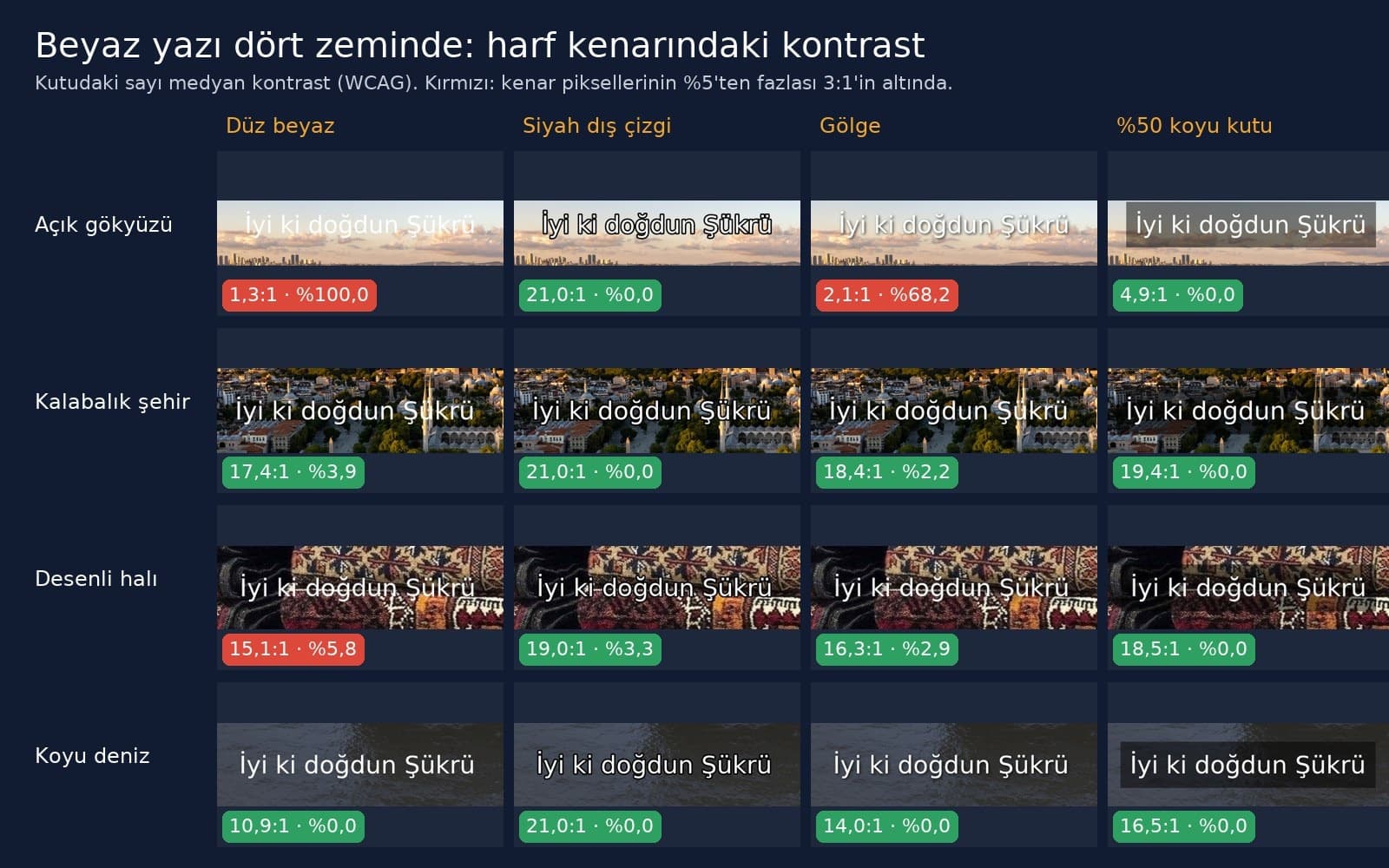
We placed the Turkish birthday greeting used in our test on four photos in five styles and calculated the contrast between the white text and the pixels just outside each letter. The background behind the text matters as much as its color. On the dark sea, even plain white text gave 10.9:1; on the bright sunset sky it stayed at 1.3:1.
| Style | Bright sky | Busy city | Patterned rug | Dark sea |
|---|---|---|---|---|
| Plain white | 1.3:1 (100% of the edge below 3:1) | 17.4:1 (3.9%) | 15.1:1 (5.8%) | 10.9:1 (0%) |
| Shadow | 2.1:1 (68.2%) | 18.4:1 (2.2%) | 16.3:1 (2.9%) | 14.0:1 (0%) |
| Black outline | 21:1 (0%) | 21:1 (0%) | 19.0:1 (3.3%) | 21:1 (0%) |
| 50% dark box | 4.9:1 (0%) | 19.4:1 (0%) | 18.5:1 (0%) | 16.5:1 (0%) |
| 70% dark box | 9.8:1 (0%) | 20.1:1 (0%) | 19.6:1 (0%) | 18.7:1 (0%) |
The visual presentation of text and images of text has a contrast ratio of at least 4.5:1 [...] Large-scale text and images of large-scale text have a contrast ratio of at least 3:1.
On the patterned rug, even the outline fell below 3:1 on 3.3% of the edge; on a multicolored background the cleanest result came from the box. Look at the background before you place the text. Sky, snow, white walls and sea foam are the hardest places for plain white text.
Why Do Letters Turn Into Boxes? Our Turkish Letter Test
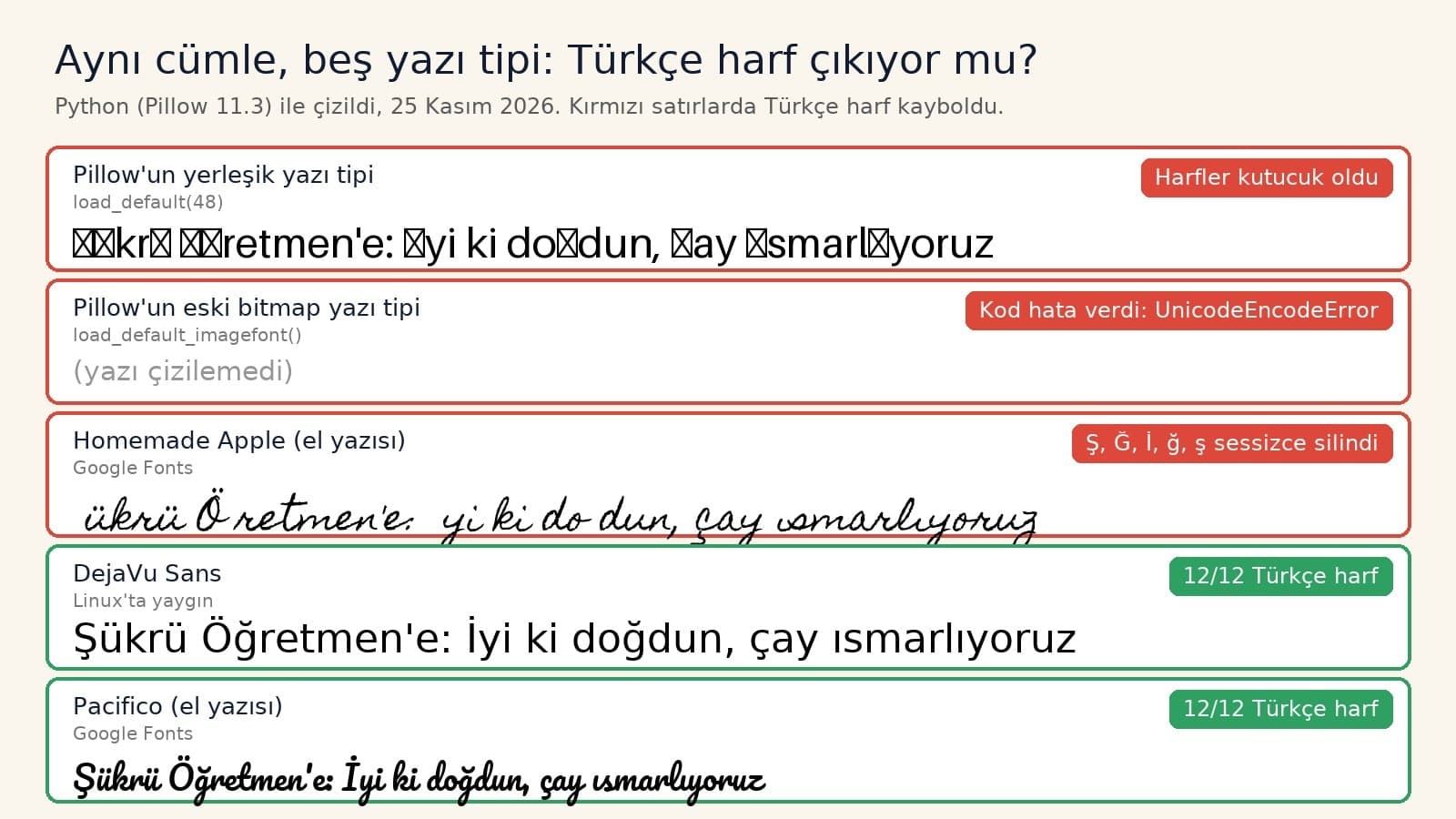
When a font lacks a letter, one of three things happens, and we saw all three. Pillow's built-in font drew boxes for all 12 Turkish letters, u-umlaut and c-cedilla included. Pillow's old bitmap font raised a UnicodeEncodeError on the capital S-cedilla and stopped. Homemade Apple, which we downloaded from Google Fonts, dropped the capital S-cedilla, G-breve and dotted capital I and the lowercase g-breve and s-cedilla without leaving any trace, so the name in our test greeting lost its first letter. That last one is the most dangerous, because there are no boxes and the eye easily misses it.
Of the 21 fonts we tried, 20 contained all 12 letters, among them DejaVu Sans, Noto Sans, Arial, Montserrat, Pacifico, Lobster, Dancing Script, Great Vibes, Caveat, Bebas Neue and Anton. That is why Prompt 1 and Prompt 12 ask for a letter check before any text is written.
Adding a Date to a Photo: The Capture Date Is Already in the File
The date and time of a phone photo are usually stored in the EXIF section of the file; Prompt 3 reads them and does not make them up. We added text to the 8.6 MB photo we measured and saved it in four formats:
| Save format | File size | Capture date and model | Pixels outside the text |
|---|---|---|---|
| Pillow default JPEG (quality 75) | 1.8 MB | Deleted | 34.7% changed by more than 3 levels |
| JPEG quality 95, exif passed | 5.9 MB | Kept | 2.8% changed by more than 3 levels |
| JPEG quality 95, exif not passed | 5.9 MB | Deleted | 2.8% changed by more than 3 levels |
| PNG | 19 MB | Deleted | None changed |
So use a quality 95 JPEG for sharing and a PNG for keeping. The default save makes the file smaller, but it deletes the capture data and shifts the colors in more than a third of the photo.
Common Mistakes
- Leaving the text to the image model with "write this on the photo": with a short prompt, Gemini can add a name, date or note you never asked for (8 of 20 attempts in the 3D figure test).
- Not putting the text in quotes. Quoted text came out letter for letter in our tests; with a short unquoted prompt, the model filled the gaps on its own.
- Sharing without checking the close-up. A missing g-breve or s-cedilla does not show in a small preview.
- Putting plain white text on a bright background and trying to save it with a shadow. The shadow stayed at 2.1:1; use an outline or a box.
- Saving the photo you plan to share with the default JPEG setting. The capture date gets lost; ask for quality 95 and exif, as in Prompt 1.
People in the Photo and Data in the File
Before you upload a photo with someone else's face to ChatGPT or Gemini, ask that person. Under Article 3 of Turkey's Personal Data Protection Law No. 6698, a photo of an identifiable person counts as personal data. A save that keeps EXIF carries the capture date and phone model, and if your phone's camera location setting is on, the location may be in the file too. The photo we measured had no coordinates, only altitude. If you want to remove the location for a public post, add "Delete the GPS section from the EXIF data" to the last line of Prompt 1.
On Android, open the photo in Google Photos and tap Edit > Markup > Text; on iPhone, choose Add > Add Text in the Markup toolbar. For dates, batch jobs or watermarks, upload the photo to ChatGPT and use Prompt 1: the text is added with Python and the photo is not redrawn.
No. The Markup tool in Google Photos and in the iPhone Photos app adds text, and in Google Photos you can also pick the font, background fill and outline. For more precise work, ChatGPT's Python tool is enough.
Most phone photos store the capture date in the EXIF section of the file. Prompt 3 has ChatGPT read that date and write it in the corner as a date stamp; if there is no date, it stops without making one up. For several photos, use Prompt 4.
Yes, in two ways. The image generation tool redraws the photo; the Python tool adds the text on top of the photo and keeps the pixels. Writing "do not redraw the image, use Python Pillow" in the prompt makes it take the second route. We did not separately test adding text with ChatGPT's image tool for this article.
In our tests, which used the original Turkish prompts with the text in quotes, the Turkish letters mostly came out right: the T-shirt slogan 6/6, the stickers 36/36. In the handwritten note, Flash and Pro put a flat line over the g-breve in 10 of 13 attempts; a fix with a second message in the same chat worked 4/4.
The background may be as bright as the text. On a bright sky, the contrast of white text came out at 1.3:1, while WCAG asks for at least 3:1 for large text. Add a black outline to the text or put a semi-transparent dark box behind it.
If you want to remove text from a photo and write new text in its place, start with the removal side. If you want the handwritten note on a polaroid frame, our polaroid prompts measured the border and the g-breve fix separately.
One last check before you share: open the photo on your phone at the size you will post it and read the text at arm's length. In the 15.9-megapixel photo we measured, the text covered only 3% of the frame. A missing letter or low contrast shows up there first, in the small preview.
Corporate Identity Design
Do your social posts come out in a different font and color every time? We build your brand guide with a font that covers every Turkish letter, color codes and social media templates. Let's look at your current visuals together in a free first call.