
AI Product Photography Prompts: 12 Prompts for Gemini and ChatGPT, Label Tested
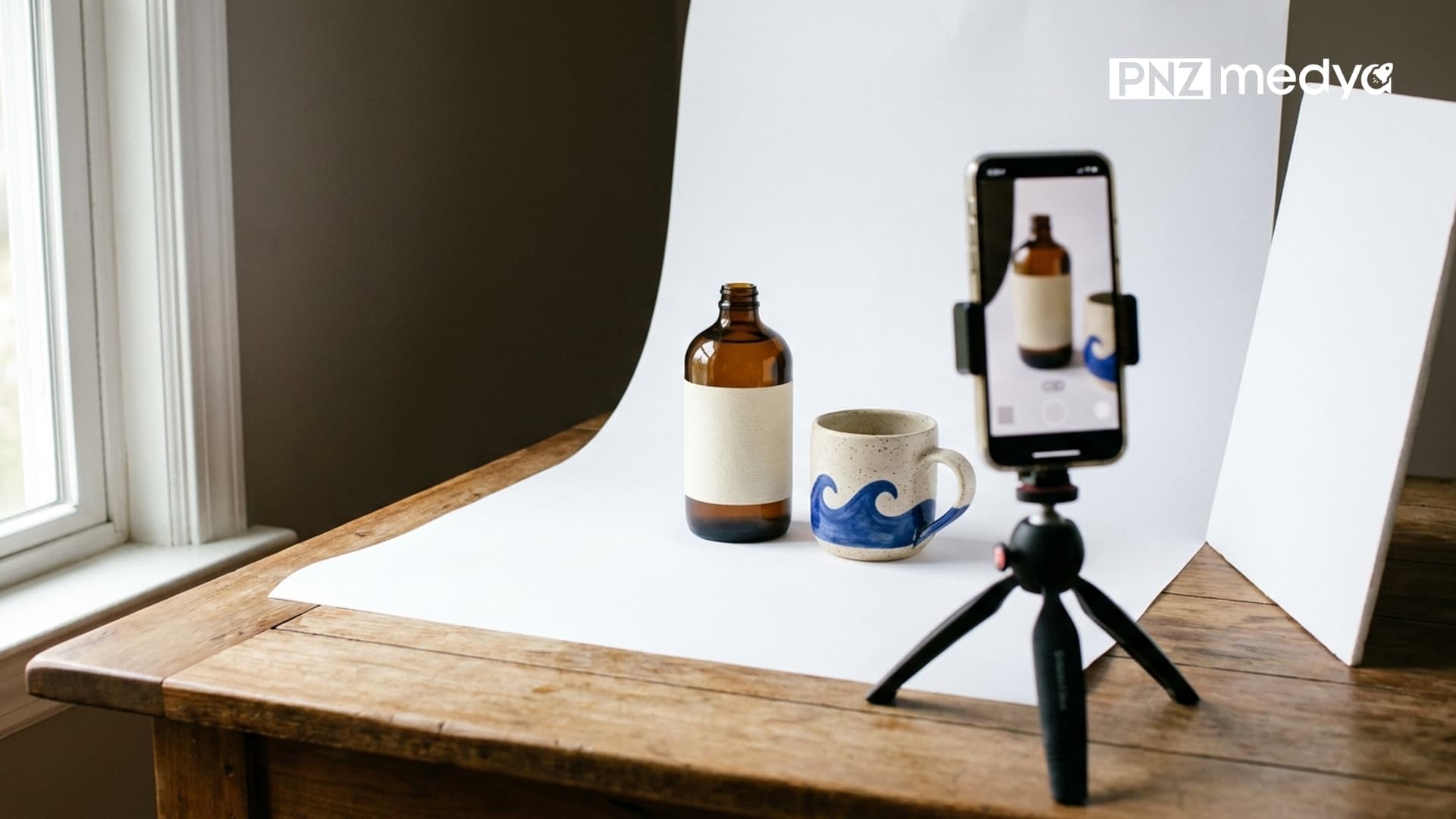
AI product photography prompts: 12 ready-to-use prompts covering a marketplace white background, kitchen scene, ad image, flat lay and in-hand scale shot. We tested them on 32 images: the label stayed correct in 14 frames, and when we said "show the back", Gemini made up a fake barcode.
- We moved two phone-shot product photos into 7 scenes across Gemini's three image models. The three Turkish lines on the olive oil label stayed letter for letter the same in 14 out of 14 frames.
- In 9 of those same 14 labels, the model added thin columns of unreadable text along the label's edge. Zoom in on the label and check its edges before you upload to a marketplace.
- When we said "show the bottle from the back", Nano Banana 2 invented a nutrition table, a barcode starting with 869 and a company name for the back. With a prompt that described the back, neither model added anything.
- None of the 18 outputs where we asked for a "pure white background" had all edge pixels at the 255 white Amazon requires. Setting the white point to 240 in an image editor made the edge 100% white in the bottle frames.
- Trendyol does not accept accessories that aren't included in the package, or images that "look artificial", in the main image. Use AI for secondary images and social media, and use a real photo of the product as the main image.
Trendyol, the Turkish marketplace, won't approve a product if the main image on the product page shows an accessory that isn't in the package or a photo that "looks artificial". Amazon wants the main image background to be pure white (RGB 255, 255, 255). When you make product photos with AI, the real work is meeting these two rules. The rest of the prompt is easy.
This post has 12 ready-to-use product photography prompts: a marketplace main image, a kitchen and table scene, a pastel social media post, an ad image with room for a headline, a two-product flat lay, an in-hand scale photo and an image set plan. We ran ten of them in our own test through the Gemini API on October 20, 2026: 32 images, two text responses and a pixel-by-pixel measurement of the white background.
How to Make Product Photos with AI: 5 Steps
Short answer: shoot the product with your phone in daylight, upload the photo to Gemini or ChatGPT, write the label text into the prompt letter for letter, describe the scene, then zoom in on the result and compare it with the label.
- Shoot the product. One photo by a window, with the whole product and its label clearly visible, is enough. A messy background is fine; our test inputs had a dish sponge and a TV remote in them.
- Upload the photo. In Gemini you can attach up to 10 files in a single prompt; ChatGPT's free plan has a limit of 3 files per day.
- Give the label as text. Add whatever the label says to the prompt line by line, in quotes. Google's Gemini guide also recommends describing logos and details that must be preserved in detail in the prompt.
- Describe the scene and framing. Background color, surface, the direction the light comes from, how much of the frame the product fills and the objects next to it. Also write that those objects have no text.
- Check the result. Zoom in on the image and look at the letters on the label, the label's edge, the product's color and directional details like the handle. If you need a white background, fix the edge whiteness in an editor.
Asking for a side of the product you never photographed. We showed only the front of the bottle, and when we said "show it from the back", Nano Banana 2 wrote a back label from scratch: wrong nutrition values, a fake barcode, a made-up company name. If you want to show the back, upload a photo of it too, or describe the back as in Prompt 9.
Product Photography Prompts: 12 Ready-to-Use Prompts (Gemini and ChatGPT)
Upload the photo, copy the prompt and replace the parts in square brackets with your own product. The tests were run in Gemini with the original Turkish versions of these prompts. They are plain sentences, so you can paste them into ChatGPT as is, though we did not try them there. Searches like "product image prompt" or "product shoot prompt" all come down to the pattern below.
1) Marketplace main image: pure white background
Using the product in the photo I uploaded, create a main marketplace image.
Product: [500 ml dark amber glass bottle, black screw cap]. Keep its shape, color, cap and label exactly as they are. The label text reads exactly as follows and must not change: "[line 1]" / "[line 2]" / "[line 3]".
Background: flat, pure white (#FFFFFF) studio background all the way to the edges; no floor line or gray gradient, only a very light, soft shadow under the product.
Only this product is in the frame; no other objects, decorations or text next to it.
Framing: product straight from the front, centered, filling about 85% of the image height.
Lighting: soft box light, a single controlled highlight [on the glass]. Aspect ratio 1:1, realistic product photo.With the bottle, the label came out correct in seven out of seven frames and the bottle filled 75% to 88% of the image height. With the mug, despite the same "85%" line, the mug stayed at 56% to 69% of the height; for wide products, crop the extra space afterward. Whether the background is really white is a separate question, covered in the measurement below.
2) Turning a gray background white (second message)
In this image, change only the background: make it a single solid pure white (#FFFFFF) all the way to the edges, with no gray gradient, corner shadow or floor line left. Keep only a small, soft contact shadow under the product. Do not touch the product itself, its [label], its color or its size.Nano Banana 2 had returned the mug on a light gray background that darkened at the corners instead of white. After this second message the whole edge turned white to the eye (250 and above) and the mug was left untouched. In Pro, the same message raised the share of edge that looks white from 11% to 59%; the gray did not go away completely. If the second message isn't enough either, the last step is the white point setting in an image editor.
3) Lifestyle image on a kitchen counter
Place the [olive oil bottle] from the photo I uploaded into a lifestyle product photo.
Product: keep its shape, color, cap and label exactly as they are; the label text stays exactly "[line 1]" / "[line 2]" / "[line 3]".
Scene: a light marble kitchen counter; next to the product, [a wooden cutting board, sliced country bread, green olives in a small bowl, a few sprigs of rosemary]. Behind it, a blurred, bright [Aegean] kitchen.
None of the objects next to it have text, brands or labels; plain surfaces with no writing.
Lighting: soft morning daylight coming from the left.
Camera: at counter level, product sharp, background soft. Aspect ratio 4:5, realistic photo.In both models the label was in place, and the bread, olives and bowl in the scene carried no text. Nano Banana 2 Lite turned the bottle's dark amber glass into light-colored glass, and the oil looked golden yellow. If glass color affects the buying decision, repeat "[dark amber] glass" in the prompt and put the result side by side with the input.
4) In-use moment by the window
Place the [ceramic mug] from the photo I uploaded into a lifestyle product photo.
Product: keep [the cream speckled glaze, the cobalt blue wave band, the handle on the right from the viewer's side and the sand-colored foot ring] exactly as they are; do not add any text or logo to the product.
Scene: a light wooden table by a window; [frothy milky coffee inside the mug], next to it a linen napkin and an open notebook with plain pages and no writing. Blurred green plants in the background.
Lighting: soft morning light coming through the window.
Camera: from 30 degrees above, product sharp, background soft. Aspect ratio 4:5, realistic photo.Writing the handle direction as "on the right from the viewer's side" worked: in 11 out of 11 frames in the test, the mug came out with its handle on the right, as in the input. We described the notebook as having "plain pages and no writing", and in both frames the notebook had no letters.
5) Pastel background and pedestal: social media post
Create a social media product image with the product in the photo I uploaded.
Product: keep [its pattern, color, handle and foot ring] exactly as they are; do not add text on it.
Background: flat pastel [peach] background all the way to the edges; the product stands on a plain cube pedestal in the same color.
No objects in the frame other than the product and the pedestal.
Lighting: hard sunlight from the upper right, with a distinct, sharp shadow falling on the background.
Aspect ratio 4:5, realistic product photo.For Instagram and storefront carousels. In both models the background stayed one color and the mug's hard shadow fell on the background. Pick the color from your brand palette and use the same prompt for every product, changing only the brackets; with the same light, the series looks consistent.
6) Ad image with room for a headline
Create an ad image with the product in the photo I uploaded; I will add the text later.
Product: keep its shape, color, cap and label exactly as they are; the label text reads exactly "[line 1]" / "[line 2]" / "[line 3]".
Layout: the product sits in the lower right third from the viewer's side; the top half of the image stays empty as a flat, calm, light [olive green] background all the way to the edges (room for a headline). No letters, shapes or objects in the empty area.
Surface: the product stands on a flat stone pedestal, with a single [olive branch] next to it.
Lighting: soft, warm studio light. Aspect ratio 4:5, realistic product photo.The top half stayed empty in both frames; you add the headline yourself with Canva or the editor on your phone. Don't have the model write campaign or price text: Trendyol does not accept images with campaign, price, discount or shipping information on them, so this frame is for ads and social media only.
7) Two products together: overhead flat lay
Combine the products from the two photos I uploaded in the same frame, in a flat lay photo shot from directly above.
Product 1 (first photo): the [amber glass bottle] lies on its side on the fabric, label facing up toward the camera; the label text reads exactly "[line 1]" / "[line 2]" / "[line 3]".
Product 2 (second photo): the [ceramic mug], opening facing up toward the camera.
Surface: light beige linen fabric all the way to the edges. Between the two products, [a few olives and a single sprig of rosemary]; no other objects, text or logos.
Lighting: soft daylight with light shadows. Camera directly overhead. Aspect ratio 1:1, realistic photo.The models split on this prompt. Nano Banana 2 really did show both products from above. Lite drew the linen from above but placed the bottle and the mug from the side, as if they were standing up, and the frame looked like a collage. For flat lays, use Nano Banana 2 or a setting that runs Pro.
8) Scale in hand: how big is the product?
Show the [ceramic mug] from the photo I uploaded being held between an adult's two hands; only the hands and wrists are in the frame, no face.
Product: keep [its pattern, color and handle] exactly as they are; the product is at its real size: about [9 cm tall], a [standard coffee mug] that fits in the palm.
Clothing: a plain [beige knit sweater] sleeve, with no text.
Lighting: warm, soft daylight; a blurred [living room] in the background.
Aspect ratio 4:5, realistic photo.A secondary image that answers the buyer's question "how big is this?" Writing the product's size in centimeters helped the model draw the hands and the product in proportion. In both frames the hands held the mug in the palms and the handle showed between the fingers. Write the real dimensions in the product description too, because an image alone does not count as proof of size.
9) The back of the product or another angle
Show the [olive oil bottle] from the photo I uploaded from the back.
Back side: [there is no label on the back of the bottle; only plain amber glass with no writing is visible, and the paper edges of the front label show faintly through the glass]. Do not add text, a barcode, an ingredients list or a logo to the back.
The product's shape, color and cap are the same as in the photo taken from the front.
Background: flat, pure white studio background all the way to the edges. Aspect ratio 1:1, realistic product photo.If the back has a label, don't use this prompt: photograph the back label too and upload it as a second image. With the description, neither model added any text on the back. The front label showed through the glass in reverse, as it would on a real glass bottle. What the short "show it from the back" prompt produced is in the test below.
10) Dimensions image: let the model draw the arrows, you write the numbers
Create a dimensions image for a marketplace with the product in the photo I uploaded.
Product: keep its shape, color and label exactly as they are; product straight from the front, on a pure white background, centered.
To the left of the product, a thin dark gray height arrow running from top to bottom; below it, a thin width arrow running from left to right. Small perpendicular lines at the ends of the arrows.
No numbers, letters or units next to the arrows or anywhere in the image; I will add the measurements myself. Aspect ratio 1:1.We did not test this prompt. The reason to leave the arrows to the model and the numbers to yourself is simple: the model doesn't know the product's real size, and if it writes a number, it makes one up. Measure with a ruler and add the dimensions to the image in an editor.
11) Seasonal campaign: New Year's table
Place the product from the photo I uploaded into a scene for a New Year's campaign.
Product: keep its shape, color, cap and label exactly as they are; the label text reads exactly "[line 1]" / "[line 2]".
Scene: a wooden table with a dark green linen cloth; blurred warm fairy lights behind the product, and next to it a few pine branches, a dried orange slice and a kraft paper package with a red ribbon and no writing on it.
None of the objects in the scene have text, brands or labels.
Lighting: warm evening light; product sharp, background soft. Aspect ratio [4:5], realistic photo.We did not test this prompt. It's for moving the same product into the season in November and December. We described the gift package next to it as having "no writing on it" because in our earlier tests Gemini added text on its own to surfaces we had left blank.
12) Image set plan (written)
Plan a marketplace image set for the product in the photo I uploaded.
Set: 1 main image + 6 secondary images. For each image, on a single line: order, what it shows, background, angle, and whether there will be text on the image.
Rules: the main image is straight from the front, on a white or light background, with no other product or accessory next to it; none of the images have price, discount, shipping or campaign text.
Use only the information visible in the photo and written on the label. Do not write any feature that is not on the label ([acidity, organic, origin, harvest year, health benefit]); where you don't know, write [to be filled in by seller].
At the end, list separately the images in this set that I need to shoot as real photos.We compared this prompt in Gemini's text model against a short prompt where we wrote only "Plan the images I'll upload to Trendyol for this product." The short prompt added three claims that are not on the label ("additive-free", "nutritional values preserved", acidity) and suggested putting shipping text on one image. This prompt left acidity, origin, harvest year and dimensions blank as "[to be filled in by seller]". It called only the cap "leak-proof", and you should check that too.
Our Test: Are the Label, Pattern and Handle Preserved?
The front of the label holds up; the trouble is at the edges. We ran the test on October 20, 2026 through the Gemini API, using the original Turkish prompts. First, with Nano Banana Pro, we generated "shot on a phone" photos of two fictional products: a 500 ml amber glass olive oil bottle with a three-line label in Turkish (the name "GOKCE" is made up too) and a speckled ceramic mug with a cobalt blue wave pattern. Then we gave these two inputs to Nano Banana 2 Lite, Nano Banana 2 and Nano Banana Pro at 1K resolution.
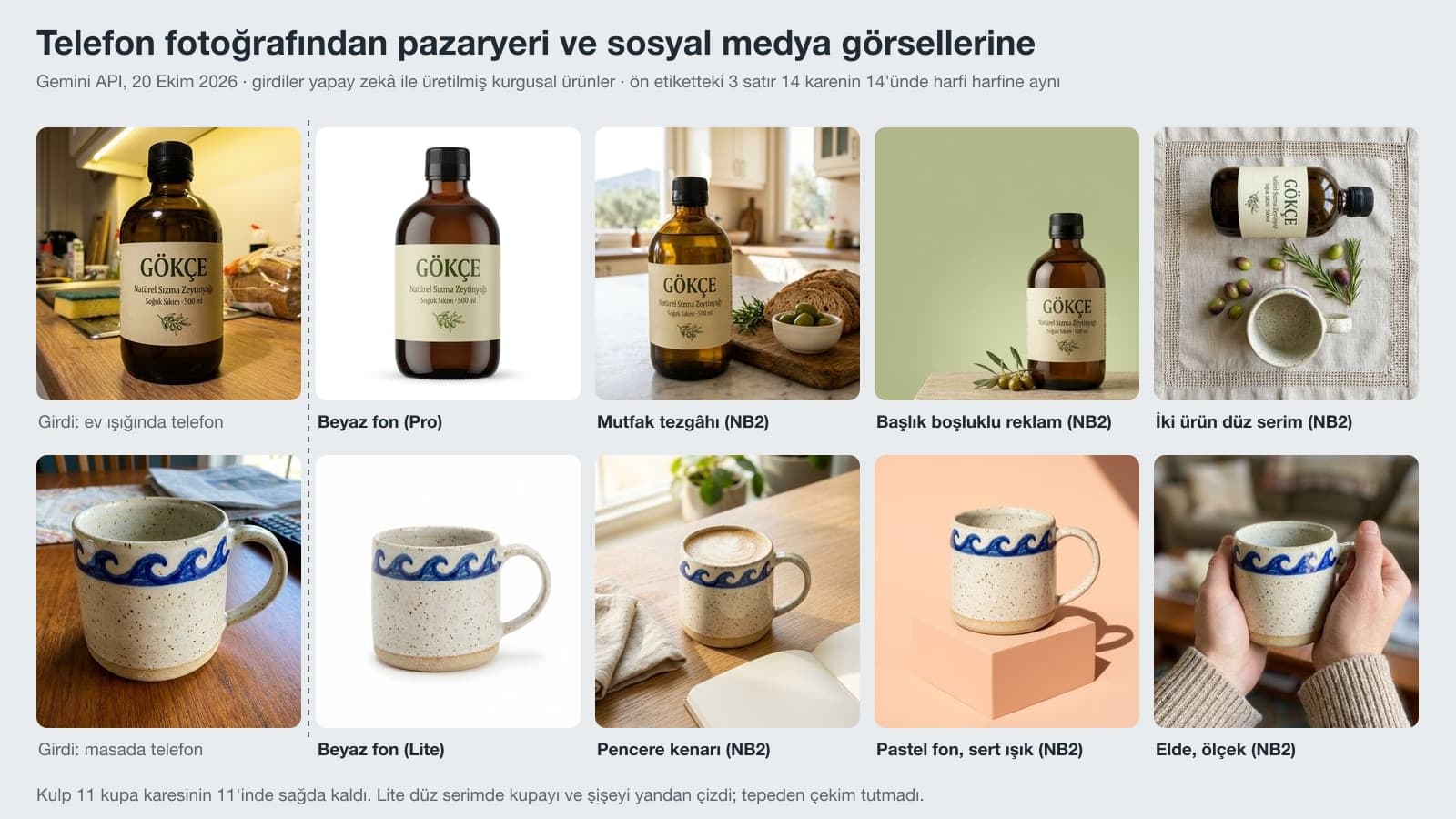
| What we measured | Nano Banana 2 Lite | Nano Banana 2 | Nano Banana Pro |
|---|---|---|---|
| 3 front label lines, letter for letter | 6/6 | 6/6 | 2/2 |
| Unreadable small text added at label edge | 4/6 | 4/6 | 1/2 |
| Mug pattern and right-side handle preserved | 5/5 | 5/5 | 1/1 |
| White background edge white to the eye (250+) | 5/5 | 3/6 | 3/4 |
| Pure white (255) edge pixels, best frame | 52% | 89% | 89% |
| "Show the back" (short prompt) | Didn't rotate, gave the front | Invented a back label | Oil color turned green |
| Prompt describing the back | Clean | Clean | Not tested |
| Overhead flat lay | Products drawn from the side | Correct | Not tested |
The addition at the label's edge isn't visible at first glance. In the input photo, where the label disappears around the curve of the bottle, there were a few faint marks. The models turned these marks into columns of small, unreadable text, and in two frames they also put a small icon next to them. A buyer can't read this in a marketplace photo, but because of Trendyol's rule against images that "conflict with the brand information entered for the product", it's safer not to leave any text in the image that isn't on the product label. If your label has no small print, add this line to the prompt: "the label edges are plain cream paper, no other text".
To ensure critical details (like a face or logo) are preserved during an edit, describe them in great detail along with your edit request.
Giving the label text in quotes in the prompt is how you apply this advice. The real label in the test was in Turkish, and its three lines (the brand "GOKCE", "natural extra virgin olive oil" and "cold pressed · 500 ml") stayed error-free in every scene, including the c-cedilla, the o-umlaut, the soft g and the dotless i. The API cost of the test was about $2.30 for 32 images.
What Did the Model Make Up When We Said "Show the Back"?
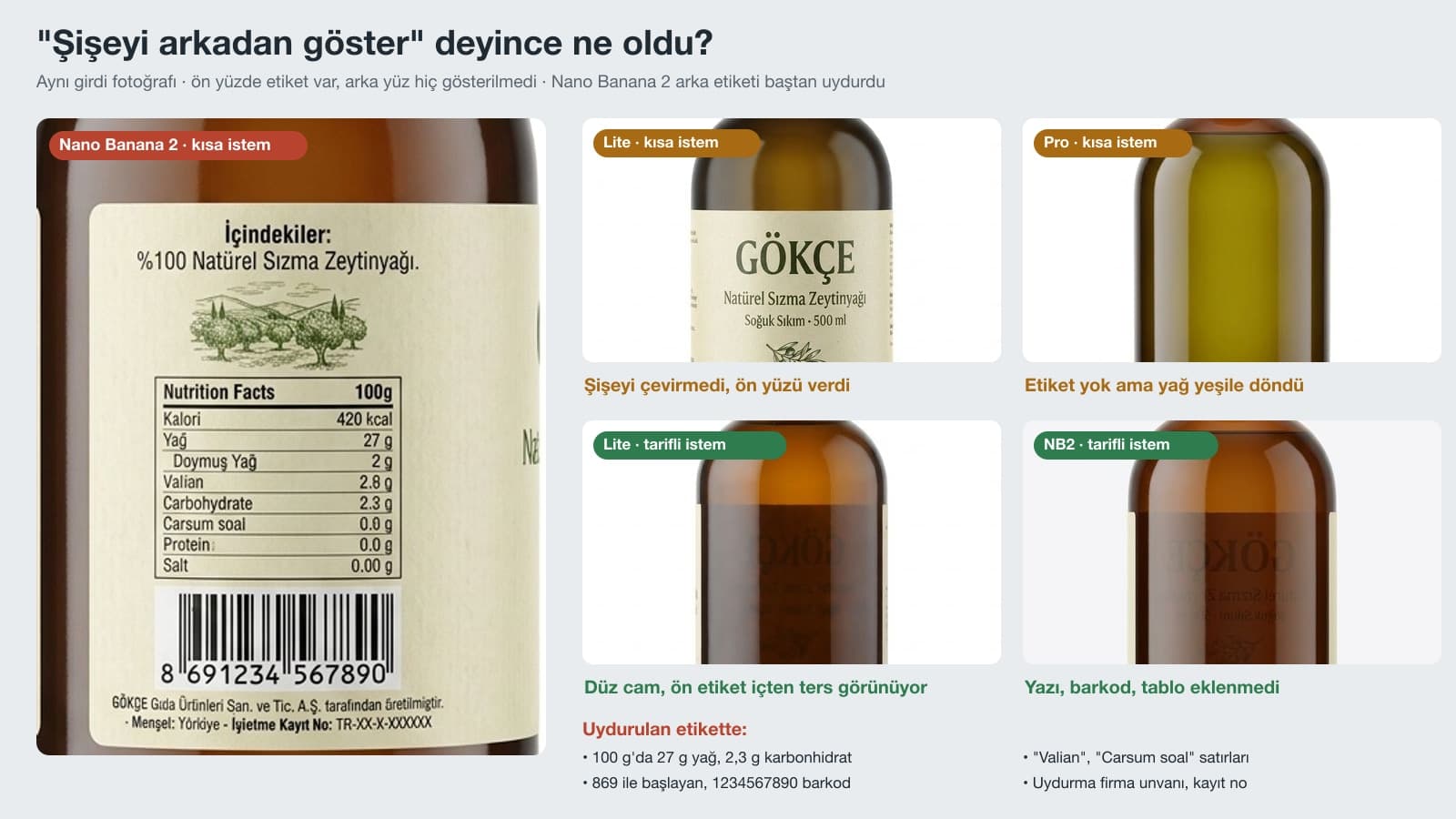
We showed only the front of the bottle and said "show it from the back". Nano Banana 2 wrote a whole label on the back: an ingredients line reading "100% natural extra virgin olive oil" (in Turkish on the image), a nutrition table with English headings, a barcode starting with 869 and continuing 1234567890, a made-up company name and a business registration number. The table lists 27 grams of fat and 2.3 grams of carbohydrate per 100 grams. Olive oil is almost entirely fat and contains no carbohydrate. There are also lines like "Valian" and "Carsum soal" that exist in no language. Lite never turned the bottle around and redrew the front. Pro drew the back without a label but turned the oil a greenish yellow.
If an image like this goes onto a marketplace, the buyer sees a nutrition table that isn't on the product and a barcode that doesn't exist. If you want to show the back, the side or the inside of the box, shoot a real photo of that side and upload it. Describe a side as in Prompt 9 only when you know exactly what it looks like, for example plain glass.
Is the White Background Really White? Pixel Measurement
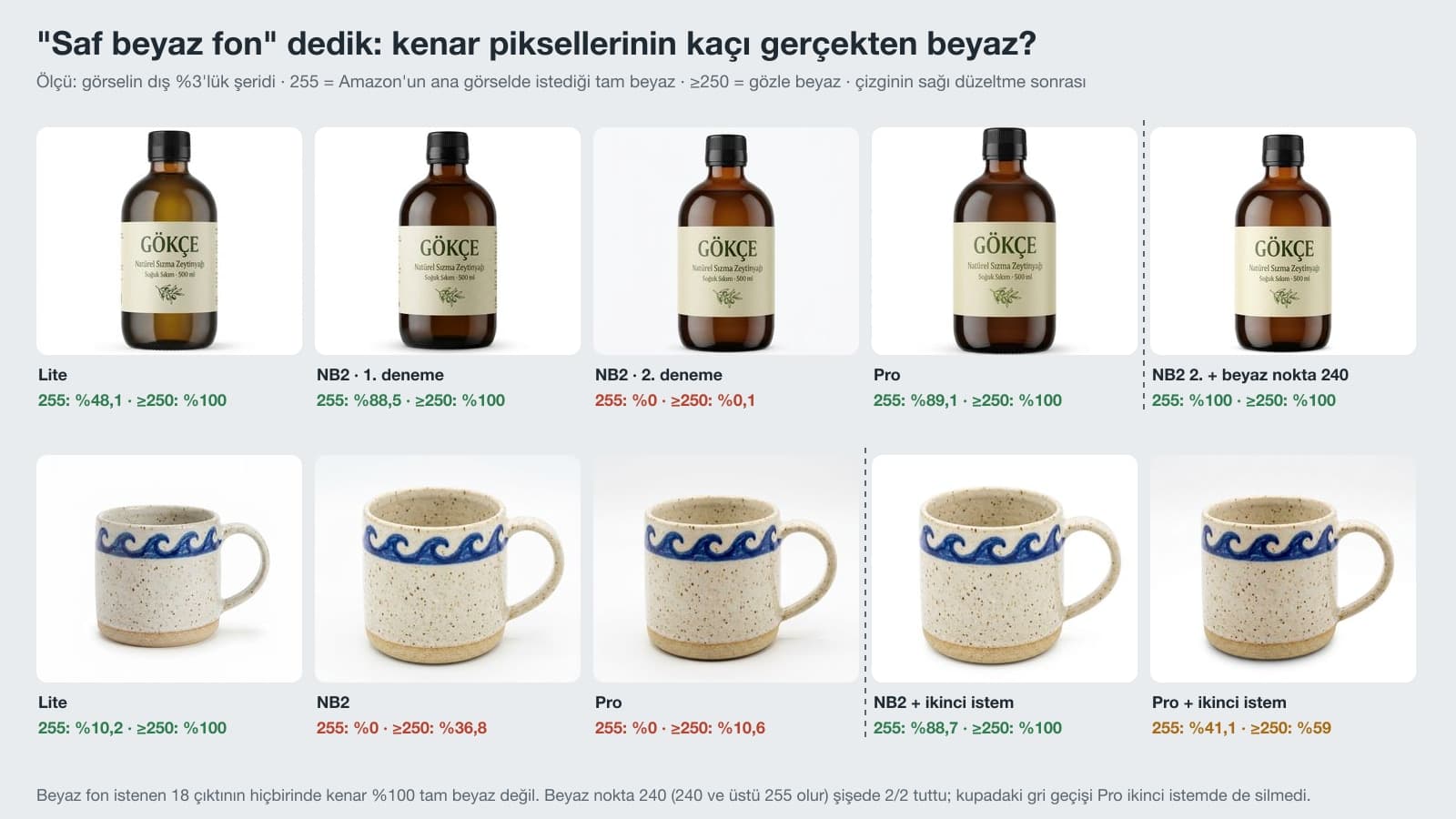
To the eye they all look white. By pixel value, none of them is pure white. We measured the edge strip of the 18 outputs where we asked for a white background. The share of pure white (255) pixels topped out at 89% in the best frame. Most of the bottle frames came out white to the eye (250 and above), but Nano Banana 2's second attempt gave a light gray-blue background. On the mug, Nano Banana 2 and Pro used a studio gray that darkens toward the edges.
The quickest fix is the Levels setting in an image editor: drag the white slider to 240 and every pixel at 240 and above becomes 255. We applied this to two of the bottle frames, and in both, 100% of the edge became pure white while the label stayed readable. The dark gray in the mug's corners wasn't light enough for this setting; there, use Prompt 2 first, then Levels. If your product is white too (a white mug, a white box), its edge can blend into the background. In that case it's cleaner to cut the product out with a background removal tool and place it on a white base.
Trendyol and Amazon Product Image Rules
| Rule | Trendyol | Amazon |
|---|---|---|
| Main image background | A plain white or light background is preferred | Pure white, RGB 255, 255, 255 |
| Area the product fills | Most of the image | 85% of the image |
| Size | Min 860x574, max 2000x2000 pixels; max 10 MB | Longest side 500 to 10,000 pixels; zoom turns on at 1,000 and above |
| Objects next to it | Products or accessories not included in the package are not accepted | Accessories and props that don't come with the product are not shown |
| Lifestyle main image | The main image should show the product plainly, from a straight angle | Only for a limited set of product types; no text and no extra logos |
| Text on the image | Shipping, returns, campaign, price or discount text and excessive text are not accepted | No Amazon logo or anything resembling it |
Trendyol's seller help center page on product image selection and upload adds one more point: "images heavily edited with Photoshop or that look artificial" are not accepted (our translation), and you can't create a product listing with a representative image. So for the main image, a real photo of the product (with the background cleaned up) is the safest choice, and the scenes in Prompts 3 through 8 belong in secondary images, the storefront and social media. One more detail on size: when you ask Gemini for 2K at 1:1, it returns 2048x2048 pixels, while Trendyol's upper limit is 2000x2000. Resize to 2000 before uploading. The 1K image (1024 pixels) you download from free Gemini is above the minimum of both marketplaces.
ChatGPT or Gemini? Limits for Product Photos
| Criterion | ChatGPT | Gemini |
|---|---|---|
| Image model | ChatGPT Images 2.5, on all plans | On a free account, most requests go to Nano Banana 2 Lite; Nano Banana Pro on a paid plan |
| Photo uploads | 3 files per day on the free plan | Up to 10 files in a single prompt |
| Download resolution | Not specified | 1K free, 2K with a paid plan |
| AI marker | C2PA content credentials | SynthID watermark |
For jobs where you upload two photos, like a two-product flat lay, the file limit on ChatGPT's free plan fills up fast. Lite, which handles most requests on a free Gemini account, kept the label in our test, but it drew the products from the side in the flat lay and lightened the glass color in one scene. For these two jobs, a paid plan or a regeneration with Pro is worth it.
Common Mistakes
- Leaving the label to the photo alone. If you don't write the label lines in quotes in the prompt, the model redraws the letters the way it reads them.
- Asking for a side it hasn't seen. Upload a real photo for the back, the inside of the box or the bottom; otherwise the model may invent a barcode and a nutrition table.
- Approving the white background by eye. Amazon wants 255, and none of our outputs was fully 255 at the edges. Use Levels to set the white point to 240.
- Putting accessories in the main image. Objects that aren't in the package, like bread, olives or flowers, get a Trendyol main image rejected; save them for secondary images.
- Having the model write price and shipping on the image. Trendyol doesn't accept it. Campaign text belongs only on ad images, added by you.
- Uploading a 2K image as is. Gemini's 2K frame is 2048 pixels, and Trendyol's limit is 2000.
Upload a photo of the product, write the label text line by line in quotes, and describe the background, the surface, the direction of the light and how much of the frame the product should fill. Add that the objects next to it have no text. Prompt 1 above follows this order.
Yes. On a free Gemini account you can upload a photo and generate product images. The download resolution is 1K (1024 pixels), and most requests are handled by Nano Banana 2 Lite. A 1K image is above the minimum for both Trendyol and Amazon.
You can use them as secondary images; be careful with the main image. Trendyol does not accept images that are heavily edited or look artificial, accessories not included in the package, or price, campaign or shipping text on the image. For the main image, a real photo of the product with the background cleaned up is the safest option.
Our prompts are made of plain sentences and can be pasted into either one. We ran the test in Gemini with the original Turkish prompts; we did not try them in ChatGPT. Keep in mind that ChatGPT's free plan has a limit of 3 file uploads per day.
First, write "pure white (#FFFFFF) background all the way to the edges, no gray gradient" in the prompt. If the background is still gray, ask in a second message for it to change only the background (Prompt 2). The last step is the Levels setting in an image editor: setting the white point to 240 made the entire edge 255 in the bottle frames in our test.
In our test, the three Turkish lines on the front of the label stayed correct in 14 out of 14 frames. But in 9 of the 14 frames the model added unreadable small text to the label's edge, and when asked for the back, one model wrote a back label with a fake barcode. Zoom in on every image and compare it with the label.
For us, the most useful result of the test was the second message. When the model pulled the background toward gray, asking it to change only the background, instead of regenerating the product, fixed the problem without touching the mug at all. Once you have the product right, make every later fix in a separate short message with a "don't touch the product" line.
Real Product Photography for Your Main Image
AI speeds up secondary images and social media posts, but the marketplace main image should show the product itself. We photograph your products on a white background, to marketplace specs and with accurate colors, and shoot detail and lifestyle images with the same lighting. Write to us for a free initial consultation.