



How to Convert a Photo to PDF: JPG to PDF, Plus ChatGPT and Gemini Prompts (2026)
Ways to turn a photo into a PDF on your phone and computer without installing an app, a measurement of 11 methods on a 9-page document (size, page count, sideways pages, GPS carried into the PDF), how many pages fit under Turkish application portals' MB limits, and 11 ready-to-use prompts for ChatGPT and Gemini.
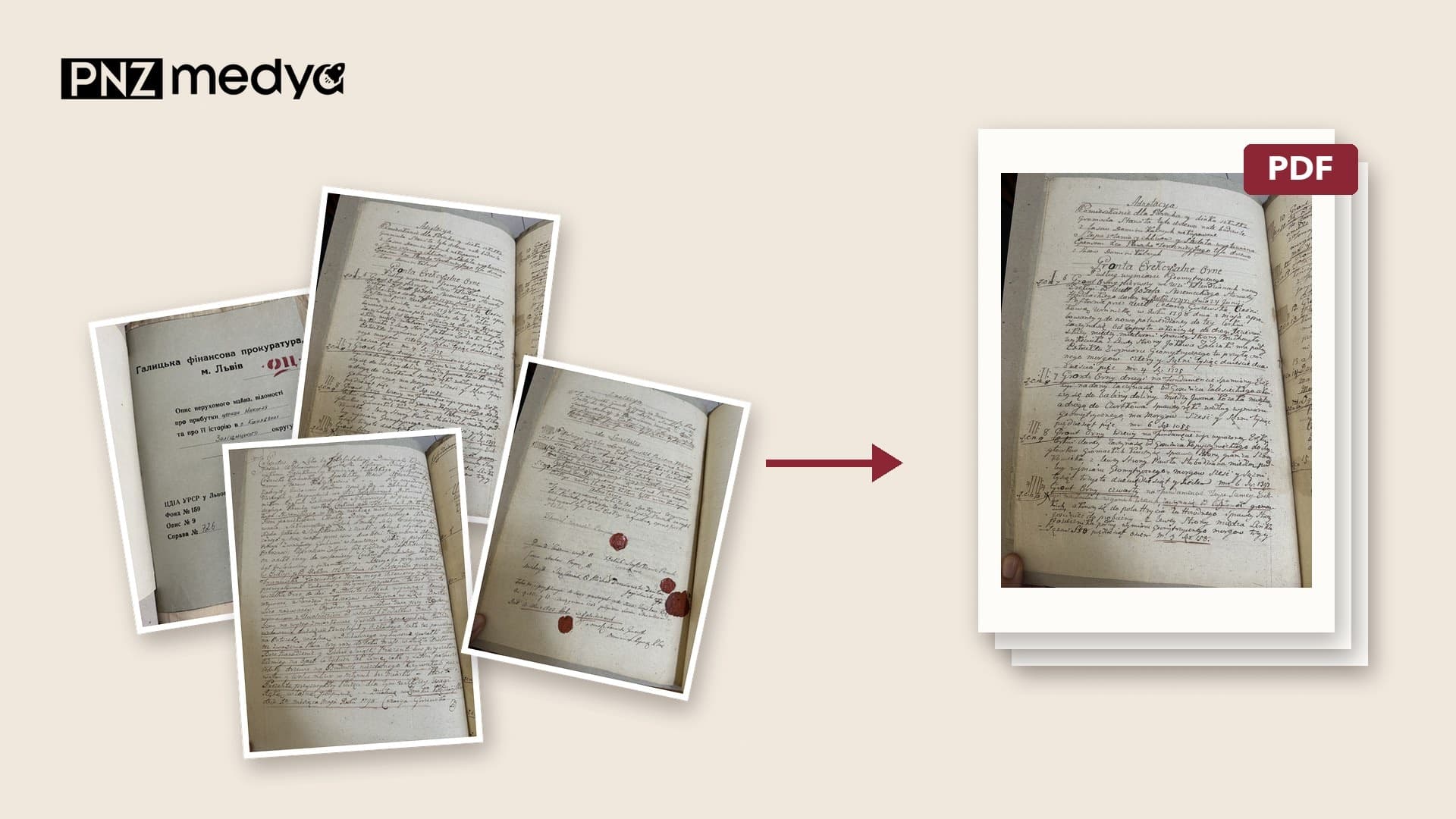
- The quickest way to turn a photo into a PDF is your phone's built-in scanner: the Notes or Preview app on iPhone; Google Drive or the Files app on Android. On a Mac, select the files and choose Quick Actions > Create PDF.
- When we embedded iPhone photos of a 9-page document into a PDF without changing any settings, the file came out at 34-37 MB. With A4 pages, 150 dpi and JPEG quality 70, the same document dropped to 3.5 MB.
- With raw embedding, the GPS location in all 9 of the 9 photos was carried into the PDF. The method that ignored orientation data turned 6 of the 9 pages sideways.
- Turkish application portals have tight limits: 512 KB per file on one application by Turkey's Ministry of National Education (MEB), 0.85 MB on one Ministry of Justice recruitment. At 150 dpi in color, only one page fits under these limits; at 100 dpi, 2-4 pages fit.
- ChatGPT and Gemini can produce PDF files. The 11 prompts below cover page order, A4, MB limits, a scanned look, homework, albums, receipts and converting a PDF back to JPG.
Skip the camera roll and shoot the document with your phone's scanner: Scan Documents in the Notes app on iPhone, the camera button in Google Drive on Android. Both save the result straight to PDF. If the photos are already in your gallery, the route depends on the device; you can also have ChatGPT or Gemini do it.
Most problems show up after the conversion: the file goes over the upload portal's limit, a page sits sideways, or the page count is off. So we converted the same 9 document photos to PDF in 11 different ways and measured each one's size, page count and what it carried inside.
The numbers are our own measurements. The material is a 9-page archival file shot on an iPhone 14 Pro and published on Wikimedia Commons under a CC0 license (37.3 MB in total). The PDFs were produced with Python's img2pdf and Pillow libraries and the macOS sips tool. This time we did not put the prompts through a measured test in ChatGPT or Gemini; model limits come from OpenAI's and Google's help pages, and device steps from Apple, Google and Microsoft documentation.
How to Convert a Photo to PDF on Your Phone and Computer, Step by Step
iPhone: Open a note in Notes, tap the Attachments button (the paperclip), choose Scan Documents, shoot the pages in order and tap Done. According to Apple's help page, the document is saved in the note as a PDF. One warning: if you export the whole note as a PDF, only the first page of the scanned document comes along. The Preview app on iPhone also has a Scan Documents button, and according to Apple it creates a PDF directly from there; the same app can compress the file on export and make the PDF searchable with the Embed Text option.
Android: In Google Drive, tap the camera icon at the bottom right, shoot the pages, tap Done and pick .pdf as the save format. The Google Files app also has a Scan button at the bottom right; for both, Google describes the output as a "searchable PDF".
Mac: Select the photos in Finder, Control-click and choose Quick Actions > Create PDF. Apple's note matters here: the files appear in the PDF in the order you selected them, so click page 1 first and then the others. On Windows 11, the Camera app's document mode can save a scan as a PDF from the Export button; for photos already in your gallery, open Print in the Photos app and pick Microsoft Print to PDF as the printer.
Even if you are about to send the PDF, open it once and check the page count. In our measurement, the method that embedded the iPhone photos as-is turned 9 photos into 18 pages: a half-size second frame inside each photo became its own page.
11 Methods on a 9-Page Document: File Size, Pages and Location Data
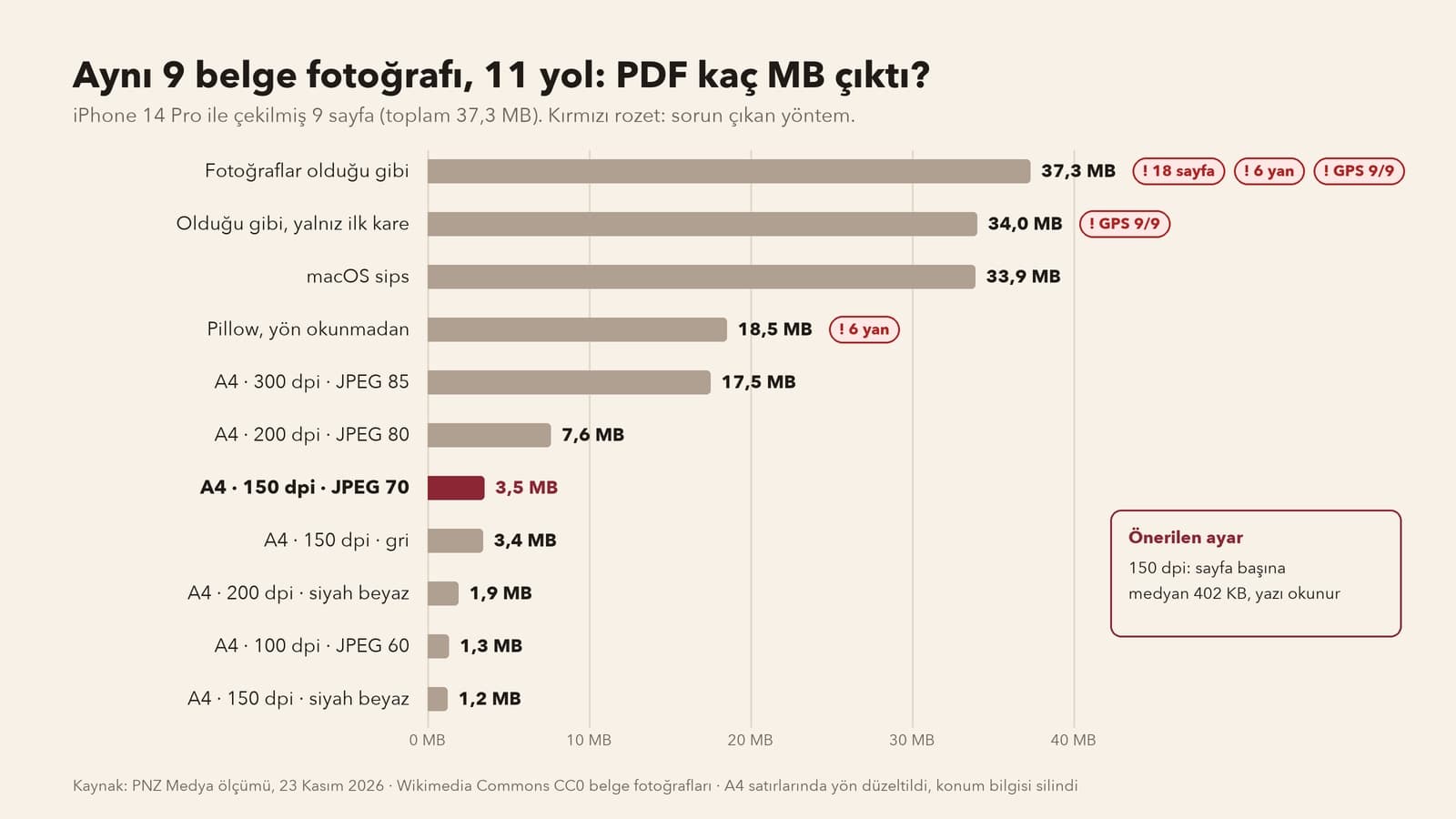
| Method | PDF size | Pages | Sideways pages | GPS carried into PDF |
|---|---|---|---|---|
| Photos as-is (img2pdf) | 37.3 MB | 18 | 6 | 9 / 9 |
| As-is, first frame only | 34.0 MB | 9 | 0 | 9 / 9 |
| macOS sips (Preview engine) | 33.9 MB | 9 | 0 | 0 / 9 |
| Pillow, orientation data not read | 18.5 MB | 9 | 6 | 0 / 9 |
| A4, 300 dpi, JPEG 85 | 17.5 MB | 9 | 0 | 0 / 9 |
| A4, 200 dpi, JPEG 80 | 7.6 MB | 9 | 0 | 0 / 9 |
| A4, 150 dpi, JPEG 70 | 3.5 MB | 9 | 0 | 0 / 9 |
| A4, 150 dpi, grayscale, JPEG 70 | 3.4 MB | 9 | 0 | 0 / 9 |
| A4, 200 dpi, black and white | 1.9 MB | 9 | 0 | 0 / 9 |
| A4, 100 dpi, JPEG 60 | 1.3 MB | 9 | 0 | 0 / 9 |
| A4, 150 dpi, black and white | 1.2 MB | 9 | 0 | 0 / 9 |
Three results are useful. The first is size: placing a phone's 3024 × 4032 pixel photo on an A4 page at 150 dpi brings the page down to 1240 pixels wide, and the 9-page PDF comes to 3.5 MB. At this setting, the median page is 402 KB and the text is easy to read on screen.
The second is grayscale: converting a color page to gray shrank the file by only 2% (from 3.52 MB to 3.44 MB). Black and white makes a real difference: a 150 dpi black-and-white page has a median size of 140 KB. Its size swings a lot with the amount of text on the page, though (from 49 to 224 KB), which is why 100 dpi color comes out ahead in the calculation below, since that one is based on the heaviest page. It has a cost too: the paper texture turns into dots, and red stamps and colored ink turn black.
The third is orientation and location. 6 of the 9 photos were saved sideways on the phone, and they look upright only because of a tag. The method that did not read this tag left 6 pages sideways. The method that embedded the photos as-is carried each photo's capture data, GPS coordinates included, into the PDF. In the versions re-placed onto A4, this data was gone.
How Many Pages Fit Under an Upload Portal's MB Limit?
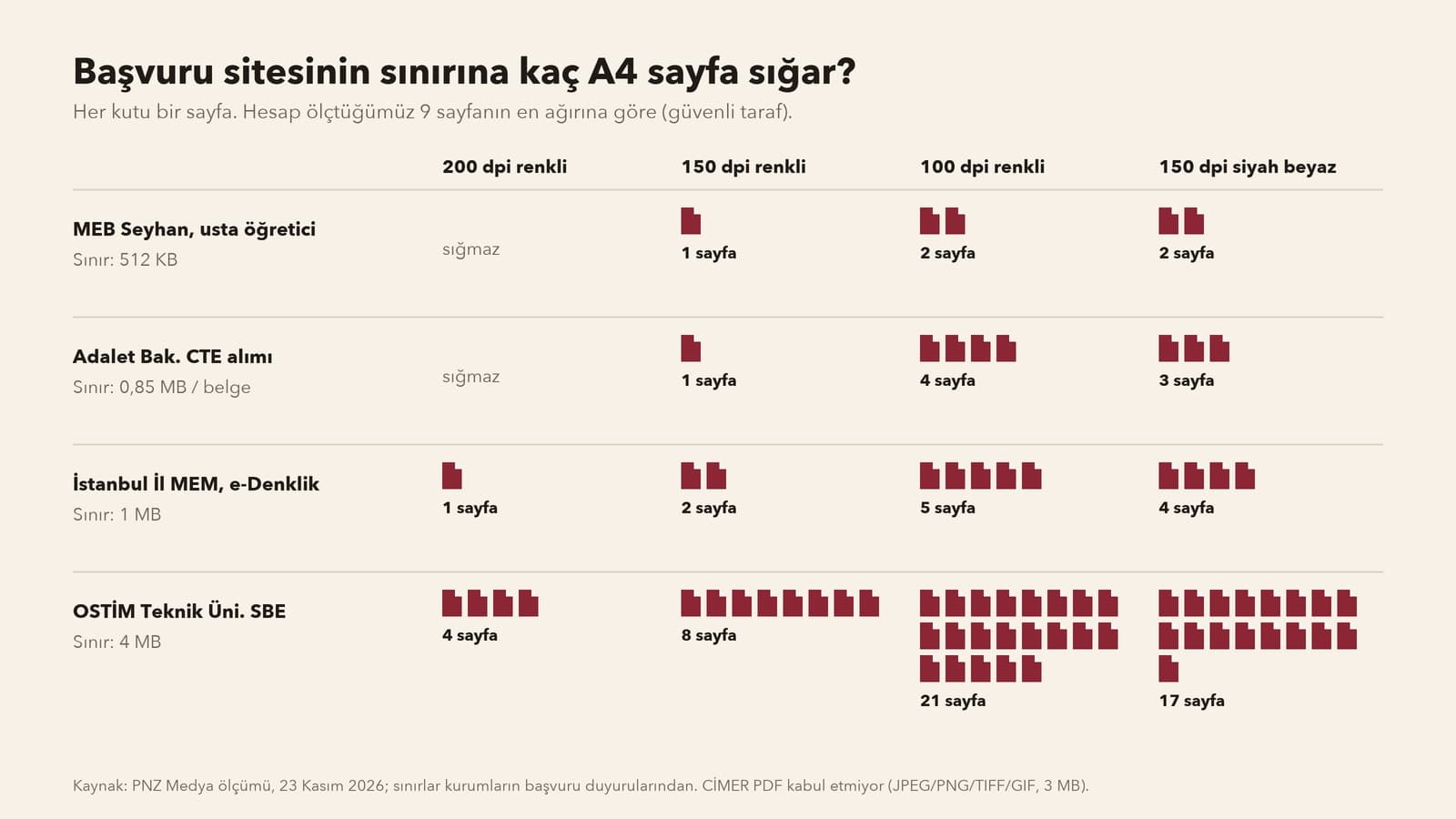
Application systems in Turkey usually set a per-file limit, and these limits are tiny next to a phone photo. The limits in the table come from the institutions' own announcements; we calculated how many pages fit based on the heaviest page we measured.
| Application and limit | 200 dpi color | 150 dpi color | 100 dpi color | 150 dpi black and white |
|---|---|---|---|---|
| MEB Seyhan (Turkey's Ministry of National Education, Seyhan district), master instructor application: 512 KB | 0 | 1 | 2 | 2 |
| Turkish Ministry of Justice, prisons directorate (CTE) staff recruitment: 0.85 MB per document | 0 | 1 | 4 | 3 |
| Istanbul Provincial Directorate of National Education, e-Denklik (diploma equivalency) documents: 1 MB | 1 | 2 | 5 | 4 |
| OSTIM Technical University graduate school application: 4 MB | 4 | 8 | 21 | 17 |
Not every system accepts PDF. According to the Q&A document of CIMER (Turkey's Presidential Communication Center), only JPEG, PNG, TIFF and GIF files can be attached to an application, up to 3 MB; PDF and Word documents cannot be attached. Check which format the site wants before you upload; prompt 10 in this article converts a PDF back to JPG.
Upload only files in PDF, JPEG, JPG, PNG or TIFF format with a maximum size of 512 KB.
Converting Photos to PDF with ChatGPT and Gemini: The Limits
ChatGPT does this job with Python code: you upload the photos, the code builds the PDF and you get a download link. According to OpenAI's help page, the limit is 20 MB per image, and 80 files every 3 hours on paid plans. On the free plan you can upload 3 files a day, so you cannot upload 9 photos one by one. Zip the photos first: OpenAI says that with Data Analysis turned on, ChatGPT can open a ZIP archive and work with the files inside.
Since April 29, 2026, Gemini can create PDF, Word and Excel files in the chat and let you download them; Google announced that the feature is open to all Gemini app users worldwide. You can attach up to 10 files to a single request, and files other than video can be up to 100 MB. If Gemini replies that it cannot create a PDF, end your request with "give it to me as a downloadable PDF file".
| ChatGPT | Gemini | |
|---|---|---|
| Files per request | No fixed number; depends on size and plan | Up to 10 files |
| File limit | 20 MB per image | 100 MB for non-video files |
| Free plan | 3 file uploads per day | Depends on availability |
| How it makes the PDF | Runs Python code | Creates the file in the chat (April 29, 2026) |
| For many photos | Upload a ZIP | In batches of 10 |
11 Ready-to-Use Prompts: Photos to PDF, Shrinking the File and PDF to JPG
Copy the prompts as they are, replace the bracketed parts with your own details and attach the photos to the same message. Prompt 9 is built around Gemini's file creation feature; the other 10 prompts were written for ChatGPT and work the same way in Gemini.
1) Prompt to combine photos into one PDF
Combine the [9] photos I uploaded into a single PDF file.
Do not redraw or edit the photos; only convert them to PDF with Python.
Keep the page order the same as the upload order.
Make every page A4 portrait; fit each photo on its page without cropping and leave a [1 cm] margin around the edges.
Apply the orientation data the phone saved so that no page is left sideways.
Do not carry the location and capture data (EXIF) over into the PDF.
When you are done, write the page count and the file size (MB), show a small preview of each page and give me the PDF as a download.This is the core template. Compare the page count with the number of photos; if they do not match, fix it with prompt 11.
2) Short version prompt
Make these photos into a single PDF in upload order: A4 portrait, no sideways pages, location data removed. Write the page count and the size in MB.3) Prompt for a PDF under an MB limit
From the photos I uploaded, prepare a PDF for an application website; the file must not exceed [1] MB.
Do not redraw the photos; place them on A4 portrait pages with Python and apply the orientation data.
Try 150 dpi and JPEG quality 70 first. If it does not fit, drop to 100 dpi, and if that is still not enough, convert the pages to black and white.
If you would have to go down to a setting where the text can no longer be read, stop and ask me.
At the end, write the dpi, quality, page count and file size you used, and show an enlarged crop of the page with the densest text.In our measurement, only one page at 150 dpi color fit under a 512 KB limit. If the document has several pages, that limit will most likely call for black and white or 100 dpi.
4) Scanned document look prompt
Convert these document photos into a PDF that looks like a scanned document.
Find the edges of the paper; crop out the desk, fingers and neighboring pages outside the paper, and correct the perspective.
Show a preview of every page you crop. If you are not sure where the edge is on a page, do not crop it and tell me its number.
Make the background close to white and the text dark; the pages should [stay in color / be black and white].
A4 portrait, 150 dpi, a single PDF; write the file size.The preview request matters. We tried the same job with a simple edge-detection script; it found the paper correctly on only 2 of the 9 pages, and on the rest it mistook the neighboring page or the desk for the paper.
5) Prompt to put the front and back of a card on one page
The two photos I uploaded are the front and back of the same card: [student ID card].
Place them one below the other on the top half of a single A4 page, at the card's real size (85.6 × 54 mm).
Crop out the desk around the card and keep the corners straight; do not redraw the text on the card.
Leave the bottom half of the page empty. Give it to me as a PDF and show the page in a preview.85.6 × 54 mm is the size of bank-card and ID-card format cards. For documents that carry personal data, such as an ID card, using your phone's scanner is safer than uploading them to a chat.
6) Prompt for a PDF from homework and notebook pages
Prepare a PDF to hand in from the notebook page photos I uploaded.
Make the first page a cover: [Full name], [Class and student number], [Course], [Assignment title], [Due date].
The following pages are the photos, in upload order; put a centered page number at the bottom of each page.
Do not touch the writing in the photos; only fix the orientation, cropping and brightness.
A4 portrait, no larger than [5] MB; write the page count.7) Photo album PDF prompt
Make a print-ready album PDF from these photos.
Put [4] photos on each A4 page in a 2 × 2 grid, with [5 mm] of space between them.
Do not crop the photos; keep their proportions. Landscape and portrait photos may be mixed.
Write these captions under the photos: [1: With my parents in Bursa, 2: Birthday, 3: ...].
Write [ALBUM TITLE] in capital letters on the cover page. Use 300 dpi and tell me the file size.300 dpi is for print; in our 9-page measurement this setting came to 17.5 MB. For an album you will look at on screen, 150 dpi is enough.
8) Prompt to turn receipts and invoices into a PDF in date order
Combine the receipt and invoice photos I uploaded into a single PDF in date order.
First, list the date, seller and total amount you read from each photo in a table. Do not guess any value you cannot read; write "unreadable" instead.
Wait for me to approve the table; after I approve it, build the PDF in that order.
Add a small-font [date - seller] header at the top of each page; do not change the receipt itself.
Also put the table on the last page of the PDF.The approval step guards against misread amounts. On faded thermal receipts, the model may fill in a digit with a guess; check the table side by side with the receipts.
9) Gemini prompt to turn the text in a photo into a PDF document
Read the text in the [3] page photos I uploaded and create a well-organized PDF document.
Transcribe the text word for word; do not correct, summarize or add anything.
Put [?] in place of any word you cannot read, and give me a list of those spots at the end.
Keep the headings, bullet points and tables in the same layout as in the photos.
Give me the result as a downloadable PDF file.This prompt types the text from the photo onto a new page; the photo itself does not appear in the resulting PDF. Handwriting has a high error rate; if you want to check the reading separately, see our image-to-text guide.
10) PDF to JPG prompt
Convert every page of the PDF I uploaded into a separate JPG file.
Render the pages at [150] dpi, with JPEG quality [85].
Name the files page-01.jpg, page-02.jpg and so on, in page order.
Give them all to me in a single ZIP file, and list each file's pixel dimensions and size in KB.
If I only want pages [2 and 5], convert only those.For systems that do not accept PDF (such as CIMER). At 150 dpi, an A4 page becomes 1240 × 1754 pixels.
11) Prompt for fixes in the same chat
Fix the following in the PDF you just made and do not touch anything else:
Rotate page [3] 90 degrees clockwise.
Swap pages [5] and [6].
Delete page [8].
Write the new page count and file size, and show a preview of the pages that changed.If the model redrew the photo or changed the text, write "do not generate images, only convert with Python" in the same chat. If no download link appears, say "give me the PDF as a downloadable file". If a page is sideways, use the rotation line from prompt 11.
Location Data and Privacy
Most phone photos store the coordinates of the place they were taken; all 9 of the 9 photos we measured had them. A tool that embeds a photo into a PDF as-is carries this data along, and whoever receives the PDF can pull the photo out of the file and read the coordinates. If you plan to upload a document photographed at home somewhere public, ask for the location data to be removed, as in prompt 1, or pick a route that resizes the photos; in our measurement, every version placed onto A4 dropped the location.
For pages that carry personal data, such as ID cards, passports and health documents, it is cleaner to do the conversion on the device: Notes or Preview on iPhone, and the Drive or Files scanner on Android, make the PDF without sending the file into a chat history.
Use your phone's scanner: on iPhone, Notes > Attachments (paperclip) > Scan Documents; on Android, Google Drive > camera icon > .pdf. On a computer: on a Mac, Quick Actions > Create PDF; on Windows, Print > Microsoft Print to PDF. You can also upload the photos to ChatGPT or Gemini and ask for a PDF.
On a Mac, select the photos in the order you want and choose Create PDF; according to Apple, the pages follow the selection order. On a phone, shoot the pages one after another with the scanner. In ChatGPT, zip the photos, upload them as a single file and use prompt 1.
The built-in tools on iPhone, Android, Mac and Windows are free, and you need no extra app. ChatGPT's free plan allows 3 file uploads a day; if you have many photos, use a ZIP. Gemini accepts up to 10 files per request.
A phone photo is around 12 megapixels, and a single page takes up 3-4 MB. In our 9-page measurement, the PDF that embedded the photos as-is came out at 34-37 MB; placed on A4 at 150 dpi and JPEG 70, it dropped to 3.5 MB. For something smaller, use 100 dpi or black and white.
Yes. On April 29, 2026, Google announced that Gemini can create PDF, Word, Excel and Google files in the chat and that this is open to all Gemini app users. End your request with "give it to me as a downloadable PDF file".
For a single page, open the file in Preview on a Mac, go to File > Export and choose JPEG; this converts the page that is open. For a multi-page PDF, use prompt 10 in ChatGPT: it turns each page into a separate JPG and gives them to you as a ZIP. Applications that do not accept PDF, such as CIMER, need this route.
To see which setting keeps your document readable, try one page at 150 dpi first, and drop to 100 dpi if the limit is tight. If you want to lower the KB of a single photo, our guide to reducing photo size has the measurement we ran on 12 phone photos.
Web Software Development
We build upload fields for your application and quote forms that shrink uploaded photos and PDFs to the limit on their own and fix their orientation. Let's look at your form in a free initial call.