



AI Photo Expand Prompts: Make a Vertical Photo Horizontal in Gemini Without Cropping
12 ready-to-use prompts for expanding photos with Gemini: turn a vertical photo into 16:9, make an Instagram story, finish a cut-off head, build a product banner. We tested them with 59 expansions: the short prompt added people or text in 5 of 16 tries, and the white-border canvas kept the original intact in 7 of 8.
- To expand a photo in Gemini, you upload it and state the ratio in words: all 59 expansions came back in the requested ratio (16:9, 9:16, 4:5).
- The model you pick changes the result: Nano Banana 2 (on Flash) followed the long, rule-based prompt without touching the original part in 9 of 12 tries, while Lite (on Flash-Lite) redrew the photo from scratch in 5 of 11.
- For Lite, a medium-length prompt (Prompt 3) kept the original in 7 of 7 tries. The short prompt added people, objects or ad copy nobody asked for in 5 of 16 tries.
- The safest route is a white-border canvas (Prompt 9): placing the photo on a canvas with white margins first and having Gemini fill the gap left the original in place in 7 of 8 tries.
- Without a plan, Gemini downloads at 1K: a photo 1200 pixels tall drops to 768 pixels in a 16:9 output. At 2K the same part is 1524 pixels.
To expand a photo in Gemini, upload it and type the ratio you want. When we said "make this photo horizontal 16:9", Gemini drew new space on the right and left. The real question is whether the original part stays the same. In 5 of the 16 tries with a short prompt, Gemini added things nobody asked for: four people and a bench walking along a coastal road, books and a basket on a windowsill, a spoon next to a coffee mug, and an ad slogan it wrote itself on a banner.
We tested the photo expansion prompts in this article on October 26, 2026 in the Gemini API, with three models, four input photos and 59 expansions. The tests used the original Turkish prompts; the English versions below are translations of them. We turned a vertical portrait horizontal, made a horizontal cat photo into an Instagram story, completed a portrait with the top of the head cut off, and turned a square product photo into a banner. We used template matching to find where the original part landed in each output and compared the pixels in that area. Seven of the 12 prompts were tested and five were not; the note under each one tells you which.
How to Expand a Photo with Gemini: 5 Steps
- Open Gemini and choose Flash in the model picker. According to Google's help page, images are drawn by Nano Banana 2 when Flash or Pro is selected, and by Nano Banana 2 Lite when Flash-Lite is selected.
- Upload the photo you want to expand. If something is cut off at the edge (a boat, a shoulder, hair), make a note of it; you will name it in the prompt so it gets completed.
- Choose the target ratio: Instagram story 9:16, YouTube thumbnail 16:9, Instagram post 3:4 at the tallest, 10x15 cm (4x6) print 3:2 or 2:3. The table below has all of them.
- Copy Prompt 1 (horizontal), Prompt 2 (story) or Prompt 5 (product banner), fill in the square brackets and send it.
- Open the result next to the original and check whether anything new was added to the face, the text or the edges. If something was, send Prompt 11 in the same chat.
Writing a long prompt while Flash-Lite is selected. In our test, Lite redrew the photo in 5 of 11 tries when it got the five-line prompt, giving us the cat and the woman in a different framing; in two tries it returned no image at all, only the text "I made the edit you asked for". If you use Lite, go with Prompt 3. For long prompts, pick Flash.
Photo Expand Ratios: Story, Post, Thumbnail and Print
The Gemini API supports 1:1, 2:3, 3:2, 3:4, 4:3, 4:5, 5:4, 9:16, 16:9 and 21:9. The Gemini app has no button for choosing a ratio, and Google's own example puts the ratio inside the prompt ("2:3 aspect ratio"). In our test, the ratio requested in words held in 59 of 59 outputs.
| Where you will use it | Ratio | What to write in the prompt | Note |
|---|---|---|---|
| Instagram story, phone wallpaper | 9:16 | vertical 9:16 | New space is added above and below a horizontal photo (Prompt 2) |
| Instagram post | between 3:4 and 1.91:1 | vertical 3:4 | Instagram crops anything outside this range and scales the width down to 1080 pixels |
| YouTube thumbnail, website banner | 16:9 | horizontal 16:9 | Space is added on both sides of a vertical photo (Prompt 1, Prompt 5) |
| Profile photo | 1:1 | square 1:1 | A vertical portrait gets a little space on both sides (Prompt 6) |
| 10x15 cm (4x6) print at a photo lab | 3:2 or 2:3 | horizontal 3:2 / vertical 2:3 | 15/10 = 3/2; a phone photo (4:3) does not get cropped in the print (Prompt 8) |
| Panorama, desktop wallpaper | 21:9 | horizontal 21:9 | The widest ratio; the new space gets close to twice the photo (Prompt 10) |
According to Google's Gemini help page, images download at 2K with a Google AI plan and at 1K without one. In our test, a 16:9 output was 1376x768 pixels at 1K and 2752x1536 pixels at 2K. Image editing is not available to users under 18.
By default, the model matches the size of the output image to your input image; otherwise it generates a 1:1 square.
12 Ready-to-Use Photo Expand Prompts (Gemini and ChatGPT)
Fill in the square brackets to match your own photo. Each of the long lines closed off one failure we saw in testing: an unwanted person, the photo getting enlarged and cropped, the face changing, a visible line where the extension starts.
1) Make a vertical photo horizontal (16:9)
Expand this photo to a horizontal 16:9 ratio. Do not crop, enlarge or shrink the photo: keep the existing image exactly as it is in the center and only add new space to its right and left.
Keep [person, e.g. the woman] the same: do not change her face, expression, hair or clothing.
Continue the scene in the new space: on the left [what goes on the left, e.g. the railing and sidewalk of the coastal road], on the right [what goes on the right, e.g. the same sea and horizon line]; complete the [object, e.g. white boat] that is cut off at the edge.
There is nobody else in the new space: [empty scene, e.g. an empty coastal road and open sea].
Keep the light, color, sharpness and grain the same as the rest of the photo; the place where the extension starts should not be visible.With this prompt, Nano Banana 2 left the woman in the center and at the same size in three of three tries (match 0.97-0.99), and it put nobody in the new space. Lite redrew the same prompt from scratch once.
2) Turn a horizontal photo into an Instagram story (9:16)
Expand this photo to a vertical 9:16 ratio (Instagram story). Do not crop, enlarge or shrink the photo: keep the existing image exactly as it is in the center and only add new space above and below it.
Keep [main subject, e.g. the cat] the same: do not change [what to keep, e.g. its fur pattern, eye color, pose].
Continue the scene in the new space: at the top [e.g. the window frame, the upper part of the glass and the rest of the sheer curtain]; at the bottom [e.g. the front of the windowsill and a plain white wall below it].
Only these are in [the scene]; no other animals or objects.
Keep the light, color, sharpness and grain the same as the rest of the photo; the place where the extension starts should not be visible.This was the hardest test: turning a 3:2 photo into 9:16 makes the new space almost twice the size of the photo. Nano Banana 2 kept the cat in all three tries (0.97-0.98). Lite redrew the window and the cat in all three (0.60-0.77). The short prompt ("make it vertical 9:16 story size") shrank the cat in three of four tries and twice put a book, a basket or a rug into the scene.
3) Short version for the fast model (Flash-Lite)
Make this photo [ratio, e.g. vertical 9:16]. Keep the existing photo exactly as it is [in the center / on the left]; add the continuation of [what to add, e.g. the window and curtain] [above it / to its left] and of [what to add, e.g. the windowsill and plain white wall] [below it / to its right]. There is nobody in the new space.We tried this short version seven times on three photos (beach, cat, mug), and the original part stayed in place in all seven (0.97-0.99). In one try it added two benches and a trash can to the coastal road, but no people.
4) Complete a photo with the head or shoulder cut off
In this photo, [the person's] [cut-off part, e.g. top of the head and right shoulder] did not fit in the frame. Zoom out while keeping the same [ratio, e.g. 4:5] ratio: shrink the existing image and place it [centered at the bottom], then add new space [above it and on both sides].
Complete [the cut-off part, e.g. the top of the head] with the same [hair], and [e.g. the right shoulder with the same navy sweater].
Keep the face, expression, [beard] and clothing the same.
The new space contains [background, e.g. more of the plain warm white wall and the gray sofa]; no other objects.
Keep the light, color and sharpness the same as the rest of the photo; the place where the extension starts should not be visible.Nano Banana 2 completed the top of the head and the shoulder in all three tries. In the try where the face changed least the match was 0.99, and in the other two it was 0.93-0.94: while shrinking the photo, the model redrew the face a little too. This prompt invents new hair and clothing, so the completed part is never what was really there.
5) Product photo to a banner with room for text
Expand this product photo into a horizontal 16:9 banner. Do not change, enlarge or shrink [the product, e.g. the mug] or the visible part of the table; keep the product in the [left] half of the image.
Add new space toward the [right]: extend the same [surface, e.g. light oak table] to the [right], and continue the same [background, e.g. plain light gray wall] behind it.
I will put text in this area on the [right] later; it contains only [the table surface and the wall], no other objects.
Keep [light direction, e.g. the window light from the left] coming the same way, and keep the shadows pointing in the same direction.With this prompt, no object or text appeared on the right side in any of the seven tries. With the short prompt, Nano Banana 2 wrote its own slogan on the right, "KUSURSUZ ANLAR, KUSURSUZ KAHVE" (Turkish for "perfect moments, perfect coffee"), and Lite put a spoon on the table.
6) Make a square (1:1) profile photo
Make this vertical photo a 1:1 square. Do not crop the photo and do not enlarge the person: keep the head and shoulders exactly as they are, and only continue [background, e.g. the same blurred park] to the right and left.
Do not change the face, hair or clothing. Keep the face in the center of the square; leave space above the head and on both sides, because the profile photo will be shown inside a circle.
There is nobody in the new space; keep the light and blur the same.Not tested. Turning a vertical portrait into a square adds only a little space on each side, so it is an easier job than 16:9; the rules from Prompt 1 apply here too.
7) Turn a horizontal photo into an Instagram post (3:4)
Expand this horizontal photo to a vertical 3:4 ratio; I will share it as an Instagram post.
Keep the existing image exactly as it is in the center and only add new space above and below it: at the top [e.g. more of the sky], at the bottom [e.g. the front of the table and the floor].
Keep [main subject] the same. No other people, text or logos in the new space.
Keep the light, color and sharpness the same as the rest of the photo.Not tested. According to Instagram's help page, 3:4 is the tallest ratio for a post; if you upload a taller photo, Instagram crops it.
8) Fit a 10x15 cm (4x6) print at the photo lab
I am sending this photo to be printed at 10x15 cm. Expand the photo to a [horizontal 3:2 / vertical 2:3] ratio; do not crop or enlarge it.
Keep the existing image in the center, only add new space on [the short sides] and continue the scene with [e.g. the same rug and wall].
Do not change anyone's face, clothing or pose. No other people in the new space.
Keep the light and color the same; no edge line should show in the print.Not tested. A phone photo is usually 4:3 and 10x15 cm paper is 3:2, so a strip gets cut from the edges of the photo when it is printed; this prompt adds enough space in advance to cover that cut.
9) Expand with a white-border canvas (the safest route)
There is a photo [in the center / on the left / at the bottom] of this image, with white space [to its right and left / above and below it]. Fill the white areas with the continuation of the photo: [e.g. the coastal road and railing on the left, the same sea and horizon line on the right].
Do not touch the existing part of the photo: keep [e.g. the woman's face, expression, hair and clothing] the same.
Keep the size and ratio of the image the same, and leave no white strips at the edges.
There is nobody else in the new space.
Keep the light, color, sharpness and grain the same; the place where the extension starts should not be visible.First place the photo on a white canvas in the ratio you want: opening a blank 16:9 or 9:16 design in Canva and putting the photo in the middle is enough. Gemini returns the output in the ratio of the image you uploaded, so the ratio never drifts. Nano Banana 2 left the original in place on four of four canvases (0.99), with no white strips left over. Lite filled the bottom of the story canvas with what looked like a flat gray band.
10) Panorama or desktop wallpaper (21:9)
Expand this scenery photo into a horizontal 21:9 panorama. Keep the existing image exactly as it is in the center and only add new space to its right and left.
Continue the same scenery in the new space: [e.g. more of the hills on the left, the same lakeshore on the right]; keep the horizon line straight and at the same height.
No people, buildings, text or logos in the new space. Make the sky color and the clouds brighten in the same direction on both sides.Not tested. When you turn a 4:3 photo into 21:9, the added space is wider than the photo itself; stating the height of the horizon line helps both sides look like part of the same photo.
11) Remove an added person or text (second message)
Remove the [what was added, e.g. walking people and the bench] that were added afterward to [location, e.g. the left side] of this photo; continue [e.g. the empty coastal road and railing] in their place.
Do not touch the rest of the image: keep [e.g. the woman, the sea, the boats], the light and the image size the same.We used this message to remove the four people and the slogan the short prompt had added. Nano Banana 2 deleted all of them in both cases and left the rest of the photo unchanged. Lite left two of the people and the second line of the slogan in place; if Lite won't fix it, switch the model to Flash and send the same message again.
12) Ask Gemini what should go at the edges first
I want to make this photo [ratio, e.g. horizontal 16:9]. Do not generate an image yet.
List everything that is cut off at the edges of the photo, one by one (e.g. half a boat, a shoulder, the edge of a table).
Then, for each new area ([left and right / top and bottom]), suggest in one sentence what would naturally go there; only suggest continuations of things already visible in the photo, and do not suggest new people or objects.
Finally, give me these in a form I can paste into the square brackets of Prompt 1.This is a text prompt; it returns words, no image. Not tested. It helps if you are having trouble filling in the square brackets.
Fix it in the same chat before you regenerate: name the added thing and have it removed (Prompt 11). If the person got smaller, write "Do not shrink the photo, keep [person] at the size in the first image, only add space at the edges". If it still isn't fixed after three tries, switch to the white-border canvas (Prompt 9).
Photo Expand Test: Which Prompt Kept the Original?
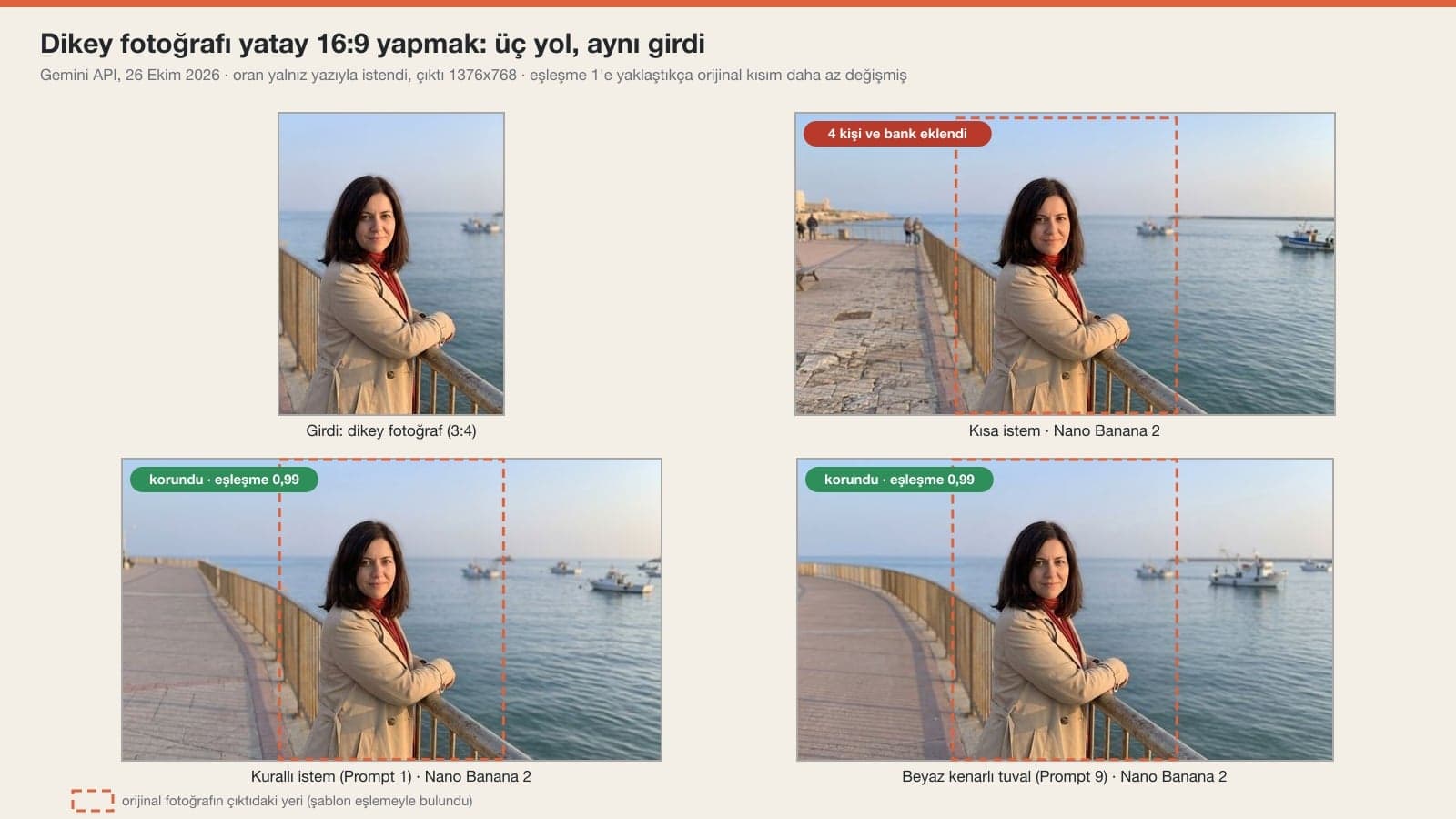
In every output, we searched for the input photo at different scales and found where it fit best (template matching). A match close to 1 means the original part is almost untouched; below 0.95, the model changed that area too, and below 0.80, it redrew it from scratch. On top of that, we counted unwanted additions by eye.
| What we measured | Short prompt | Medium prompt (Lite) | Long rule-based prompt | White-border canvas |
|---|---|---|---|---|
| Requested ratio delivered | 16/16 | 7/7 | 27/27 | 8/8 |
| Original part kept (≥ 0.95) | 13/16 | 7/7 | 16/27 (Lite 6/11, NB2 9/12, Pro 1/4) | 7/8 |
| Unwanted person, object or text | 5/16 | 1/7 (bench, trash can) | 0/27 | 0/8 |
| Text only, no image | 0/16 | 0/7 | 2/29 (Lite) | 0/8 |
| Time (Lite / NB2 / Pro) | 4-5 / 9-10 / - | 4-5 s | 4-5 / 9-11 / 16-17 s | 5-6 / 9-13 s |
The result cuts both ways. The short prompt kept the photo, but it added its own ideas to fill the empty space. The long prompt stopped the additions, but on Lite and Pro it led to the photo being redrawn. Of Pro's four tries, only the product photo stayed above 0.95; Pro rebuilds the scene with its own lighting. In the Gemini app, Pro is only available with a Google AI plan, when you ask it to redo an image drawn with Nano Banana 2.
Instagram Story Test: Why Did Lite Redraw the Long Prompt?
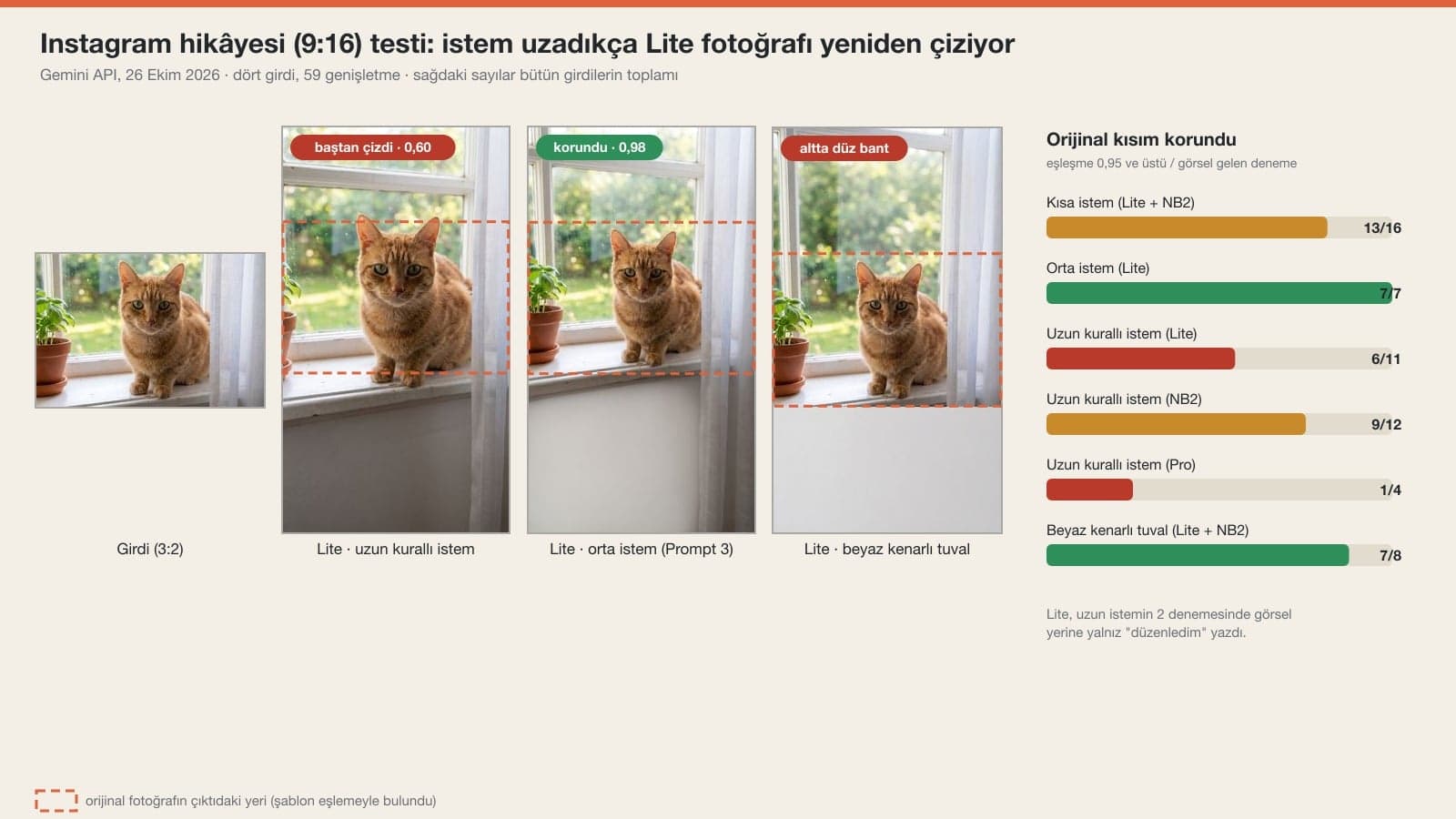
At first glance, the cat in Lite's output looks like the same cat. Put the two side by side and the window frame, the reflection in the glass and the cat's pose have all changed. Lite reads a five-line prompt as a description of a new image and builds the scene again. We tried the same photo three times with a detailed one-line prompt (Prompt 3), and it did not touch the original pixels in any of them.
We also measured the pixel jump on either side of the edge. In most outputs, the row where the extension starts was no different from its neighbors (ratio 1.0-1.3). The only seam you could also see by eye was on Lite's story canvas: the new area at the bottom stayed a flat gray band and began with a sharp line under the windowsill.
Banner from a Product Photo: A Spoon and Ad Copy
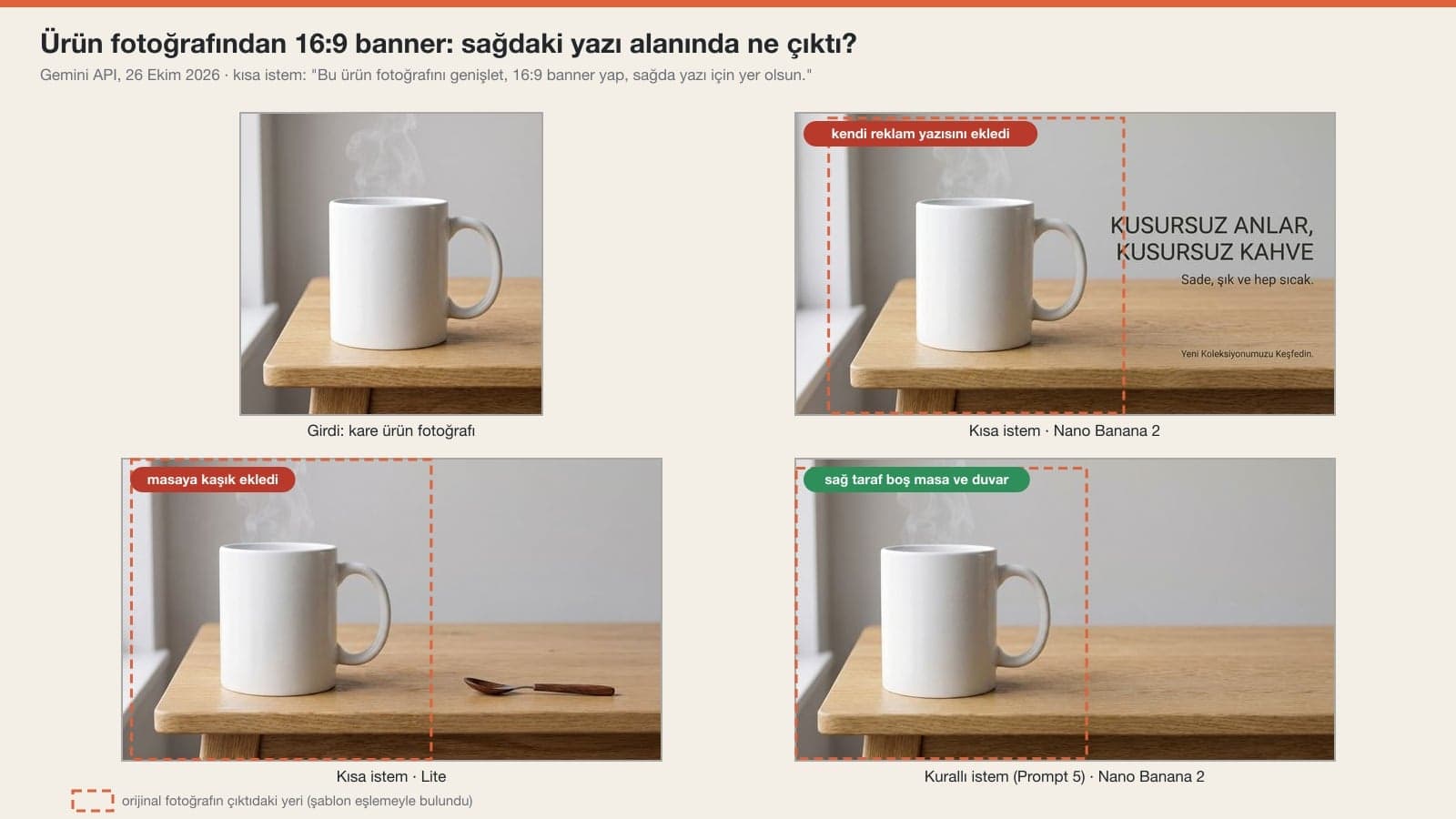
Asking for "room for text" caused two different problems on two models. Nano Banana 2 filled the gap with its own slogan, and Lite put a spoon on the empty table. Once we described the text area as "there is only the table surface and the wall there", it stayed empty in all seven tries. The mug's shape and handle were the same in every try; in one Nano Banana 2 try the mug shifted up a little (0.81).
Does an Expanded Photo Lose Resolution?
Yes, on an account without a plan it gets smaller. When we turned an 896x1200 pixel vertical photo into 16:9, Gemini returned a 1376x768 pixel image; the original part dropped to 573x767 pixels, which is 36% smaller on each side. Running the same prompt at 2K gave a 2752x1536 output, with the original part at 1137x1524 pixels (match 0.98). If the photo is going to print or a large screen, the 1K output you get without a plan may not be enough.
Expanding Photos with Canva, Photoshop and ChatGPT
In Canva's Magic Expand tool, you pick the ratio and the area to expand on screen; in Photoshop, Generative Expand does the same job. Since you control the canvas in both, the ratio doesn't drift, and the white-border method in Prompt 9 copies that setup inside Gemini. We did not test ChatGPT here. OpenAI's developer documentation says its image model supports ratios between 1:3 and 3:1, and you can paste the prompts into ChatGPT as they are.
Common Mistakes
- Writing only "expand". Gemini may add people, a bench, books or a slogan to fill the gap; in our test it did so in 5 of 16 tries.
- Not saying what goes in the new space. A sentence like "coastal road on the left, sea on the right" stopped the additions: with the rule-based prompts, nothing unwanted showed up in any of 27 tries.
- Giving Flash-Lite a long prompt. Lite redraws the photo when the prompt is long; either use Prompt 3 or pick Flash.
- Sharing the result without comparing it to the original. The face can change through small shifts; in the cut-off portrait test, the face was redrawn a little in two of three tries.
- Forcing a very narrow photo into a very wide ratio. Going from 3:2 to 9:16, the new space gets close to twice the photo; this was the test where the cat shrank and objects were added most often.
- Sending the 1K output you get without a plan to print. A 16:9 output is 768 pixels tall.
Using It from Turkey: Free Accounts, the Age Limit and Other People's Photos
Image editing in Gemini works from Turkey with a free account too; Google does not give a number for how many images you can generate per day. Users under 18 cannot edit photos. If someone else appears in the photo you upload, their face counts as personal data under Turkey's Personal Data Protection Law (KVKK, Law No. 6698), so get their permission before you expand and share it. According to Google's API documentation, every image Gemini generates carries an invisible SynthID watermark.
Yes, you can upload and expand a photo with a free Gemini account. Without a plan, images download at 1K (1376x768 pixels at 16:9); with a Google AI plan, at 2K. Image editing is not available to users under 18.
Upload the photo to Gemini, write "Expand this photo to a horizontal 16:9 ratio, keep the existing image in the center" and describe what goes on the left and right (Prompt 1). In our test, Nano Banana 2 kept the person at the same size in three of three tries with this prompt.
With the rule-based prompt and the white-border canvas, the face stayed almost the same on Nano Banana 2; when we gave the long prompt to Lite and Pro, the face was redrawn in a few tries. Open the result next to the original and check.
The aspect ratio option in the Photos app crops the photo; it does not add edges. To expand it, upload the photo to the Gemini app on your iPhone and write Prompt 1, or Prompt 2 for a story.
You can paste the prompts into ChatGPT, but we did not test ChatGPT here. OpenAI's documentation says its image model supports ratios between 1:3 and 3:1.
With a short prompt, the model decides on its own how to fill the empty space. When we wrote what goes in the new space ("an empty coastal road on the left") and that nobody is there, nothing was added in our test; if the person got smaller, send a second message saying "do not shrink the photo".
Vertical 9:16. Space is added above and below a horizontal photo; Prompt 2 is for this. For posts, Instagram allows 3:4 at the tallest.
If something unwanted slipped into your expanded photo, removing it is a separate editing job, and the object removal prompts are in that post. For product banners, a frame shot horizontally from the start with room left for text takes far less work than expanding a photo every time: when you shoot, take one step back.
Product Photos Shot in the Right Ratio from the Start
Gemini can expand a square product photo into a banner, but resolution and true-to-life edges come from a frame shot correctly in the first place. We photograph your product in separate ratios for your website banner, Instagram stories and marketplaces, leaving room for text. Write to us for a free initial consultation.