


How to Remove Text from a Photo: 12 AI Prompts That Erase or Cover It (2026)
12 ready-made prompts to remove text from a photo: date stamps, T-shirt prints, signs, story text, license plates and replacing text. In our earlier Gemini tests, "blur" left the text readable in 5 of 6 images; here is which word actually removes it.
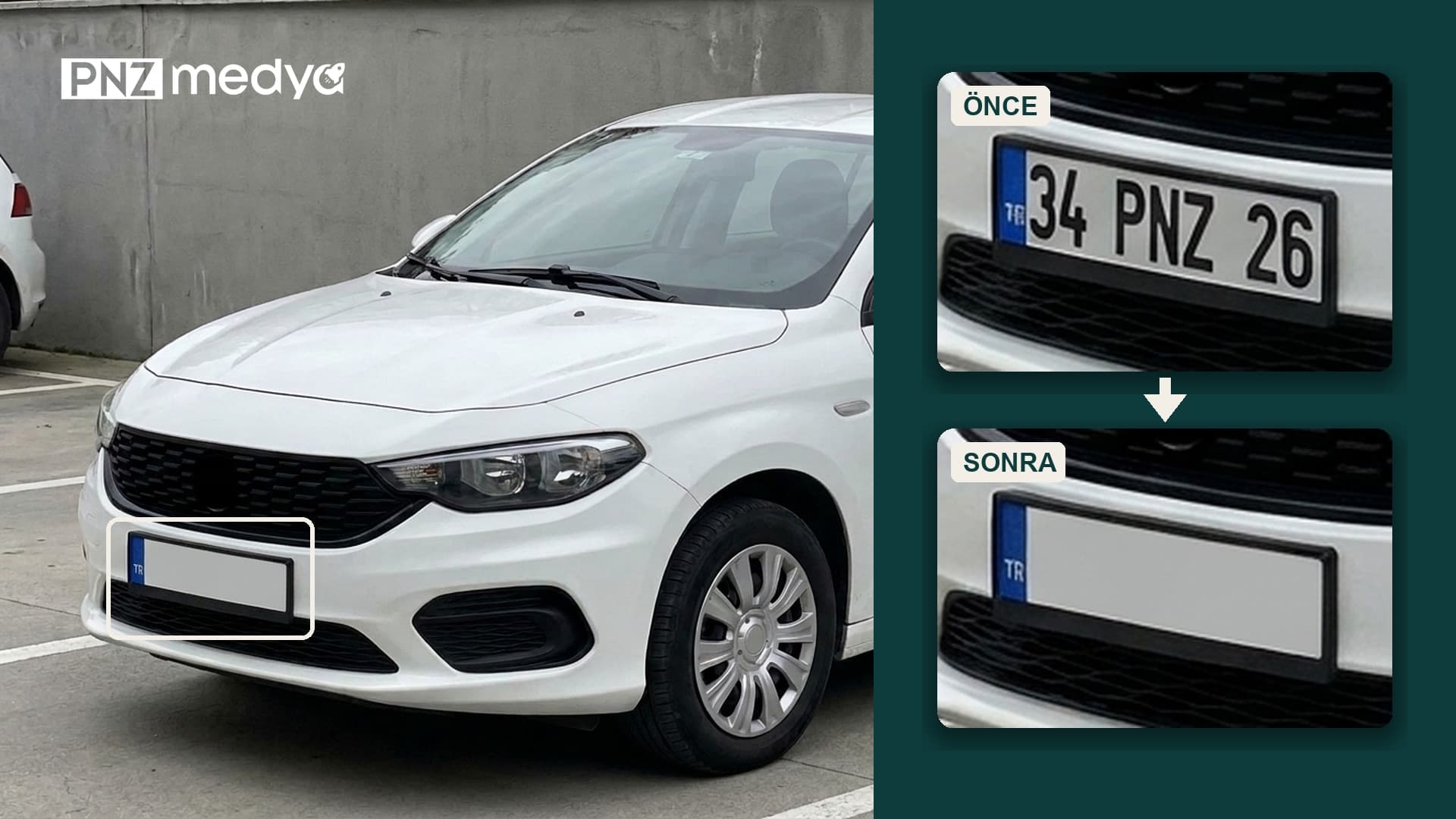
- To remove text from a photo, upload it to Gemini and say three things in one message: which text to remove, what goes in its place, and what else stays the same.
- Word choice changes the result. In our earlier test, asking to "blur" the plate left it readable in 5 of 6 images; asking to "cover it completely with flat light gray" made Gemini's Flash and Pro models cover the text fully in 4 of 4 images.
- Asking for "shop signs unreadable, blurred" produced a new, readable made-up sign in 4 of 4 images. Naming what replaces the text ("plain wall", "no sign") left no text in any of the 4 images.
- Short prompts add text: telling Gemini to "modify" a car photo brought in a brand, text or plate we never wrote in 8 of 18 images. Put a "do not add new text or logos" line in every prompt.
- To hide personal details like a phone number, name or address, don't upload the photo to AI; cover them with a solid shape in your phone's editing tool.
An orange date stamp in the corner, a brand name on a T-shirt, a phone number in a screenshot, a caption added to a story later: all four can be removed from a photo, and each one needs its own wording. Upload the photo to Gemini and write which text it is, what goes in its place, and that nothing else changes. The 12 prompts below give you those three lines ready-made for each type of text.
We built the prompts on our own test archive. In late October and early November we tried plate hiding, sign removal and protecting text with quotation marks in Gemini; on November 17 we re-cropped those images and counted them. The question was simple: which word actually removes the text?
We did not generate new images for this post; on November 17 our test budget did not cover a new round. The numbers come from tests we ran in the Gemini API with the Flash-Lite, Flash (Nano Banana 2) and Pro models for earlier posts, mainly car (November 2), '80s (October 30), snow (November 4) and image upscaling (November 4). All tested prompts were written in Turkish; the quoted prompt phrases in this post are our English translations. Prompt 8 is the tested prompt itself, translated; the other prompts were written from the rules those tests produced and were not tested word for word. The fictional car and plate (34 PNZ 26) were generated in Gemini and do not belong to a real vehicle.
How to Remove Text from a Photo in 4 Steps
- Open Gemini (gemini.google.com or the app) and add the photo with the plus icon. Make sure Flash or Pro is selected in the model picker; in our test, Flash-Lite covered only the right half of the plate.
- Copy the prompt below that fits your type of text. In the square brackets, write exactly what the text says and where it sits in the photo ("in the bottom left corner", "on the chest of the T-shirt").
- Send the prompt in the same message as the photo. If you don't say what should be behind the text, the model fills that gap with its own guess.
- Zoom in on the result and look where the text was: is there a trace, a shadow or half a letter left? Did new text show up somewhere else in the photo? If so, send Prompt 12 in the same chat.
Which Word Actually Removes the Text?
The clearest result came from the plate test. We asked Gemini to hide the "34 PNZ 26" plate on a white sedan with three different sentences; each sentence ran twice on each of three models, 18 images in total. In the strip below, each row is one sentence and the input photo is on the far left.
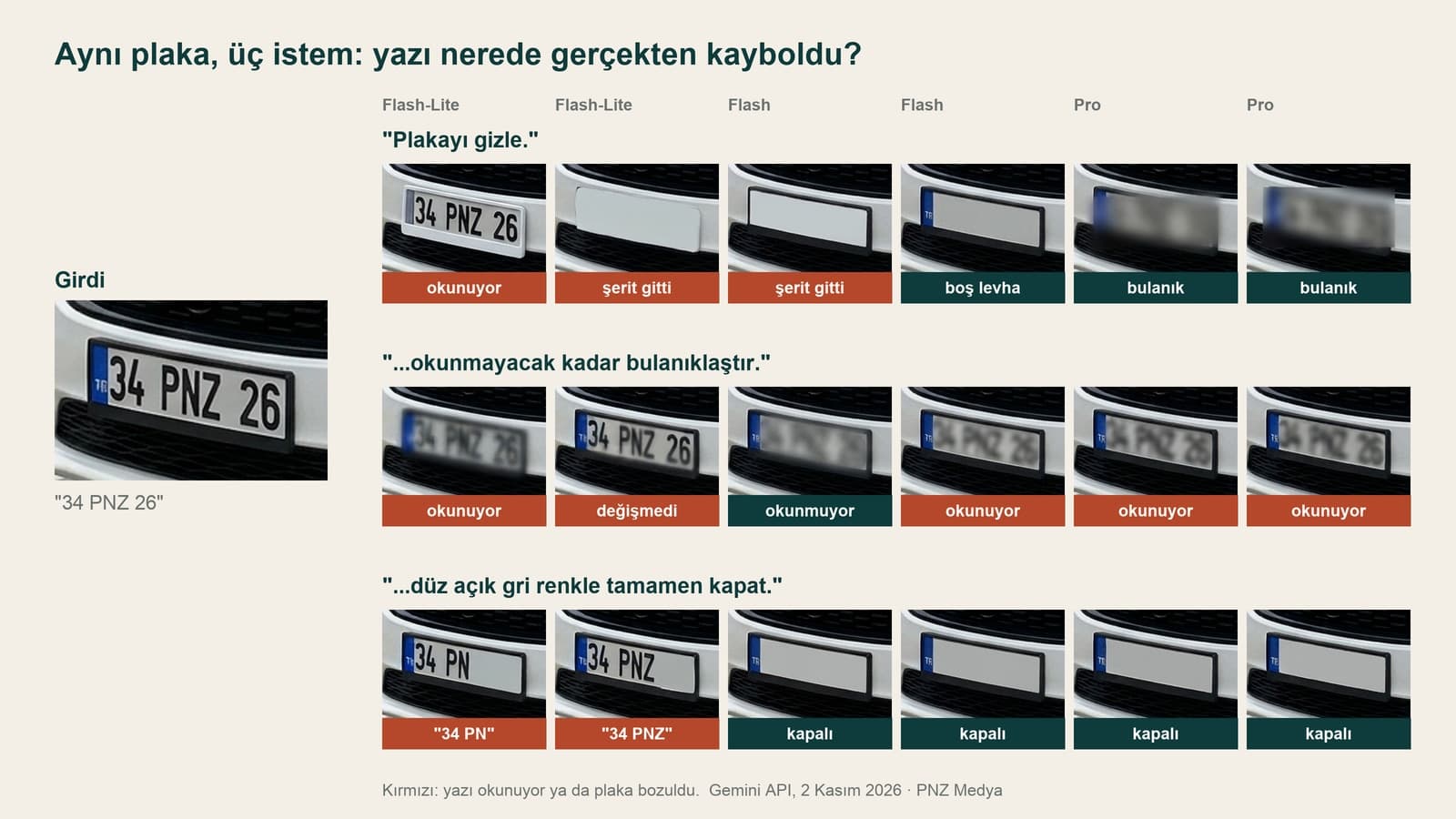
The models read "Hide the plate." in three different ways: two images blurred the plate heavily, three turned it into a blank white plate, and in one the text was still readable. On two of the blank white plates, the blue TR strip was gone too.
"Blur it until it can't be read" gave the worst result: a light blur, and "34 PNZ 26" was legible in 5 of 6 images. One Flash-Lite attempt didn't touch the photo at all.
The third sentence said what should replace the text: flat light gray, no trace or blurred version left, frame and strip in place. Flash and Pro covered the text completely in four of four images, with the frame and strip intact. Flash-Lite covered only the right half in both attempts, so "34 PN" and "34 PNZ" were still readable.
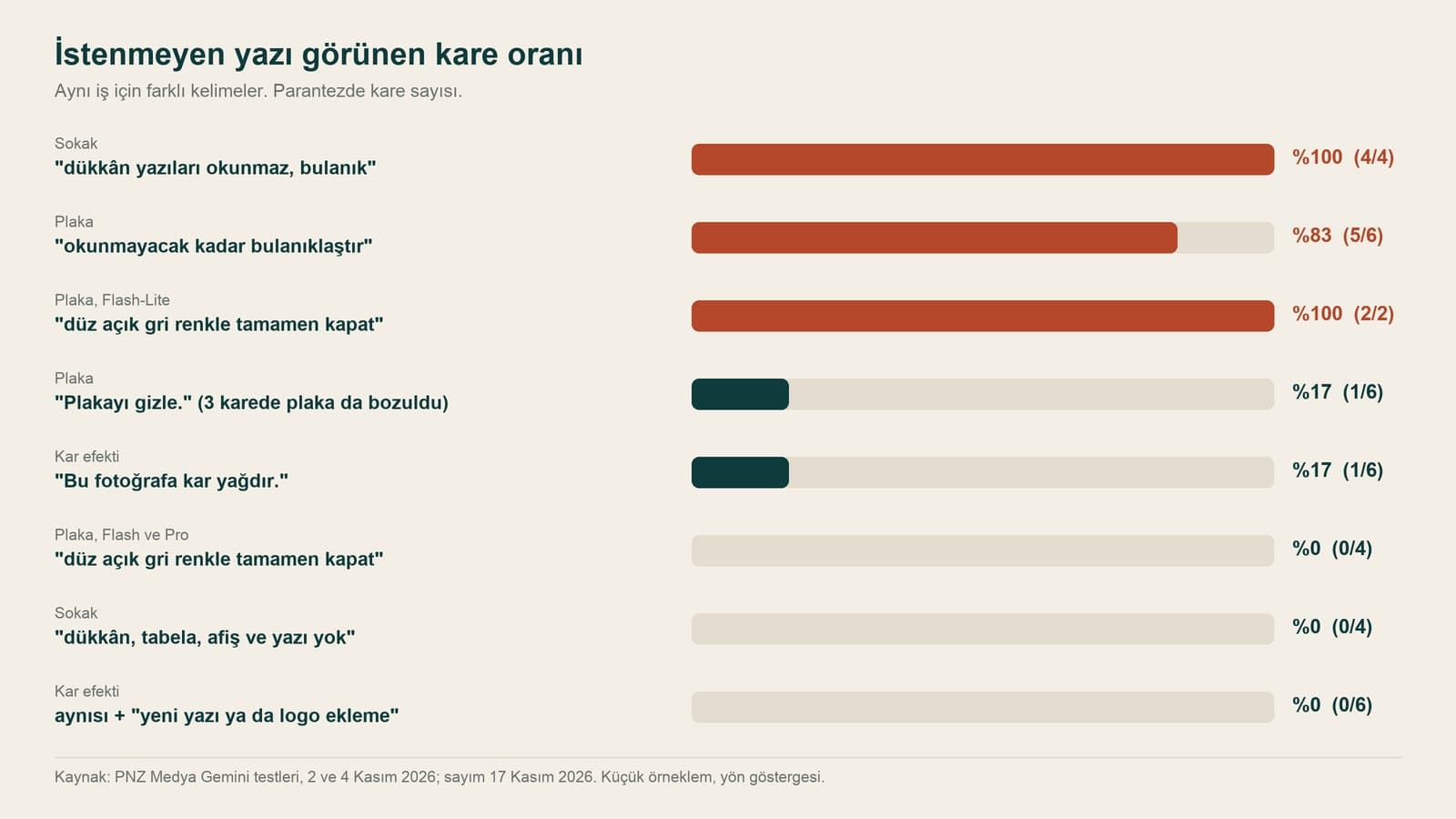
The same thing happened in a street photo. In the snow test we asked Gemini to show a person on a snowy street in Galata, and the first attempt said "shop signs unreadable, blurred": all 4 images got a readable but meaningless sign ("TÜRK KATIMMACI"). When we changed the sentence to "only stone and wooden houses on both sides; no shops, signs, posters or text", none of the 4 images had any text. In the '80s test, saying "amp plain, no text" didn't stop the brand name on the amplifier either; the text went away only when we took the amp out of the scene.
| Prompt | Test | Images | Unwanted text |
|---|---|---|---|
| "Hide the plate." | Plate, Nov 2 | 6 | Readable in 1 image; blank plate in 3 |
| "blur it until it can't be read" | Plate, Nov 2 | 6 | Readable in 5 images |
| "cover it completely with flat light gray" | Plate, Nov 2 | 6 | Flash/Pro 0 / 4, Flash-Lite 2 / 2 half covered |
| "shop signs unreadable, blurred" | Street, Nov 4 | 4 | Made-up sign in 4 images |
| "no shops, signs, posters or text" | Street, Nov 4 | 4 | 0 |
| "Make it snow in this photo." | Snow effect, Nov 4 | 6 | Made-up logo on a coat in 1 image |
| Same + "do not add new text or logos" | Snow effect, Nov 4 | 6 | 0 |
The rule is short: say what should appear where the text was. "Remove", "hide" and "blur" are left to the model's interpretation; "flat gray", "continuation of the wall" and "no sign" leave it nothing to guess.
Prompts That Remove Text
1. Basic prompt for any text
Start with this one if your text doesn't fit any of the types below. Just fill in the three square brackets; the last line stops the model from putting text somewhere else.
Remove the text "[the text itself, exactly as written]" from this photo. The text is [where: in the bottom left corner / on the chest of the T-shirt / in the middle of the wall].
Fill the area where the text was with [what goes there: the continuation of the wall behind it / plain fabric / sky]; leave no trace, shadow or blurred version of the letters.
Keep the rest of the photo exactly the same: do not change the people, faces, colors, lighting or framing.
Do not add any new text, logo or watermark to the photo.2. Short one-line version
For typing quickly on your phone. Still, don't skip the "what goes in its place" part; in our test, that was what made the real difference.
Remove the text "[text]" from the photo, fill its place with [the continuation of the background], do not change anything else and do not add new text.3. Remove text added on top of a photo
A sentence added to a story, meme text, a name written over the picture. This kind of text sits on top of the photo and hides part of it underneath; name that part for the model.
Remove the [white / colored] text that was added on top of this photo later: "[the text itself]". The text sits [at the top / in the middle of the photo] and covers [part of the face / the sky] underneath.
Fill the area the text covered with the photo itself: [what is underneath, e.g. the person's right shoulder and the sea behind them].
If there is an [emoji / sticker] next to the text, remove it too.
Keep the person's face, hair and clothes exactly the same. Do not add new text or a frame.4. Remove the date stamp in the corner
The orange date that old cameras printed in the bottom right corner. Note: in the '80s test, where we asked for a period look, Gemini added a date stamp on its own to 9 of 30 images. A new stamp can also show up when you restore an old photo, and the last line is there for that.
Remove the orange date stamp ("[e.g. 14 08 '98]") from the [bottom right] corner of this photo.
Fill the stamp area with the surrounding [carpet / sand / grass] texture; leave no trace of the digits and no orange smudge.
Keep the photo's colors, old film look and grain exactly the same; do not restore or sharpen the photo.
Do not add a date, stamp or text to any other corner.5. Remove text from a T-shirt or bag
When you remove a print from clothing, you have to tell the model the color of the fabric underneath. In our outfit change test, giving the color as a hex code worked on plain fabric; if you don't know the color, write "same color as the rest of the T-shirt".
Remove the "[text]" print [on the chest of the T-shirt / on the front of the bag] of the person in this photo.
Make the print area plain fabric: [color, e.g. dark navy, #1F2A44 / same color as the rest of the T-shirt]; keep the wrinkles and shadows of the fabric going.
Keep the person's face, hair, pose and the cut of the clothes exactly the same.
Do not add new text, a logo or a pattern to the clothes.6. Remove text from a wall, sign or shop window
For shop names in the background of travel and street photos. The lesson from the street test applies here: name what should replace the sign.
Remove the [sign / wall writing / text on the shop window] in the background of this photo: "[the text, if readable]".
Make the area where the sign was [the continuation of the building's stone wall / a plain painted wall / the shop window glass]; do not leave a blank sign board.
Keep the person or people in front, their faces and their clothes exactly the same; do not change the lighting or framing.
Do not add a new sign, poster or text anywhere in the photo.7. Remove the print on a mug or packaging
For taking the old label off a photo of your own product to try a new design. The model is very prone to putting text on surfaces that normally carry text, like packaging; in our 3D figure test, it wrote a name it made up on a box and a base whose text we hadn't specified.
Remove the "[text]" print on the [mug / jar / box] in this photo.
Keep the surface plain [white ceramic / glass / matte cardboard]; no trace, edge or shadow of the print should show.
Keep the product's shape, color, the way it catches the light, and the background exactly the same.
Do not add new text, a logo, a label or a brand to the product or packaging.Prompts That Cover Text
Sometimes you don't want empty background where the text was; you want the text unreadable while it still shows that something is there. The plate in a car-for-sale listing is the best-known example.
8. Cover a license plate with a solid color (the tested prompt)
Out of the 18 images in the plate test, this sentence gave the cleanest result. We tested the original Turkish wording; below is our English translation. Use it with Flash or Pro selected.
In this photo, cover all the letters and numbers on the license plate completely with flat light gray; leave no trace, shadow or blurred version of the text. Keep the plate's black frame and the blue strip on the left in place, and do not write any new letters or numbers. Do not change anything else in the photo.9. Cover a name or number in a screenshot
Only use this prompt if the information in the image isn't personal: a promo code on a menu, an order number on a screen you plan to share. For a phone number, an address or someone else's name, see the "personal information" section below.
Cover the line "[text to cover]" in this screenshot completely with a solid [dark gray] rectangle; no letters should show underneath.
Keep all other text on the screen exactly the same, letter for letter; do not rewrite, correct or translate any text.
Do not change the screen's size, colors or layout.Prompts That Replace Text
Removing text and putting other text in its place is a separate job with its own risk: the model draws the new letters itself. In our upscaling test, when Gemini redrew a blurry price card, Flash-Lite made spelling errors in 4 of 5 attempts (it wrote "Cekindek" instead of the correct Turkish word for "seeds"). When we gave the card's text in quotation marks, Flash and Pro wrote it letter for letter in 4 of 4 attempts. In the baby card test, lines given in quotes came out letter for letter in 11 of 12 images, and the Turkish line meaning "my first month" was right in all six images, dotted capital I included.
10. Change the text on a sign or card
Don't list accented letters one by one; in our tattoo test, spelling out the letters made the model add a letter that wasn't in the name. Give the whole text in quotation marks.
Replace the text "[old text]" in this photo with "[new text]". Write the new text letter for letter as it appears inside the quotation marks, keeping every accented letter and diacritic exactly as written.
Keep the font, letter size, color, slant and position the same as the old text.
Keep the [sign / card / wall] the text sits on and the rest of the photo exactly the same.
Do not change any other text and do not add new text.11. Change the date on an invitation or poster
The date or time changed, but you don't want to redo the design. Writing the lines that stay the same in quotation marks too keeps the model from "correcting" them.
On this invitation, change the date from "[old date]" to "[new date, e.g. Sunday, December 14, 2026]" and the time from "[old time]" to "[new time]".
The new text should be in the same font, size, color and position as the old text.
Keep these lines exactly the same: "[names]", "[venue]". Do not change the invitation's decorations, flowers or paper texture.
Do not add new text or decorations.Don't Like the Result? Send a Fix Message
12. Fix it in the same chat
Don't open a new chat. In our person removal test, naming the problem in the same chat ("the two seated people are still there") fixed it in 2 of 2 attempts. Name the problem; "that didn't work, try again" doesn't tell the model what to change.
The last image has this problem: [the trace of the text is still visible / half the letters weren't removed / new text appeared in the top right corner / the removed area is a different color from its surroundings].
Fix only this problem: [make the area where the text was the same color and texture as the surrounding background / remove the text in the top right].
Do not change anything else in the image; do not add new text.Removing Text on Your Phone Without an App: iPhone and Android
For a date in the corner or a one-word sign in the background, your phone's built-in editor is enough: you brush over the text and the tool guesses what's behind it.
On iPhone the tool is called Clean Up. According to Apple's page, it runs on Apple Intelligence; the list includes iPhone 15 Pro, iPhone 15 Pro Max and iPhone 16 models, and it requires iOS 18.1. The device language and the Siri language have to match and be a language Apple Intelligence supports. In Photos, open the photo, tap Edit, then Clean Up, and brush over the text.
On Android and older iPhones, you can use Magic Eraser in Google Photos. On July 30, 2024, Google opened the tool to all users without a subscription; it needs at least 3 GB of RAM and Android 8.0 or iOS 15. By Google's own note, the tool works best for quick fixes in small areas of a photo.
| Method | Where | Cost | Best for |
|---|---|---|---|
| Gemini + prompt | gemini.google.com, Gemini app | Available on free accounts too (18 and over) | Large text, cases where you need to say what goes in its place, replacing text |
| Clean Up (iPhone) | Photos > Edit > Clean Up | Free | Small text, date stamps, signs in the background |
| Magic Eraser (Google Photos) | Photo > Edit > Tools | Free | Small text, older iPhones and Android |
| Solid shape in the editor | Your phone's markup or drawing tool | Free | Personal information like a phone number, name or address |
Don't Upload the Photo to AI When Hiding Personal Information
When you upload a screenshot to Gemini to remove a number, the information you want to hide goes to Google as well. Gemini's privacy page says some of the collected data is read by human reviewers, including trained staff at its service providers, and that reviewed chats are kept for up to three years. It also says plainly that you should not enter confidential information you wouldn't want a reviewer to see.
The second reason comes from the plate test: "blur" left the text readable in 5 of 6 images. The safest way is to draw a solid, opaque rectangle over it in your phone's editing tool; the photo never leaves your phone.
Gemini's Own Watermark and Other People's Watermarks
You don't need a prompt to remove the watermark that appears in the corner of images you create or edit in Gemini. According to the Gemini help page, on a computer you can turn off the Media Watermark option under Settings in the bottom left of gemini.google.com (in India, South Korea and Vietnam this setting only appears with AI Ultra). The setting applies only to images created from then on and doesn't touch the invisible SynthID mark; according to the page, every image created or edited in Gemini carries SynthID.
This list has no prompt for removing a watermark, a stock site logo or a photographer's signature from someone else's photo. That mark shows who owns the photo; to use it, get permission or a license from the owner.
Upload the photo to Gemini and, in the same message, write the text to remove in quotation marks, what should go in its place (the continuation of the wall, plain fabric), and that nothing else should change. For small text, Clean Up on iPhone or Magic Eraser in Google Photos also does the job.
Yes. You can upload and edit photos in Gemini with a free account (18 and over). Google Photos' Magic Eraser hasn't required a subscription since July 30, 2024, and Clean Up on iPhone is free too; both depend on your device.
It depends on the words you use. In our plate test, run with the original Turkish prompts, "blur" left the text readable in 5 of 6 images; "cover it completely with flat light gray, leave no trace" covered the text fully in 4 of 4 images with Flash and Pro. Zoom in and check the result.
For text added on top of a photo later (story text, memes), use Prompt 3 and say what is underneath the text: the person's shoulder, the sky, the sea. The model fills the covered area with the photo itself.
Give the old and new text in quotation marks, say "write it letter for letter", and ask for the font, size and color to stay the same (Prompt 10). In our test, Flash and Pro drew the handwritten card correctly in 4 of 4 attempts when its text was given in quotes; Flash-Lite made spelling errors in small text.
Open the photo in Photos, tap Edit and then Clean Up, and brush over the text. Clean Up runs on Apple Intelligence; Apple's list includes iPhone 15 Pro, 15 Pro Max and iPhone 16 models, and it requires iOS 18.1. On older iPhones you can use Magic Eraser in Google Photos.
Start with the easiest photo: a one-word text in front of a plain wall. Send Prompt 1 and open the result next to the original; if no trace is left on the plain background, move on to patterned fabric and replacing text.
Images With the Right Text From the Start
Instead of removing and fixing the price on a menu, the date on a poster or the name on a sign in a photo every time, we prepare your visuals as editable files in your brand's fonts and colors. Let's talk about what you need in a free initial consultation.